> For the complete documentation index, see [llms.txt](https://atlas.anywhere.now/llms.txt). Markdown versions of documentation pages are available by appending `.md` to page URLs; this page is available as [Markdown](https://atlas.anywhere.now/use/monitor-and-report/power-bi-template.md).
# Power BI Template
Use the Power BI Template to review historical AnywhereNow CDR reporting data.
The AnywhereNow Power BI Template connects Microsoft Power BI to historical AnywhereNow Call Detail Records (CDR) data for deployments that still have a CDR database.
{% hint style="info" %}
This page applies to existing or transitional deployments that still use historical CDR data. New Dialogue Cloud Neo customers do not receive a customer CDR database and use Dialogue Insights instead.
{% endhint %}
Use the template to review dialogue volume, service levels, hunts, contacts, skills, agent performance, transfers, status, classifications, quality monitoring, and hunt overview data.
{% hint style="info" %}
Changes to the Power BI Template, views, and calculations are possible, but customized report building is outside the AnywhereNow service offering. Work with a Microsoft Power BI expert or partner for custom reports.
{% endhint %}
## Post-publish operations and support boundary
After the template is published to the Microsoft Power BI Service, workspace access, subscriptions, scheduled refresh, and report customization are Microsoft Power BI administration tasks. Use Microsoft Power BI guidance or a Power BI expert for those tasks.
For that customer-managed report, see Microsoft's [report sharing](https://learn.microsoft.com/en-us/power-bi/collaborate-share/service-share-dashboards) and [email subscriptions](https://learn.microsoft.com/en-us/power-bi/collaborate-share/end-user-subscribe) guidance. Permissions and licensing still apply. These links are not a statement of Dialogue Insights sharing or subscription support.
Do not use Atlas as a procedure source for support-supplied data move, archive, or retention scripts. If historical CDR data must be moved, reduced, or deleted, work through the approved support or partner process for the customer environment.
## Before you start
You need access to the prepared Power BI report and permission to view the data for the UCCs, skills, agents, or contacts you want to analyze.
Report values depend on how the template was configured and which historical data is loaded. Some report areas only show data when the related feature, such as presence recording, classification, or Quality Monitoring, is available in the source data.
If you administer the template rather than use an existing report, see [Set up the Power BI Template](/platform-administration/reporting-administration/reporting/set-up-power-bi-template.md).
## Open and filter reports
### Use the report menu
Use the blue vertical menu on the left side of the report to move between report pages. The selected report page is highlighted.
### Filter the report
Use the filter area on the right side of Power BI to apply visual-level, page-level, or report-level filters.
You can also select values in report visuals to filter the rest of the report. For example, select an agent, skill, UCC, month, or status to focus the visible data. Use `Ctrl` while selecting to choose multiple values.
To reset a filter, use **Clear filters** on the filter option.
{% hint style="info" %}
In Dialogue Cloud V3 reporting, WhatsApp, WebChat, email, SMS, and other text-based dialogues are grouped under the **Text** modality. Use skills or other report filters to distinguish text channels.
{% endhint %}
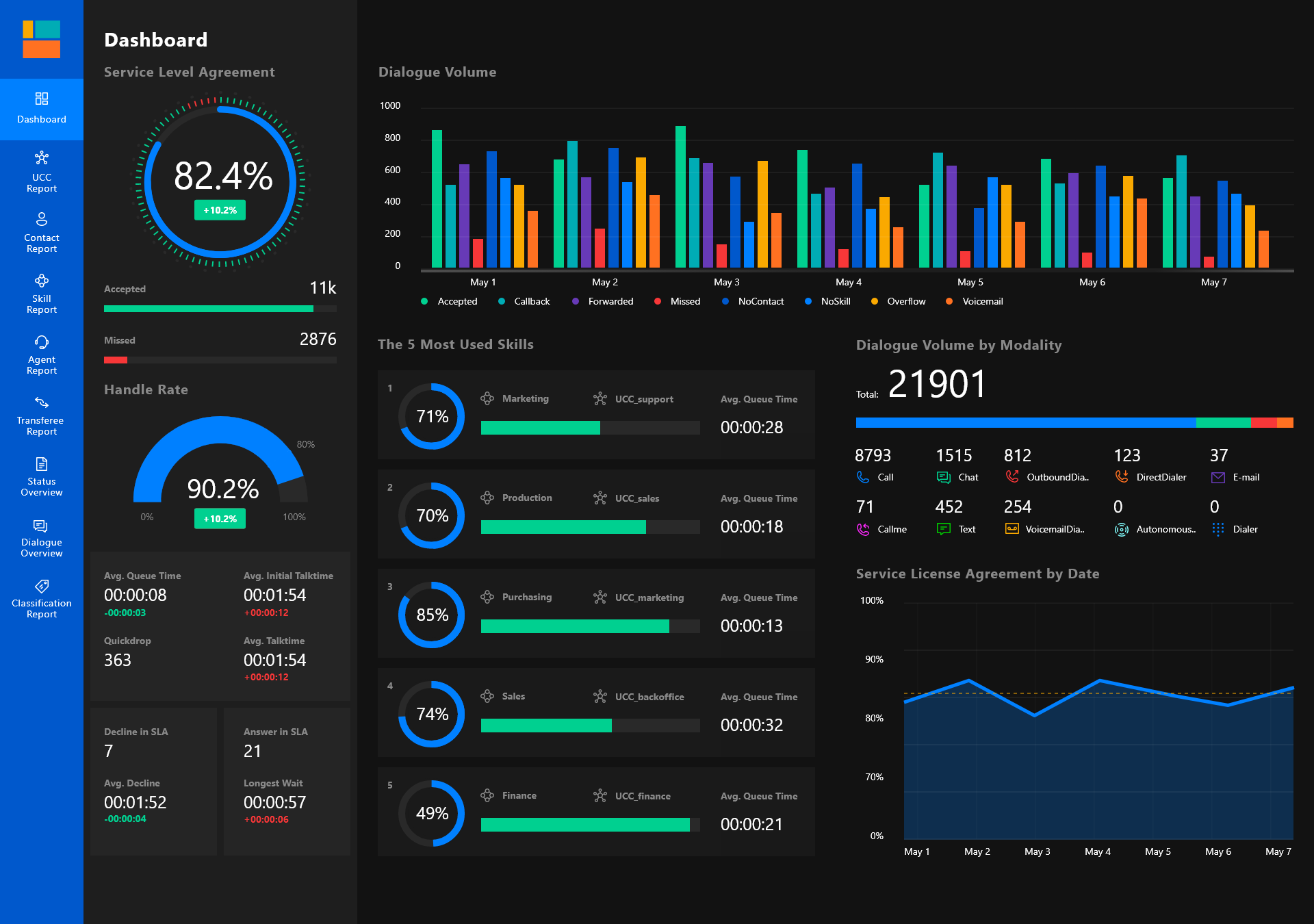
## Dashboard
The dashboard is the landing page of the template. It gives a quick overview of contact-center performance for the selected UCCs and period.
The dashboard focuses on dialogue volume by action type, modality, skill, and time. You can start filtering from the dashboard and then navigate to the detailed report pages.
### Dashboard KPI panel
| Visual or field | What it shows |
| ----------------------------- | -------------------------------------------------------------------------------------------------------------------------------------------------------------------------------------------------------------------------------------------- |
| Service Level Agreement (SLA) | Percentage of inbound dialogues accepted within the configured SLA threshold. When a timeframe is selected, the secondary percentage shows the increase or decrease compared with the previous period. |
| Accepted / Missed | Accepted and missed dialogues. Dialogues that drop before the configured quickdrop threshold are reported as quickdrops instead of missed dialogues. |
| Handle rate | Handled calls compared with offered calls. The secondary percentage shows the change from the previous period. |
| Average queue time | Average time the contact spent in queue before an agent accepted the dialogue or before the contact left the queue by disconnecting or selecting a prompt or forward option. The secondary value compares the selected and previous periods. |
| Quickdrops | Dialogues dropped within the configured quickdrop threshold after entering the queue. |
| Declines in SLA | Missed dialogues between the quickdrop threshold and the primary SLA threshold. |
| Average decline | Average queue time for missed calls. The secondary value compares the selected period with the previous period. |
| Average initial talk time | Average duration of the conversation with the first agent. If a call is forwarded, talk time after the forward is not included in this value. |
| Average talk time | Total talk time between the contact and all agents, including talk time after forwards. |
| Answer in SLA | Accepted dialogues within the primary SLA threshold. |
| Longest wait | Longest time a contact waited before the call was accepted or before disconnecting. |
### Dashboard visuals
| Visual or field | What it shows |
| --------------------------- | ---------------------------------------------------------------------------------------------------------------------------------------------------------------------------------------------------- |
| Dialogue Volume | Column chart with the number of dialogues over time. Use Power BI drill-down controls in the visual header to move through the time levels. |
| Dialogue Volume by Modality | Total dialogue count split by modality in a horizontal stacked column. Select one or more modalities to filter the other visuals. In Dialogue Cloud V3, text-based channels are grouped as **Text**. |
| The 5 Most Used Skills | Top five skills by volume. For each skill, the cards show SLA, accepted and missed dialogues, and average queue time. |
| Total Volume | Total number of dialogues in the selected timeframe. |
| Volume per channel | Number of dialogues per modality or channel. Modalities without volume can still be shown in the grid. |
## UCC report
Use the UCC report to inspect dialogues coming into one or more UCCs.
Use filters to inspect one UCC or to compare a selected group of UCCs. The report includes KPI cards, trend visuals, a heatmap, and an overview table that can be drilled down from UCC to department or skill.
### UCC panel
| Visual or field | What it shows |
| ------------------ | ------------------------------------------------------------------------------------------------------------------------------------------------------------------------------------------------ |
| Accepted | Donut chart showing accepted dialogues in green, missed dialogues in red, and quickdrops in orange. |
| Missed | Number of missed dialogues, excluding quickdrops. |
| Quickdrop | Dialogues dropped within the configured quickdrop threshold. Quickdrops are excluded from missed-call calculations. |
| Avg. Int. Talktime | Average duration of the first conversation with an agent. If the call is forwarded, talk time after the forward is not included. The secondary value compares the selected and previous periods. |
| Max. Int. Talktime | Maximum duration of the first conversation with an agent. The secondary value compares the selected and previous periods. |
| Avg. Queue Time | Average time a caller waited before an agent answered. The secondary value compares the selected and previous periods. |
| Max Queue Time | Longest time a contact waited before the call was accepted or before disconnecting. The secondary value compares the selected and previous periods. |
### UCC visuals and tables
| Visual or field | What it shows |
| ------------------ | --------------------------------------------------------------------------------------------------------------------------------------------------------------------------------------- |
| Heatmap Calls | UCC load by day and hour. The source report uses red for the busiest periods, orange for average periods, green for the lowest periods, and blue when there are no dialogues. |
| Dialogue Volume | Dialogue volume over time. Use the drill-down arrows in the visual header to move to month or day level. |
| Average Queue Time | Queue time over time. Use the drill-down arrows in the visual header to move to month or day level. |
| UCC Overview | Table grouped by UCC. A UCC dropdown filter is available in the header. The table can be drilled down to departments or skills by using the expand icon or Power BI drill-down options. |
| UCC per hour | Alternate table view, selected from the table header, that groups UCC data by hour. |
The UCC overview table includes **Volume** plus selected action-type columns: **Accepted**, **Missed**, **Forwarded**, **Voicemail**, **Overflow**, and **No Skill**. These columns are a selection, not the complete action-type set, so they may not add up to the total volume. The source also lists additional action types that can be added in Power BI Desktop or Power BI Online edit mode: **NoContact**, **Prompt**, **CallBack**, and **None**. The final columns show average queue time, talk time, and discharge time.
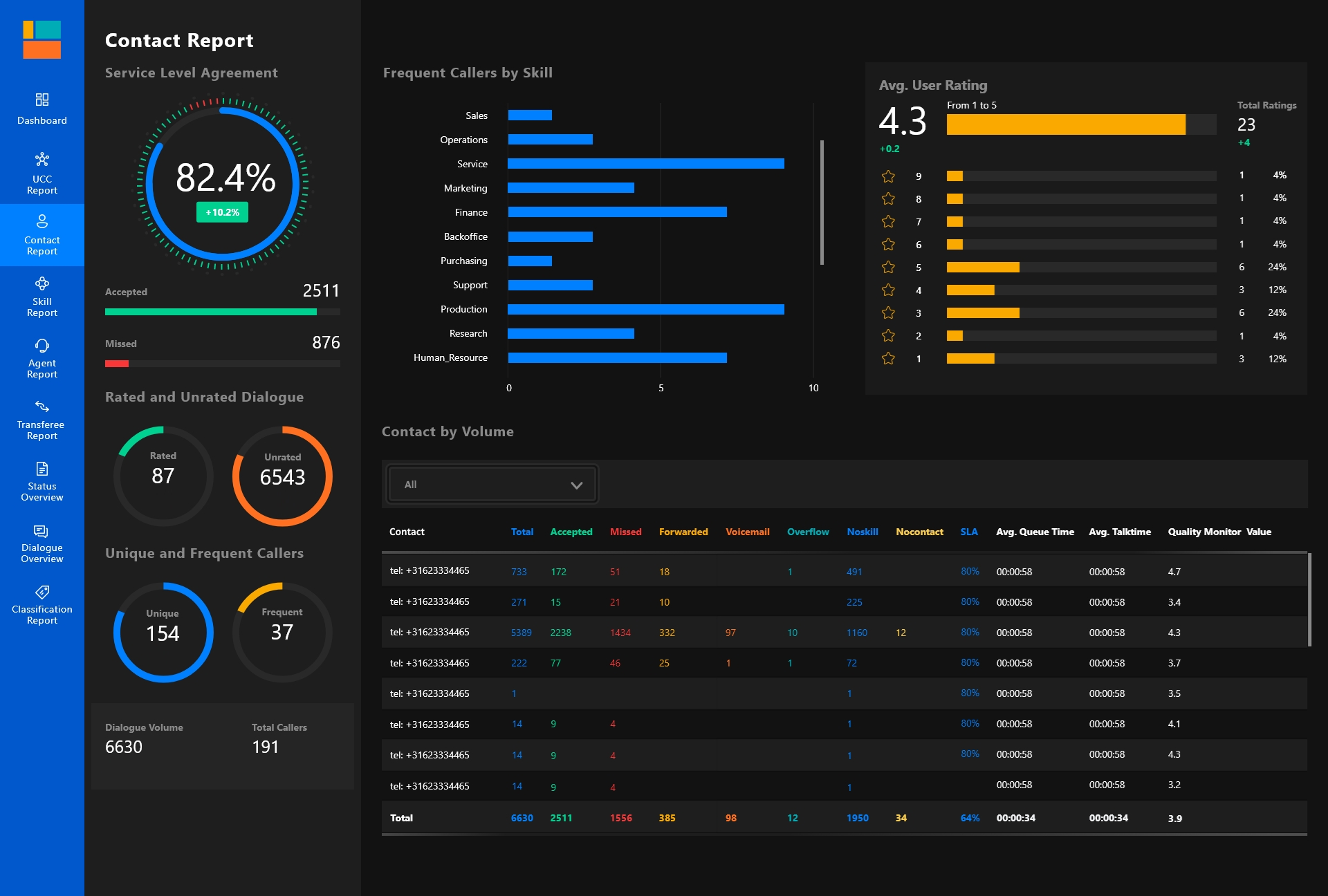
## Contact report
Use the contact report to review dialogue data from a contact perspective, including frequent contacts and contact-level Quality Monitoring information.
Select one or more contacts in the table to filter the other visuals. The report also summarizes Quality Monitoring scores for the selected contacts. Score details per contact and question are available by drilling through from a specific dialogue to the dialogue detail report.
### Contact panel
| Visual or field | What it shows |
| ----------------------------- | --------------------------------------------------------------------------------------------------------------------------------------------- |
| Service Level Agreement (SLA) | Percentage of inbound calls accepted within the configured SLA threshold. The secondary percentage shows the change from the previous period. |
| Accepted / Missed | Accepted and missed dialogues. Dialogues below the quickdrop threshold are reported as quickdrops instead of missed dialogues. |
| Rated and Unrated Dialogue | Number of dialogues that have or have not been rated by Quality Monitoring. |
| Unique and Frequent Contacts | Unique contacts are first-time callers. Frequent contacts are contacts that meet the report's configured frequent-contact threshold. |
| Dialogue Volume | Total number of dialogues, without filtering by dialogue type. |
| Total Callers | Total number of unique addresses. |
### Contact visuals and tables
| Visual or field | What it shows |
| ------------------------ | ---------------------------------------------------------------------------------------------------------------------------------- |
| Frequent caller by skill | Number of dialogues by chosen skill for frequent callers. An empty row can mean the contact ended in IVR before selecting a skill. |
| Avg. User Rating | Overall average rating and the number of rated dialogues split by rating from 1 to 9 stars. |
| Volume By Contact | Contact-level table with dialogue totals and selected action-type columns. |
The **Volume By Contact** table includes **Volume**, **Accepted**, **Missed**, **Forwarded**, **Voicemail**, **Overflow**, and **No Skill**. These status columns are a selection, not the complete action-type set, so they may not add up to the total volume. The final columns show average queue time, talk time, discharge time, and the Quality Monitoring value.
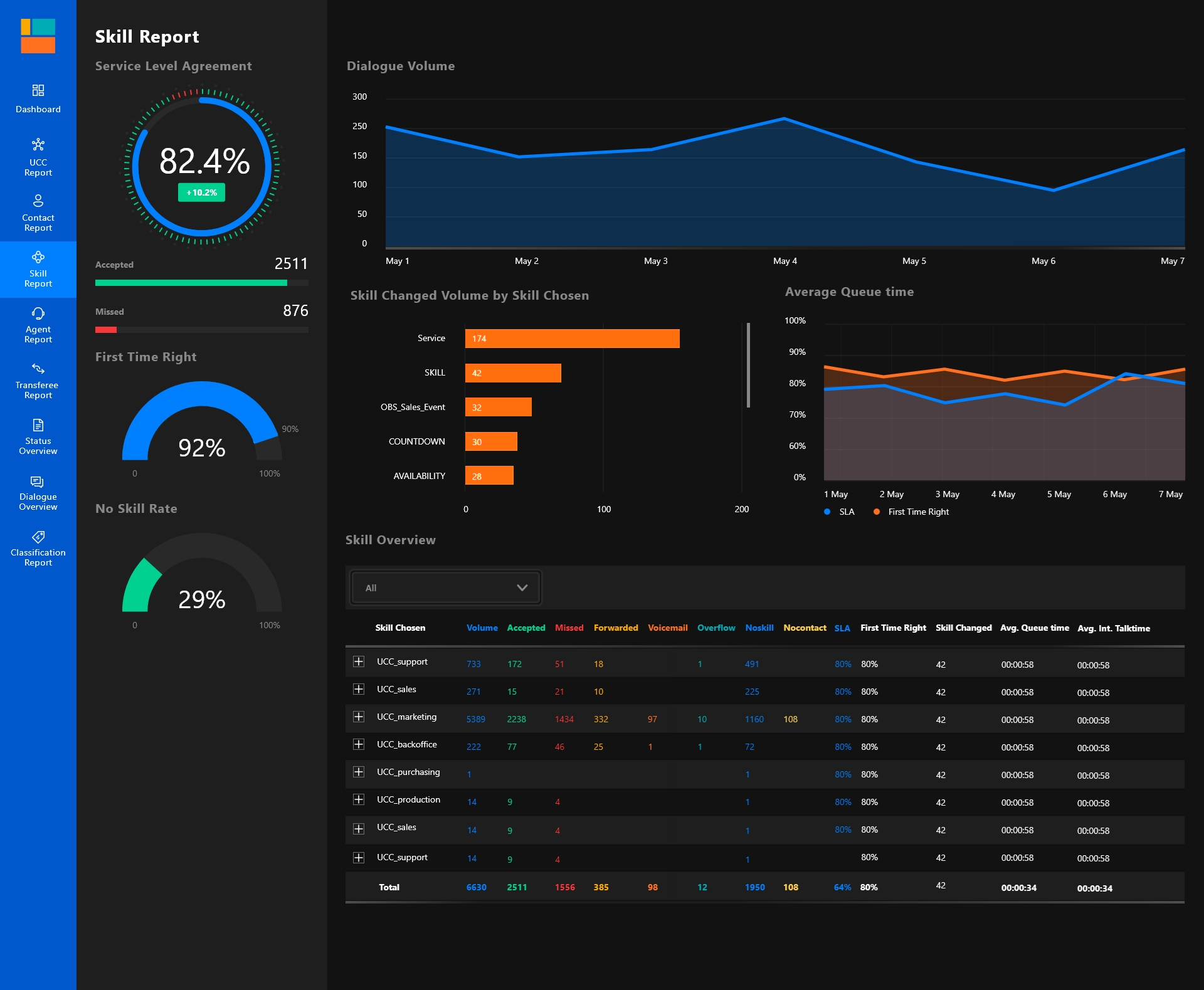
## Skill report
Use the skill report to review departments or skills within selected UCCs.
The skill report shows dialogue data from a skill or department perspective. It also adds skill-specific indicators such as first time right and skill changed volume.
### Skill panel
| Visual or field | What it shows |
| ----------------------------- | ------------------------------------------------------------------------------------------------------------------------------------------------- |
| Service Level Agreement (SLA) | Percentage of inbound dialogues accepted within the configured SLA threshold. The secondary percentage shows the change from the previous period. |
| Accepted / Missed | Accepted and missed dialogues. Dialogues below the quickdrop threshold are reported as quickdrops instead of missed dialogues. |
| First Time Right | Gauge showing the percentage of dialogues handled by the first agent the dialogue was connected to. |
| No Skill Rate | Percentage of dialogues that ended in IVR before a skill was selected. |
### Skill visuals and tables
| Visual or field | What it shows |
| ------------------------------------------- | ------------------------------------------------------------------------------------------------------------------------------------------- |
| Dialogue Volume | Line graph with dialogue volume over time. Use the drill-down arrows in the visual header to move through year, quarter, and month. |
| Skill Changed Volume by Skill Chosen | Bar chart showing the number of dialogues where an agent initiated a skill transfer. |
| SLA and First Time Right Percentage by Date | Trend graph where the blue line represents the percentage of dialogues answered within SLA and the orange line represents first time right. |
| Skill Overview | Table with UCC totals that can be expanded for skill details. |
The **Skill Overview** table shows **Total** dialogues in blue, **Accepted** dialogues in green, **Missed** dialogues in red, **Forwarded** calls in yellow, voicemail transfers in orange, and **Overflow**. Overflow represents calls that cannot be answered and are kept waiting to enter the queue. These status columns are a selection, not the complete action-type set, so they may not add up to the total volume. The table also includes **SLA percentage**, **F.T.R. percentage**, **Skill Changes**, average queue time, talk time, discharge time, and Quality Monitoring value.
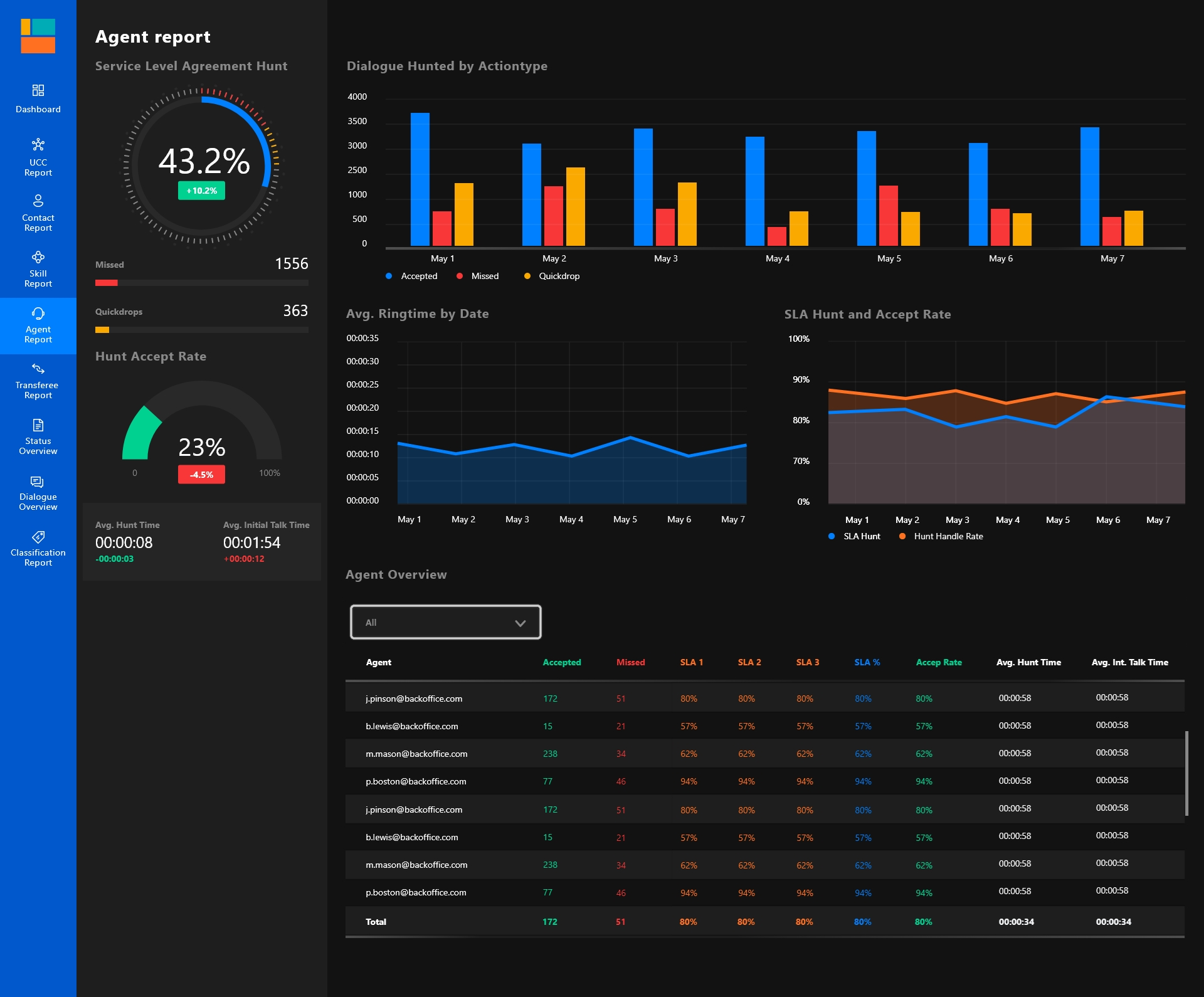
## Agent report
Use the agent report to monitor individual agent hunt performance. Selecting an agent in the table filters the other visuals to that agent.
A dialogue can be hunted to multiple agents before it is accepted or missed. Because of this, missed hunts do not directly equal missed dialogues.
### Agent panel
| Visual or field | What it shows |
| ---------------------------- | -------------------------------------------------------------------------------------------------------------------------------------------------------------------------------------------------------------------------- |
| Service Level Agreement Hunt | Percentage of accepted hunts compared with offered hunts. The donut chart shows missed hunts in red, quickdrops in orange, and accepted hunts in blue. The secondary percentage shows the change from the previous period. |
| Missed | Number of missed hunts, excluding quickdrops. |
| Quickdrops | Number of hunt quickdrops, registered when the contact disconnects within the configured quickdrop threshold after the hunt starts. |
| Hunt Accept Rate | Gauge showing the percentage of hunts the agent accepted. The secondary graph shows the change from the previous period. |
| Avg. Hunt Time | Average ring time. The secondary value compares the selected and previous periods. |
| Avg. Initial Talk Time | Average duration of the conversation with the first agent. If the dialogue is forwarded, talk time after the forward is not included. |
### Agent visuals and tables
| Visual or field | What it shows |
| ----------------------------- | --------------------------------------------------------------------------------------------------------------------------------------------------------------------------------------- |
| Dialogue Hunted by Actiontype | Column chart with hunts over time by action type: accepted in blue, missed in red, and quickdrop in orange. Use the drill-down arrows in the visual header to move through time levels. |
| Avg. Ringtime by Date | Average ring time over time. Ring time is the time between the agent being hunted and the agent accepting the call or the hunt timing out. |
| SLA Hunt and Accepted Rate | Graph showing SLA Hunt percentage in blue and hunt accepted rate in orange. Use the drill-down arrows in the visual header to move through time levels. |
| Agent Overview | Detailed table of agent hunt scores. Use the dropdown in the header to select one or more agents. |
The **Agent Overview** table shows accepted hunts in green, missed hunts in red, report-defined SLA columns in orange, **SLA%** in blue for hunts accepted within the primary SLA, **Accept Rate**, average hunt time, talk time, and discharge time.
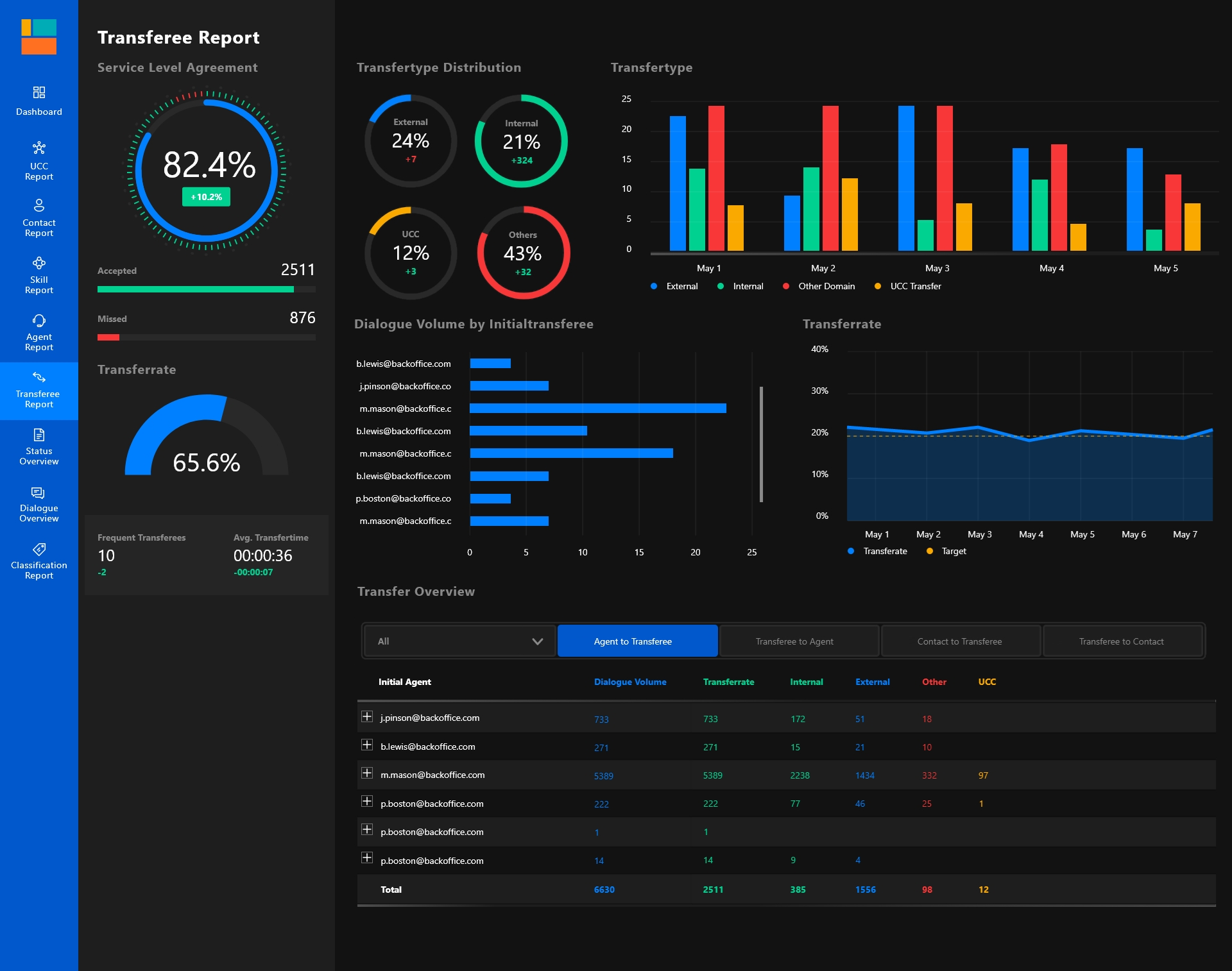
## Transferee report
Use the transferee report to review dialogues that were transferred.
### Transferee panel
| Visual or field | What it shows |
| ----------------------------- | ------------------------------------------------------------------------------------------------------------------------------------------------- |
| Service Level Agreement (SLA) | Percentage of inbound dialogues accepted within the configured SLA threshold. The secondary percentage shows the change from the previous period. |
| Accepted / Missed | Accepted and missed dialogues. Dialogues below the quickdrop threshold are reported as quickdrops instead of missed dialogues. |
| Transferrate | Percentage of dialogues that received a transfer to another agent, another number, or another UCC. |
| Frequent Transferees | Transferees who received more transferred dialogues than the configured **Frequent Transfers** parameter. |
| Avg. Transfertime | Average time the dialogue spent in AnywhereNow after being transferred. |
### Transferee visuals and tables
| Visual or field | What it shows |
| ------------------------------------ | ----------------------------------------------------------------------------------------------------------------------------------------------------------------------------------------------------------------------------------------------------------- |
| Transfertypes | Column chart showing transfer types over time. Internal transfers go to the same domain as the agent who initiated the transfer. External transfers go to a phone number. Other-domain transfers go to a different domain. UCC transfers go to another UCC. |
| Dialogue Volume by Initialtransferee | Column chart showing the number of transferred dialogues per agent. |
| Transferrate | Blue trend line showing the percentage of transferred dialogues over time. Use the drill-down arrows in the visual header to move through time levels. |
| Transfer Overview | Table with a dropdown for selecting one or more agents and buttons for the views **Agent to Transferee**, **Transferee to Agent**, **Contact to Transferee**, and **Transferee to Contact**. |
The **Transfer Overview** table includes **Transferable Dialogue** in blue, **Transferrate** in green, **Internal** transfers in green, **External** transfers in blue, **Other Domain** transfers in red, and **UCC** transfers in orange.
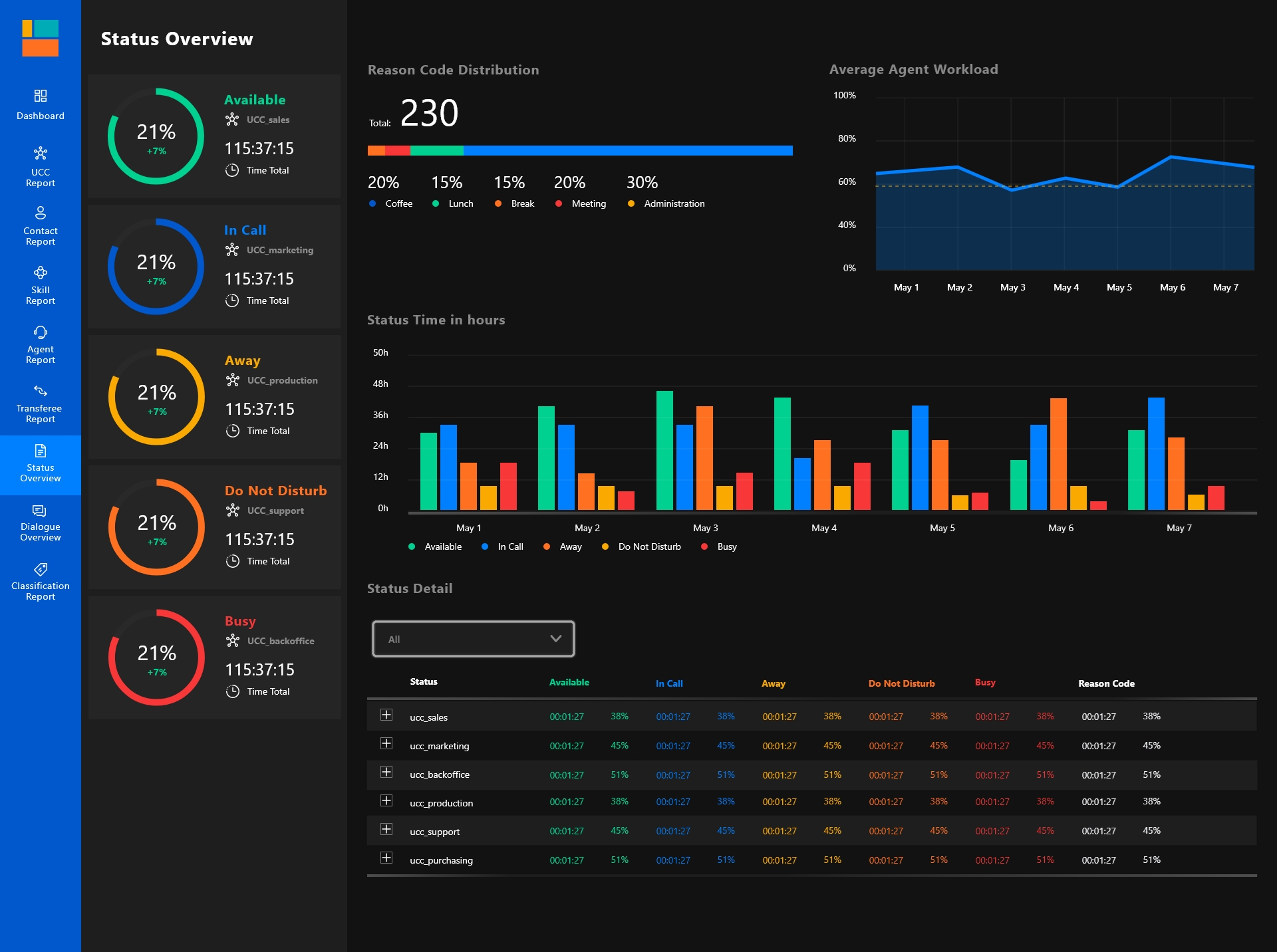
## Status report
Use the status report to review presence information for agents when presence data is loaded.
This report only contains information when presence information is loaded for the report. It gives an overview of reason codes and the most idle, busy, or available UCCs. Zooming in to day level can make start and end times easier to read than on higher-level overviews.
| Visual or field | What it shows |
| ----------------------- | ---------------------------------------------------------------------------------------------------------------------------------------------------------------------------------------------------------------------- |
| Status Overview panel | Time and share for the different statuses of a selected UCC or agent. |
| Average Agent Call Time | Percentage of time a UCC or agent was in the **in call** state compared with total online time. |
| Status Time | Column chart showing UCC or agent status over time. Use the drill-down arrows in the visual header to move through time levels. |
| Status Details | Table with status details in time notation for a UCC or agent. Expand the UCC to show agent details. Selecting an agent filters the other visuals. At day level, the table can show each status change during the day. |
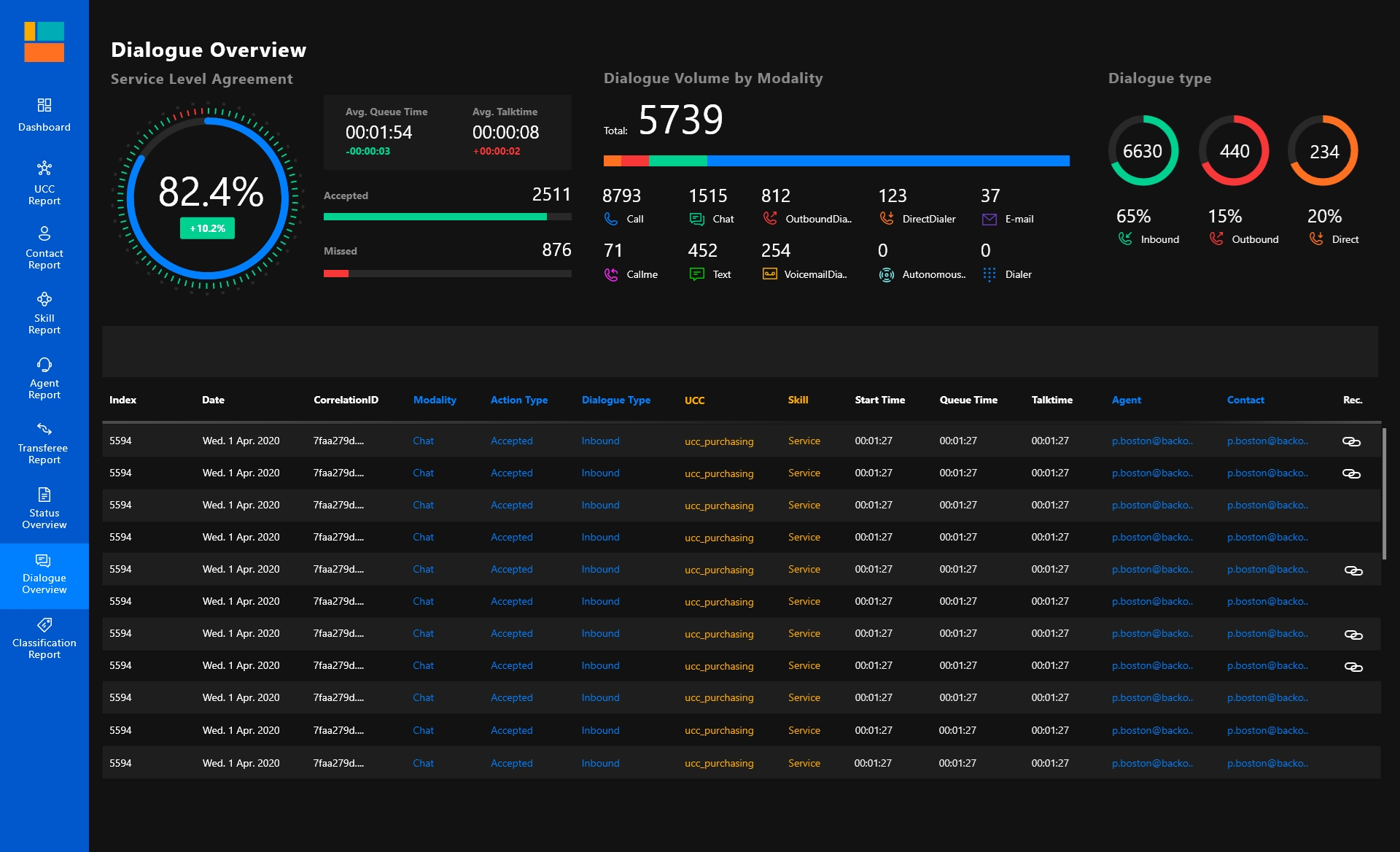
## Dialogue overview
Use the dialogue overview report to search and inspect detailed information about dialogues in the filtered selection.
You can use the filter panel or table filters to narrow the list. From a specific dialogue, use drill-through to open dialogue detail.
Use this report to find specific dialogues, such as missed calls from a selected agent or incoming text dialogues from a selected contact.
| Visual or field | What it shows |
| ----------------------------- | ------------------------------------------------------------------------------------------------------------------------------------------------------------------------------------------------------------------------------------------ |
| Service Level Agreement (SLA) | Percentage of inbound calls accepted within the configured SLA threshold. The secondary percentage shows the change from the previous period. |
| Avg. Discharge Time | Average agent discharge or wrap-up time after the conversation. |
| Avg. Queue Time | Average time a caller spent in queue before an agent accepted the dialogue or before the caller disconnected. The secondary value compares the selected and previous periods. |
| Average Talk Time | Total duration of the conversation with the customer, including time after forwards to other agents. |
| Accepted / Missed | Accepted and missed dialogues. Dialogues below the quickdrop threshold are reported as quickdrops instead of missed dialogues. |
| Dialogue Volume by Modality | Total dialogue count split by modality in a horizontal stacked column. Select one or more modalities to filter the other visuals. In Dialogue Cloud V3, text-based channels are grouped as **Text**. |
| Dialogue Type | Number and share of incoming inbound, outgoing outbound, and direct calls. |
| Detail table | Table with all dialogues in the filtered selection. Use **Show filters** in the table header to open table filters. Right-click a dialogue row, select **Drill-through**, and choose **Dialogue Detail** to open the dialogue detail page. |
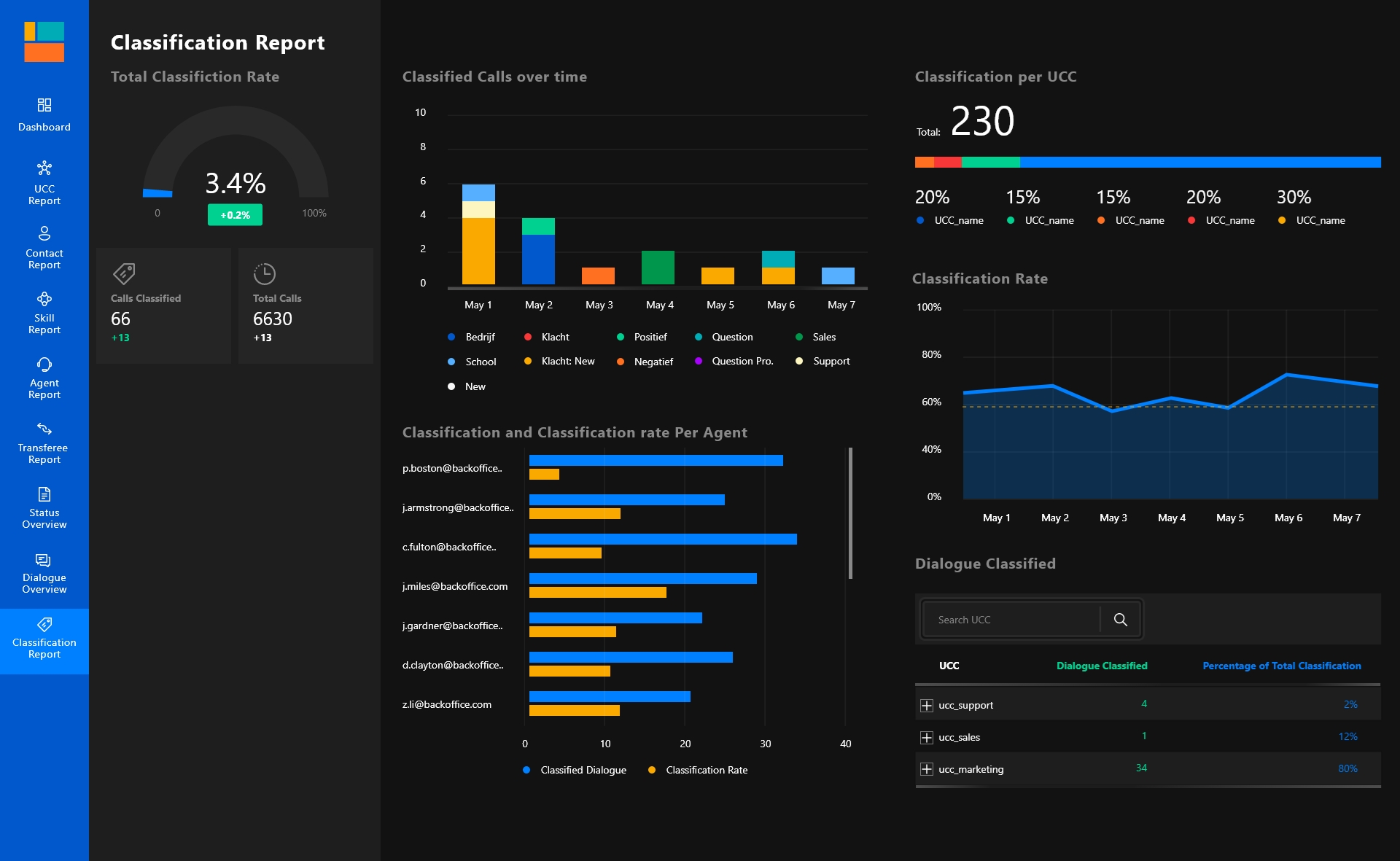
## Classification report
Use the classification report to review classification data for classifiable dialogues.
A dialogue is classifiable when it has action type **accepted** or **forwarded** and can be classified by an agent in the extension window or WebAgent.
### Classification panel
| Visual or field | What it shows |
| ------------------------- | --------------------------------------------------------------------- |
| Total Classification Rate | Percentage of classified dialogues out of all classifiable dialogues. |
| Dialogues Classified | Total number of classified dialogues. |
| Dialogue Volume | Total number of dialogues. |
### Classification visuals and tables
| Visual or field | What it shows |
| ---------------------------------- | ----------------------------------------------------------------------------------------------------------------------------------------------------------------------------- |
| Classified Calls over Time (Top 5) | Column chart showing the top five classifications over time. Use the drill-down arrows in the visual header to move through time levels. |
| Classification Rate by Agent | Columns showing the average classification rate by agent. |
| Classification by UCC Names | Total classified dialogues, with a bar below that splits the total by UCC. |
| Classification Rate | Line graph showing classification rate over time. Use the drill-down arrows in the visual header to move through time levels. |
| Dialogue Classified | Table showing the number of classified dialogues in green and the percentage in blue compared with classifiable dialogues. Expand the UCC to see lower classification levels. |
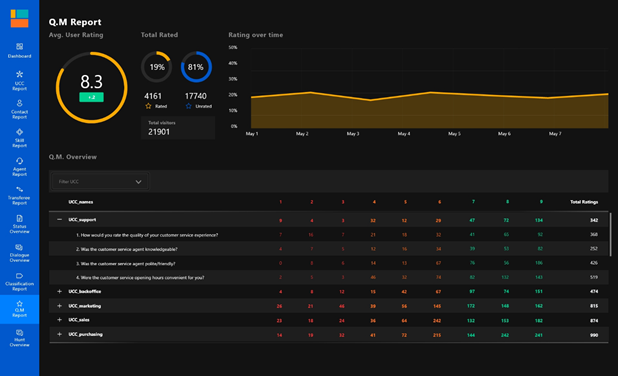
## Quality Monitoring report
Use the Quality Monitoring report to review customer experience and submitted ratings.
The report focuses on customer experience and repeats relevant rating information from other reports.
| Visual or field | What it shows |
| --------------------------- | --------------------------------------------------------------------------------------------------------------------------------------------------------------------------------------------------------------------- |
| Rating Percentage | Percentage of dialogues that have a Quality Monitoring rating. |
| Total rated | Rated and unrated dialogues, shown as percentages and actual counts. |
| Avg. User Rating | Total average rating, rounded to the nearest tenth. |
| Rating over time | Trend diagram showing the number of submitted ratings over the selected date range. |
| Total Rated & Average Score | Trend diagram showing submitted rating count and average score over the selected date range. |
| Quality monitoring overview | Table with Quality Monitoring questions and results per UCC. Filter the list to find a specific UCC. Selecting or filtering this table changes the top Quality Monitoring panel to show details for the selected UCC. |
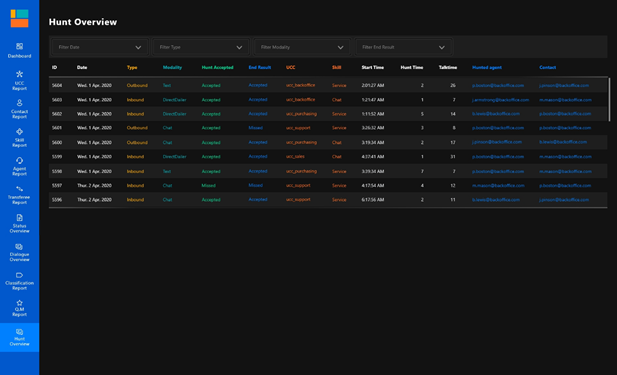
## Hunt overview report
Use the hunt overview report to review hunt results, dialogue volume by modality, and individual hunt rows.
| Visual or field | What it shows |
| --------------------------- | ---------------------------------------------------------------------------------------------------------------------------------------------------------------------------------------------------- |
| Hunt Result | Accepted hunts compared with total hunts. The inner solid circle represents the agreed SLA, and the outer dashed circle and percentage show the actual result. |
| Dialogue volume by modality | Total dialogue count split by modality in a horizontal stacked column. Select one or more modalities to filter the other visuals. In Dialogue Cloud V3, text-based channels are grouped as **Text**. |
| Hunt overview | Table with individual hunts listed from top to bottom. Use the available filter options to focus the list on the hunts relevant to your investigation. |
---
# Agent Instructions
This documentation is published with GitBook. GitBook is the documentation platform designed so that both humans and AI agents can read, navigate, and reason over technical content effectively. Learn more at gitbook.com.
## Querying This Documentation
If you need additional information that is not directly available in this page, you can query the documentation by asking a question.
Perform an HTTP GET request on the following URL with the `ask` and `goal` query parameters:
```
GET https://atlas.anywhere.now/use/monitor-and-report/power-bi-template.md?ask=&goal=
```
`ask` is the immediate question: it should be specific, self-contained, and written in natural language.
`goal` is what the user is ultimately trying to achieve, the reason they need the answer. Sharing it helps GitBook give you a better, more relevant answer. A goal is most helpful when it describes the outcome the user wants rather than restating the question. For example, with `ask=how do I create an API token`, a goal like `automate deployments from our CI pipeline` lets GitBook tailor the answer to that use case.
The response will contain a direct answer to the question and relevant excerpts and sources from the documentation.
Use this mechanism when the answer is not explicitly present in the current page, you need clarification or additional context, or you want to retrieve related documentation sections.