> For the complete documentation index, see [llms.txt](https://atlas.anywhere.now/llms.txt). Markdown versions of documentation pages are available by appending `.md` to page URLs; this page is available as [Markdown](https://atlas.anywhere.now/use/monitor-and-report/dialogue-insights/real-time-dashboard.md).
# Dialogue Insights real-time dashboard
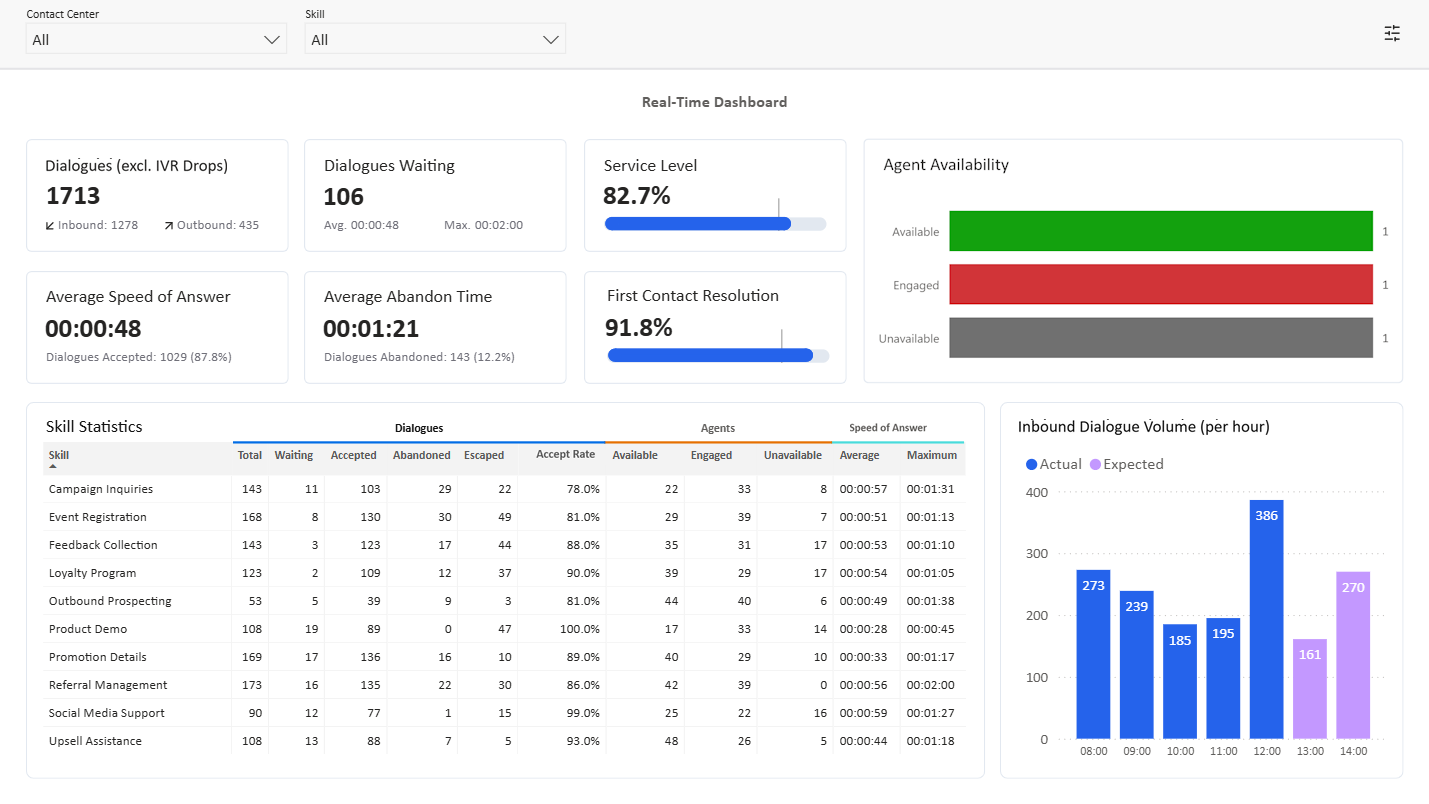
Monitor today's contact center performance with the Dialogue Insights real-time dashboard.
The real-time dashboard gives you a live view of today's contact center performance. The dashboard refreshes automatically when a new event is detected.
The screenshots use example data, with titles and labels updated to match the production dashboard.
## Before you start
You need access to Dialogue Insights and to the contact centers you want to monitor.
## Filter the dashboard
Use the filters to refine dashboard data by contact center and skill.
### Contact center
The **Contact Center** filter filters data for one or more contact centers, or for all contact centers. The filter menu includes search and supports:
* Selecting one contact center.
* Selecting multiple contact centers with `Ctrl` on Windows/Linux or `Cmd` on macOS.
* Selecting all contact centers with **Select all**.
Changes apply immediately and update the dashboard.
### Skill
The **Skill** filter works like the **Contact Center** filter. It filters real-time data at skill level.
Use search in the filter menu to find contact centers or skills. In the current report guidance, real-time filter search matches whole words and is case-sensitive.
## Read the cards
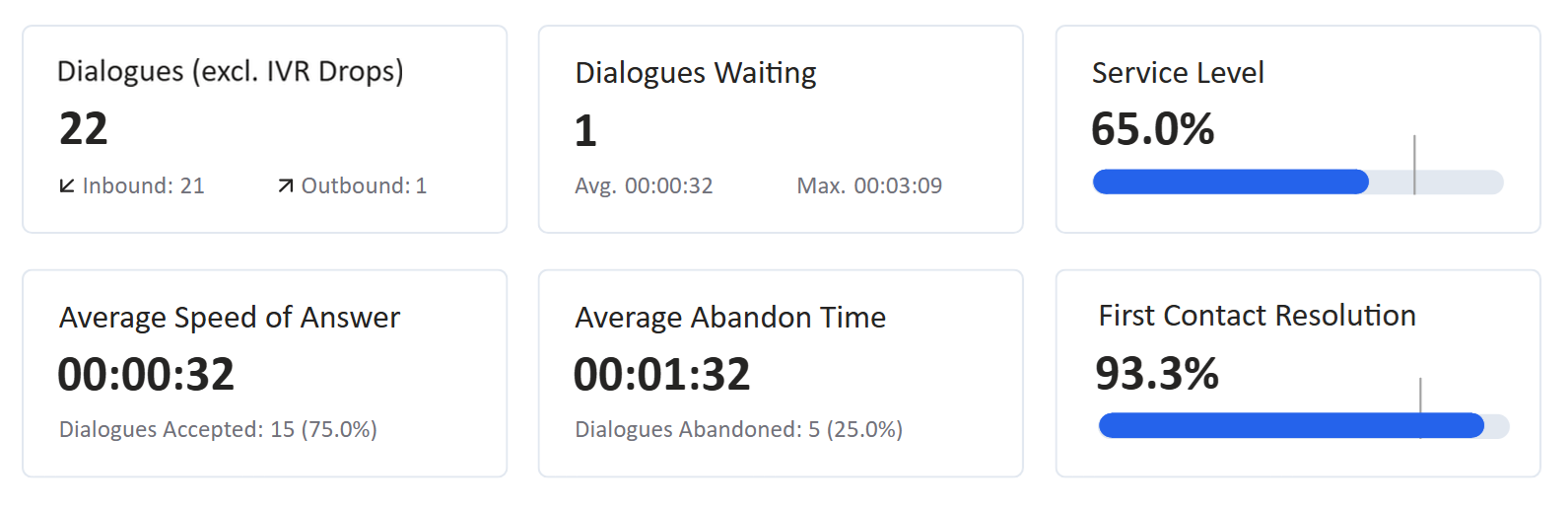
Cards show contact center metrics as numbers.
| Card | What it shows |
| ------------------------------- | ---------------------------------------------------------------------------------------------------------------------------------------------------------------------------------------------- |
| **Dialogues (excl. IVR Drops)** | Total dialogues for the selected contact centers and skills. This includes outbound dialogues and inbound dialogues that were queued. Inbound dialogues dropped while in the IVR are excluded. |
| **Dialogues Waiting** | Inbound dialogues currently queued, average waiting time, and maximum waiting time for today's dialogues. |
| **Service Level** | Queued inbound dialogues answered within 20 seconds divided by queued inbound dialogues. |
| **Average Speed of Answer** | Average answer time for queued inbound dialogues, total accepted inbound dialogues, and accept rate. |
| **Average Abandon Time** | Average wait time before abandonment, total abandoned inbound dialogues, and abandon rate. |
| **First Contact Resolution** | Answered inbound audio dialogues handled by the initial agent without transfer compared with total answered inbound audio dialogues. |
The default target for **Service Level**, **Accept Rate**, and **First Contact Resolution** is 80%. You can update target bars in **Settings**.
{% hint style="info" %}
**Dialogues Waiting**, **Dialogues Accepted**, and **Dialogues Abandoned** add up to the total number of inbound dialogues.
{% endhint %}
## Read the graphs
The real-time dashboard includes graphs for operational insight.
### Agent availability
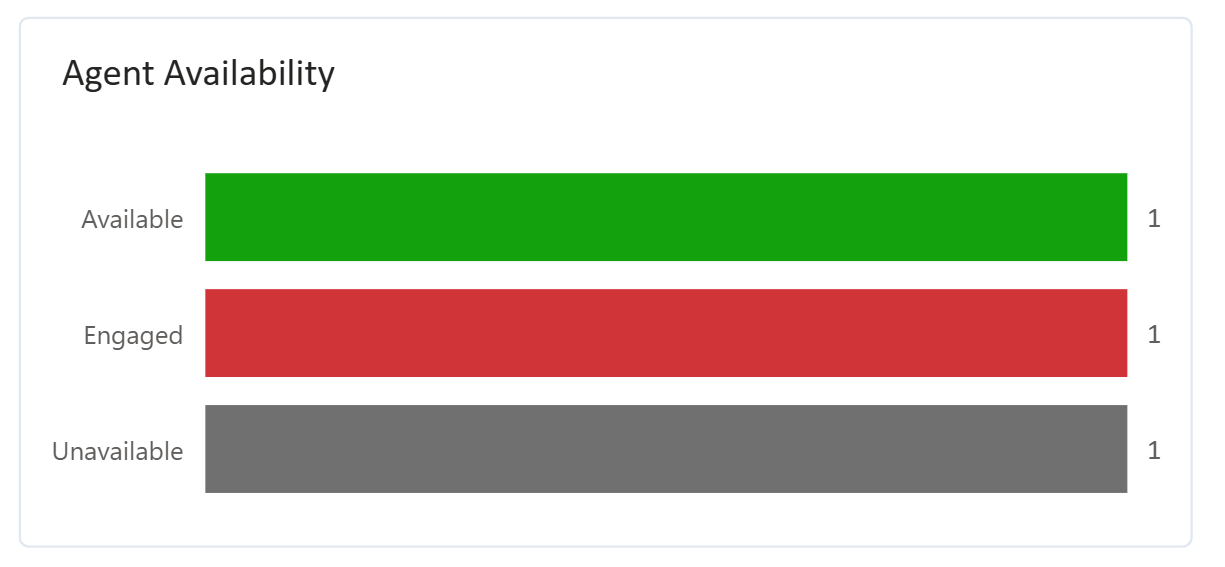
The **Agent Availability** graph visualizes the number of agents per availability status for the selected contact centers and skills:
* **Available**: Agents available to handle a new dialogue.
* **Engaged**: Agents handling a contact center dialogue.
* **Unavailable**: Agents currently unable to handle a new dialogue.
### Skill statistics
The **Skill Statistics** graph shows per-skill statistics for the selected contact centers and skills.
| Metric | What it shows |
| ----------------------------- | ------------------------------------------------------------------------ |
| **Skill Name** | Name of the skill. |
| **Total Dialogues** | Total dialogues queued in the skill. |
| **Dialogues Waiting** | Dialogues currently waiting for an agent in the skill. |
| **Dialogues Accepted** | Dialogues answered by an agent in the skill. |
| **Dialogues Abandoned** | Dialogues disconnected while waiting for an agent. |
| **Dialogues Escaped** | Dialogues that escaped from the skill to another destination. |
| **Dialogue Accept Rate** | Percentage accepted, considering accepted and abandoned dialogues. |
| **Available** | Agents available to handle a new dialogue. |
| **Agents Engaged** | Agents currently handling a contact center dialogue in this skill. |
| **Unavailable** | Agents assigned to the skill but not available to handle a new dialogue. |
| **Speed of Answer - Average** | Average wait time for dialogues queued in the skill. |
| **Speed of Answer - Maximum** | Maximum wait time for dialogues queued in the skill. |
### Inbound dialogue volume per hour
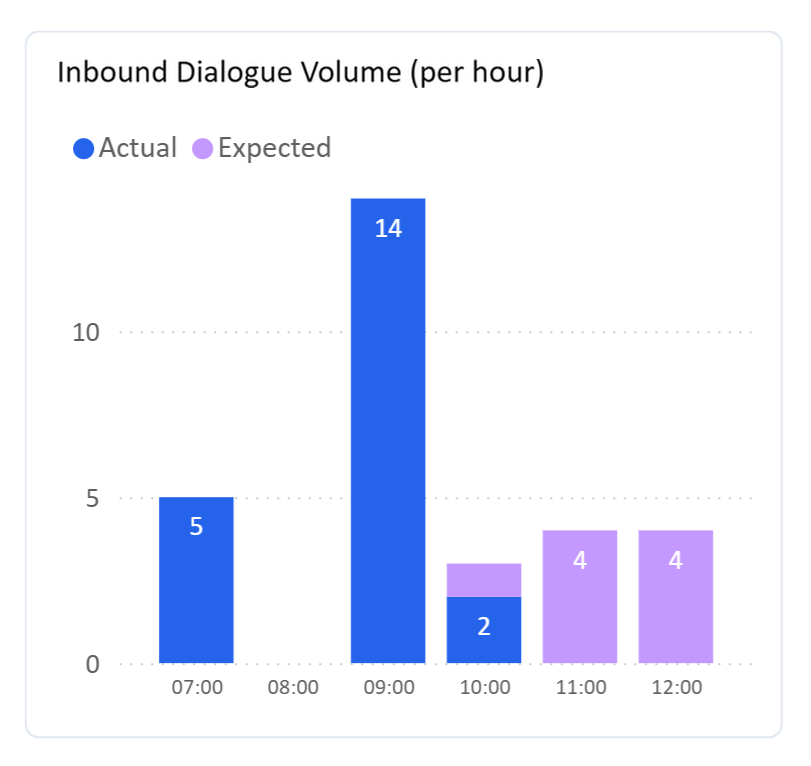
The **Inbound Dialogue Volume** graph shows the number of inbound dialogues queued in the selected contact centers and skills, aggregated by hour. It also forecasts expected dialogue volume for the next two hours using the previous 28 days, accounting for seasonal trends. Predictions are made at 15-minute intervals, so a single hour may display both actual and expected dialogue volumes.
## Change report settings
Use the settings menu to change report display options.
| Setting | What it changes |
| -------------------------- | ------------------------------------------------------------------------------------------------------------ |
| **Primary Service Metric** | Toggles between **Service Level** and **Accept Rate** as the primary metric. |
| **Targets** | Adjusts target bars for **Service Level**, **Accept Rate**, and **First Contact Resolution**. |
| **Time Zone** | Determines the start of the day and the hour alignment for the **Inbound Dialogue Volume (per hour)** graph. |
| **Selected Filters** | Shows the selected period, contact centers, skills, and tenants. The default period is today. |
---
# Agent Instructions
This documentation is published with GitBook. GitBook is the documentation platform designed so that both humans and AI agents can read, navigate, and reason over technical content effectively. Learn more at gitbook.com.
## Querying This Documentation
If you need additional information that is not directly available in this page, you can query the documentation by asking a question.
Perform an HTTP GET request on the following URL with the `ask` and `goal` query parameters:
```
GET https://atlas.anywhere.now/use/monitor-and-report/dialogue-insights/real-time-dashboard.md?ask=&goal=
```
`ask` is the immediate question: it should be specific, self-contained, and written in natural language.
`goal` is what the user is ultimately trying to achieve, the reason they need the answer. Sharing it helps GitBook give you a better, more relevant answer. A goal is most helpful when it describes the outcome the user wants rather than restating the question. For example, with `ask=how do I create an API token`, a goal like `automate deployments from our CI pipeline` lets GitBook tailor the answer to that use case.
The response will contain a direct answer to the question and relevant excerpts and sources from the documentation.
Use this mechanism when the answer is not explicitly present in the current page, you need clarification or additional context, or you want to retrieve related documentation sections.