> For the complete documentation index, see [llms.txt](https://atlas.anywhere.now/llms.txt). Markdown versions of documentation pages are available by appending `.md` to page URLs; this page is available as [Markdown](https://atlas.anywhere.now/use/monitor-and-report/dialogue-insights/historic-reporting-dashboard.md).
# Dialogue Insights historic reporting dashboard
Review historic contact center performance by period, contact center, and skill.
The historic reporting dashboard shows contact center performance over past days, months, or years.
{% hint style="info" %}
The report and dataset refresh every day at **00:30** in the reporting environment's time zone. If a report is open in the browser while the underlying dataset refreshes, refresh the report manually in the app before the new dataset is visible.
{% endhint %}
## Dashboard overview
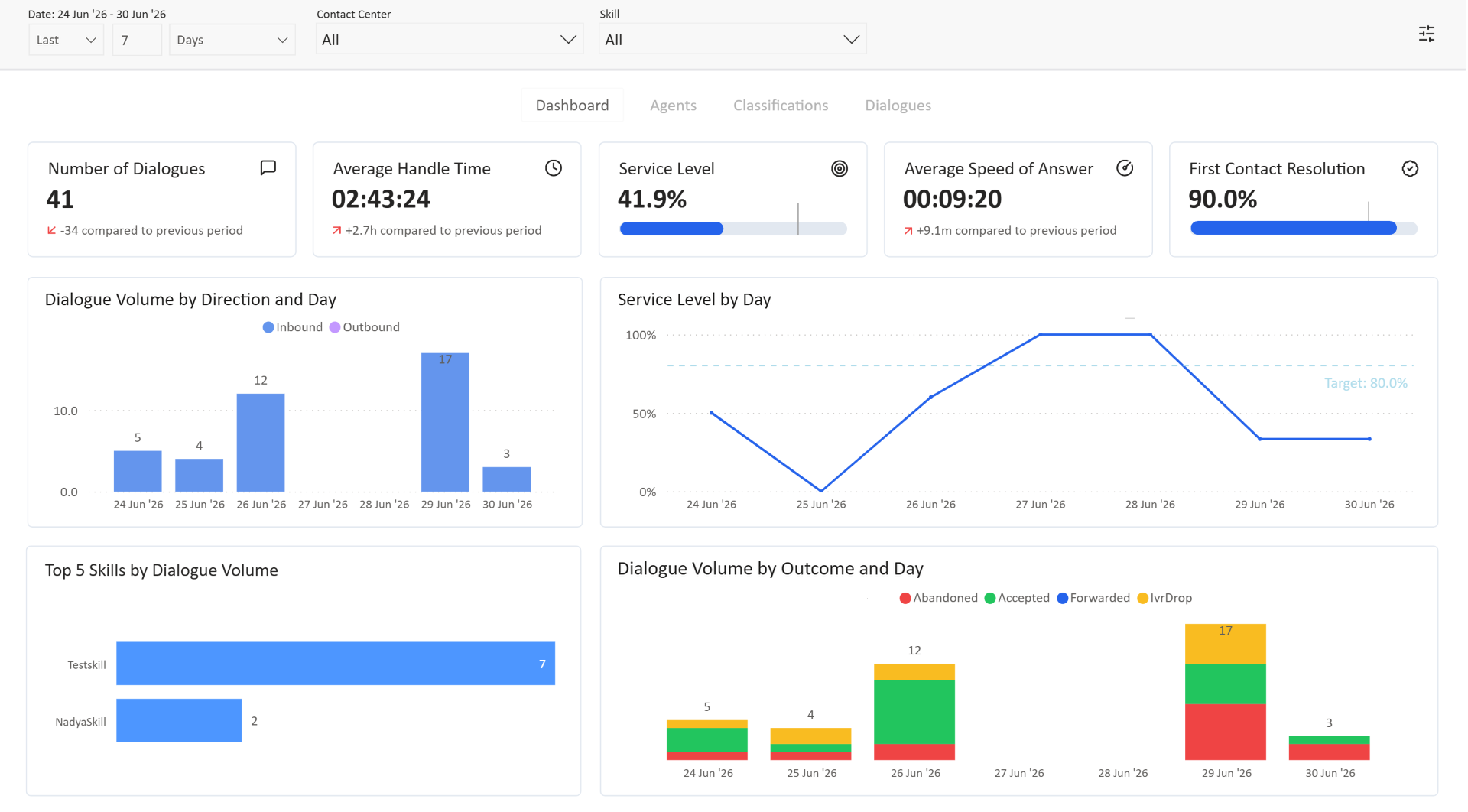
The dashboard includes filters, a report menu, cards, graphs, and settings.
The screenshots use example data, with titles, labels, and date-filter controls updated to match the production dashboard.
## Filter the dashboard
Filters refine dashboard data by time range, contact center, and skill.
### Time range
The date filter lets you select a reporting period using three controls: the time direction, the number of units, and the time unit. For example, select **Last**, enter **7**, and select **Days** to show the last seven days. The dates included in the report are displayed above the controls.
The selected time zone determines the reporting period, so metrics are calculated for local dates instead of Coordinated Universal Time (UTC) dates. This applies across the historic reports. You can change the time zone in [Settings](#change-report-settings).
Changes apply immediately and update the report.
### Contact center
The **Contact Center** filter filters data for one or more contact centers, or for all contact centers. The filter menu includes search and supports:
* Selecting one contact center.
* Selecting multiple contact centers with `Ctrl` on Windows/Linux or `Cmd` on macOS.
* Selecting all contact centers by selecting **All ``**.
### Skill
The **Skill** filter works like the **Contact Center** filter and filters historic report data at skill level.
Use search in the filter menu to find contact centers or skills. In the current report guidance, historic filter search supports partial words and is case-insensitive.
## Open another historic report
Use the menu to navigate between historic reports that are available.
## Read the cards
Cards present contact center performance metrics as numbers.
| Card | What it shows |
| ---------------------------- | -------------------------------------------------------------------------------------------------------------------------------------------------------------------------------------------------------------------------------------------------------------------------------------------------------------------------- |
| **Number of Dialogues** | Total dialogues for the selected period, contact centers, and skills. This includes inbound dialogues, including IVR drops, and outbound dialogues. |
| **Average Handle Time** | Average duration from agent acceptance until completion or disconnect, including hold times and transfers. |
| **Service Level** | Queued inbound dialogues answered within the service-level agreement (SLA) threshold configured by the Unified Contact Center (UCC) setting `ServiceLevelThreshold1InSeconds`, divided by queued inbound dialogues. If the setting is not configured on the UCC receiving the dialogue, Dialogue Insights uses 20 seconds. |
| **Average Speed of Answer** | Average time for agents to answer queued inbound dialogues. |
| **First Contact Resolution** | Answered inbound audio dialogues handled by the initial agent without transfer compared with total answered inbound audio dialogues. |
The default target for **Service Level**, **Accept Rate**, and **First Contact Resolution** is 80%. You can update target bars in **Settings**.
Large differences are shortened for readability:
| Source value | Displayed as |
| ------------: | -----------: |
| 1,250 | 1.3K |
| 1,250,000 | 1.3M |
| 1,250,000,000 | 1.3B |
The previous period depends on the selected time range:
| Selected period | Previous period |
| --------------- | -------------------------------------------------------------- |
| Whole month | Previous whole month |
| Whole year | Previous whole year |
| Otherwise | The same number of days immediately before the selected period |
## Read the graphs
The dashboard contains graphs for historic performance analysis.
| Graph | What it shows |
| ---------------------------------------- | --------------------------------------------------------------------------------------------------------------------------------------------------------------------------------------- |
| **Dialogue Volume by Direction and Day** | Total dialogues each day, split by inbound and outbound. |
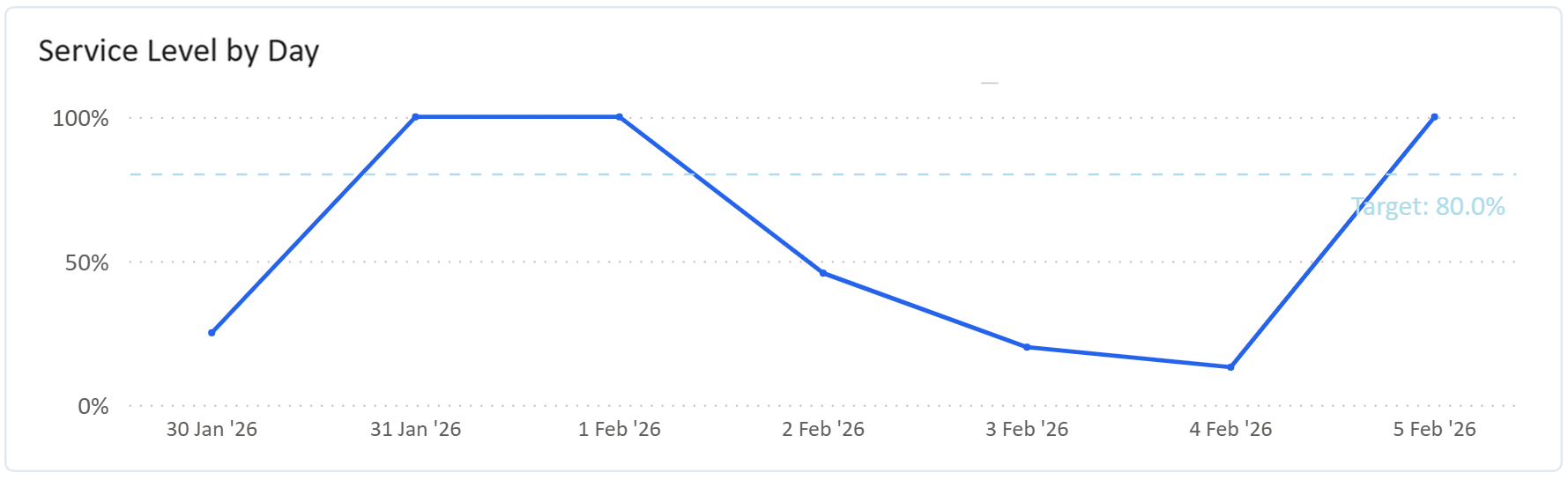
| **Service Level by Day** | Daily service level using the receiving UCC's `ServiceLevelThreshold1InSeconds` setting, or 20 seconds if not configured. The default target is 80% and can be changed in **Settings**. |
| **Top 5 Skills by Dialogue Volume** | Dialogues per day for the five busiest skills. |
| **Dialogue Volume by Outcome and Day** | Dialogues per day by outcome: Abandoned, Accepted, Forwarded, or IVR Drop. |
## Change report settings
Use the settings menu to change report display options.
| Setting | What it changes |
| -------------------------- | --------------------------------------------------------------------------------------------------------------------------------------------- |
| **Primary Service Metric** | Toggles between **Service Level** and **Accept Rate** as the primary metric. |
| **Targets** | Adjusts target bars for **Service Level**, **Accept Rate**, and **First Contact Resolution**. |
| **Time Zone** | Determines the start and end of each selected day and updates all metrics accordingly. The selected time zone is displayed below the setting. |
| **Selected Filters** | Shows the selected period, contact centers, skills, and tenants. |
---
# Agent Instructions
This documentation is published with GitBook. GitBook is the documentation platform designed so that both humans and AI agents can read, navigate, and reason over technical content effectively. Learn more at gitbook.com.
## Querying This Documentation
If you need additional information that is not directly available in this page, you can query the documentation by asking a question.
Perform an HTTP GET request on the following URL with the `ask` and `goal` query parameters:
```
GET https://atlas.anywhere.now/use/monitor-and-report/dialogue-insights/historic-reporting-dashboard.md?ask=&goal=
```
`ask` is the immediate question: it should be specific, self-contained, and written in natural language.
`goal` is what the user is ultimately trying to achieve, the reason they need the answer. Sharing it helps GitBook give you a better, more relevant answer. A goal is most helpful when it describes the outcome the user wants rather than restating the question. For example, with `ask=how do I create an API token`, a goal like `automate deployments from our CI pipeline` lets GitBook tailor the answer to that use case.
The response will contain a direct answer to the question and relevant excerpts and sources from the documentation.
Use this mechanism when the answer is not explicitly present in the current page, you need clarification or additional context, or you want to retrieve related documentation sections.