> For the complete documentation index, see [llms.txt](https://atlas.anywhere.now/llms.txt). Markdown versions of documentation pages are available by appending `.md` to page URLs; this page is available as [Markdown](https://atlas.anywhere.now/use/monitor-and-report/dialogue-insights/historic-dialogue-details.md).
# Dialogue Insights historic dialogue details
View timing, timeline, transcript, recording, and classification details for a selected dialogue.
The historic dialogue details report shows detailed information for a single dialogue, including timing, transcript, and classifications.
For shared historic report refresh timing, see [Historic reporting dashboard](/use/monitor-and-report/dialogue-insights/historic-reporting-dashboard.md).
The screenshots use example data, with the Handle Time label updated to match the production report.
## Before you start
Open a dialogue from [Historic dialogue overview](/use/monitor-and-report/dialogue-insights/historic-dialogue-overview.md). Some sections only appear or contain data when the related feature is enabled.
## Basic information
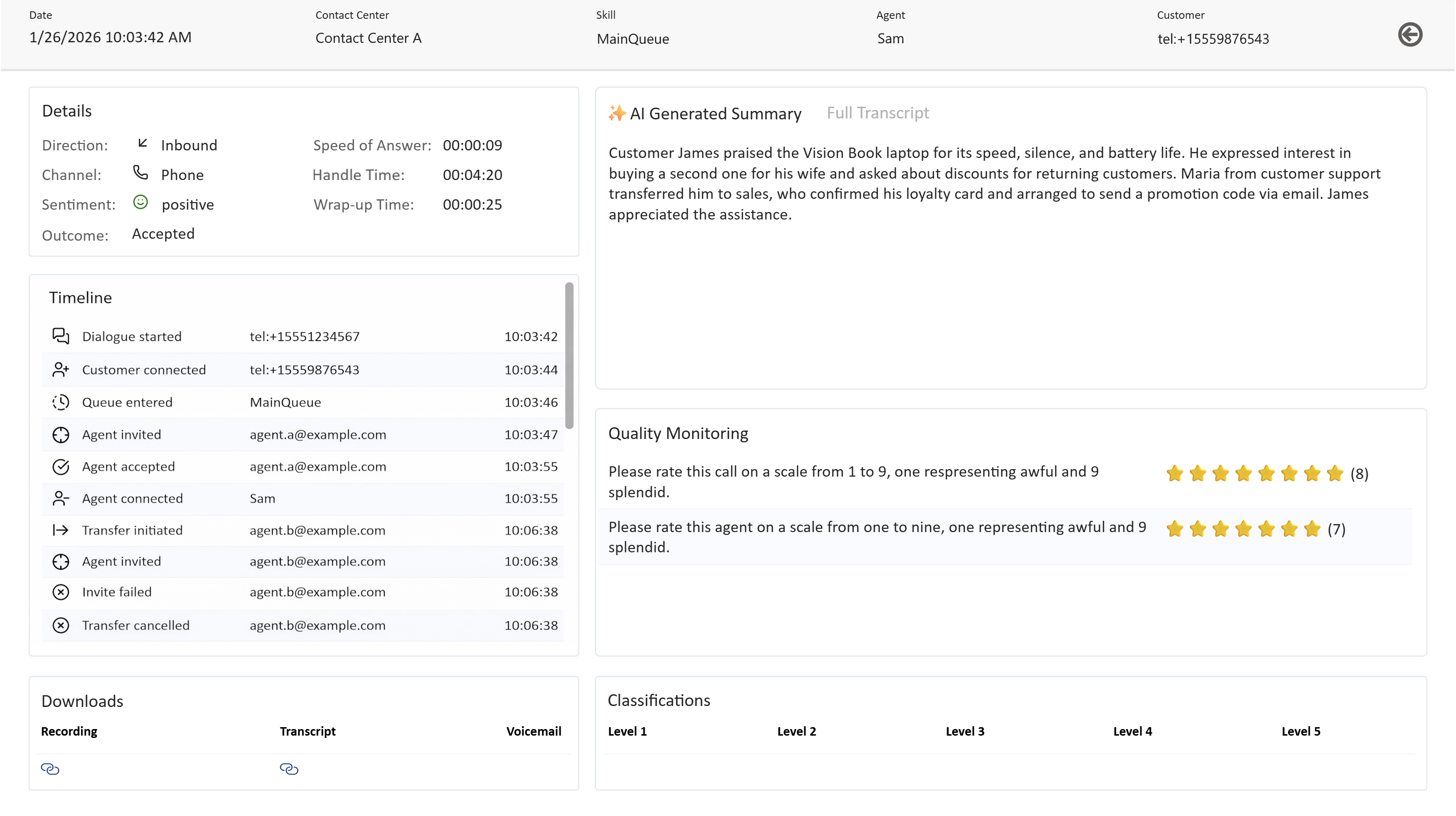
The selected dialogue's basic information is displayed in the top bar.
| Field | What it shows |
| ------------------ | ----------------------------------------------------------------------------------------------------------------------- |
| **Date** | Timestamp when the dialogue was initiated by the customer for inbound dialogues or by the agent for outbound dialogues. |
| **Contact Center** | Contact center where the dialogue was received or initiated. |
| **Skill** | Skill associated with the dialogue. |
| **Agent** | Agent who answered or initiated the dialogue. |
| **Customer** | Customer who initiated or received the dialogue. |
| **Back button** | Returns to the Dialogue Overview report. |
## Additional details
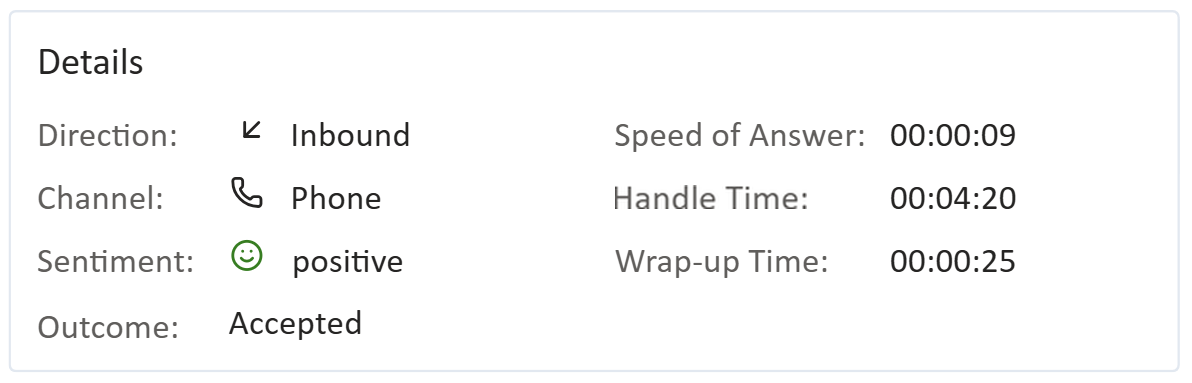
The additional details section shows other details of the selected dialogue.
| Field | What it shows |
| ------------------- | -------------------------------------------------------------------------------- |
| **Direction** | Dialogue direction: inbound or outbound. |
| **Channel** | Channel: Chat, E-mail, Phone, SMS, WhatsApp, or unknown. |
| **Sentiment** | Sentiment indicator. |
| **Outcome** | Outcome: Abandoned, Accepted, Forwarded, or IVR Drop. |
| **Speed of Answer** | Time between queue entry and answer. |
| **Handle Time** | Time between the agent or customer answering and all participants disconnecting. |
| **Wrap-Up Time** | Time between agent leaving the dialogue and wrap-up ending. |
If the feature is enabled, sentiment is determined only for audio dialogues that have transcripts available. Sentiment is generated post-call on 15-minute intervals and can take longer to appear in the report.
The report can show these sentiment values:
* Positive.
* Neutral or not applicable.
* Negative.
## Timeline
The timeline lists important events during a dialogue.
For each event, the timeline lists the event name and icon, additional details, and event time.
The timeline can include these events:
* **Dialogue started**
* **Customer connected**
* **Virtual Agent joined**
* **Virtual Agent left**
* **Task Completed**
* **Customer Disconnected**
* **Connection Failed**
* **Queue entered**
* **Agent invited**
* **Agent accepted**
* **Agent connected**
* **Agent declined**
* **Agent missed**
* **Invite canceled**
* **Hold Music started**
* **Hold Music stopped**
* **Consult initiated**
* **Transfer initiated**
* **Transfer canceled**
* **Agent disconnected**
* **Supervisor listening**
* **Supervisor whispering**
* **Supervisor talking**
* **Supervisor taking over**
* **Supervisor disconnected**
* **Customer disconnected**
* **Dialogue classified**
* **Voicemail saved**
* **Transcript saved**
* **Recording saved**
* **Dialogue rated**
* **Wrap-up started**
* **Wrap-up ended**
* **Dialogue ended**
## Downloads
Audio dialogues can have three download types.
| Download | When it is available |
| -------------- | --------------------------------------------------------------------------------- |
| **Recording** | A recording link appears when the recording file is available for the dialogue. |
| **Transcript** | A transcript link appears when the transcript file is available for the dialogue. |
| **Voicemail** | A voicemail link appears when the voicemail file is available for the dialogue. |
## AI-generated summary and full transcript
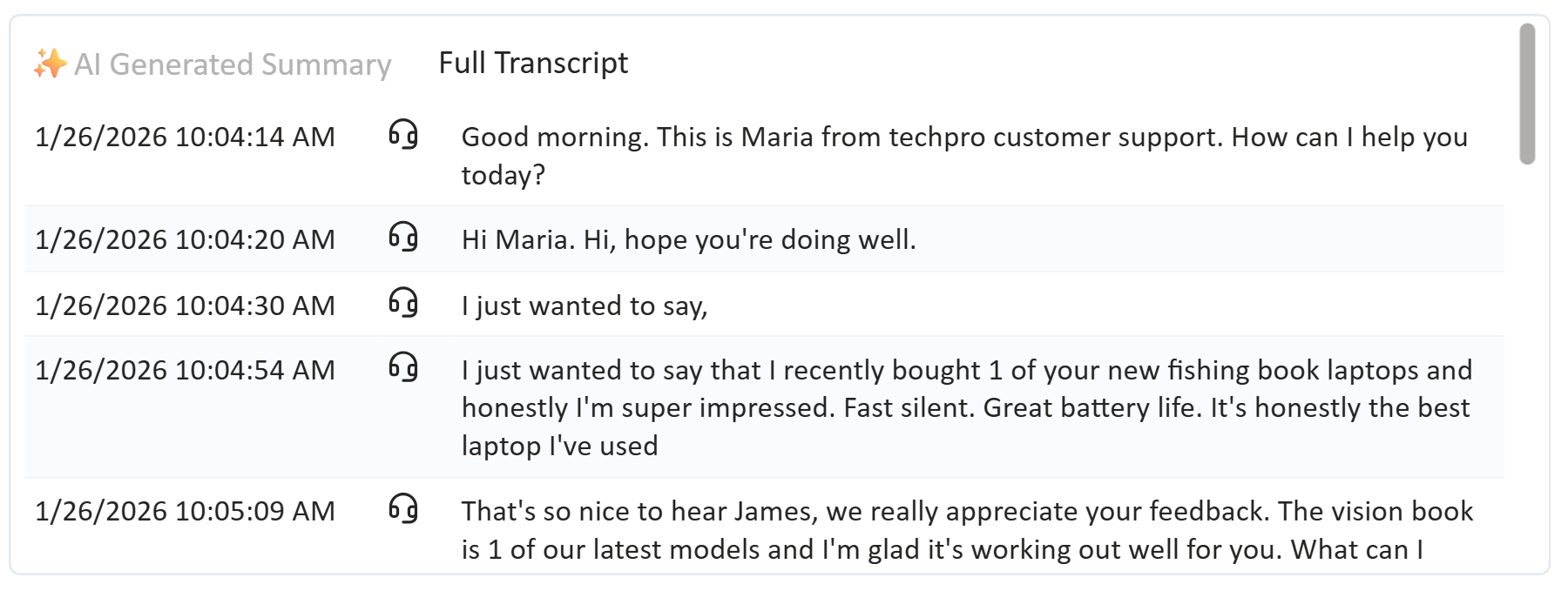
By default, this section displays the **AI Generated Summary** of the audio dialogue. Select **Full Transcript** to read the full transcript.
The summary and transcript shown in Dialogue Insights are read from Dialogue Insights and may take time to appear after the call.
If the feature is enabled, the AI-generated summary is determined only for audio dialogues that have transcripts available. Summaries are generated post-call on 15-minute intervals and can take longer to appear in the report.
Summaries are generated using built-in functionality in Microsoft Fabric.
## Quality Monitoring
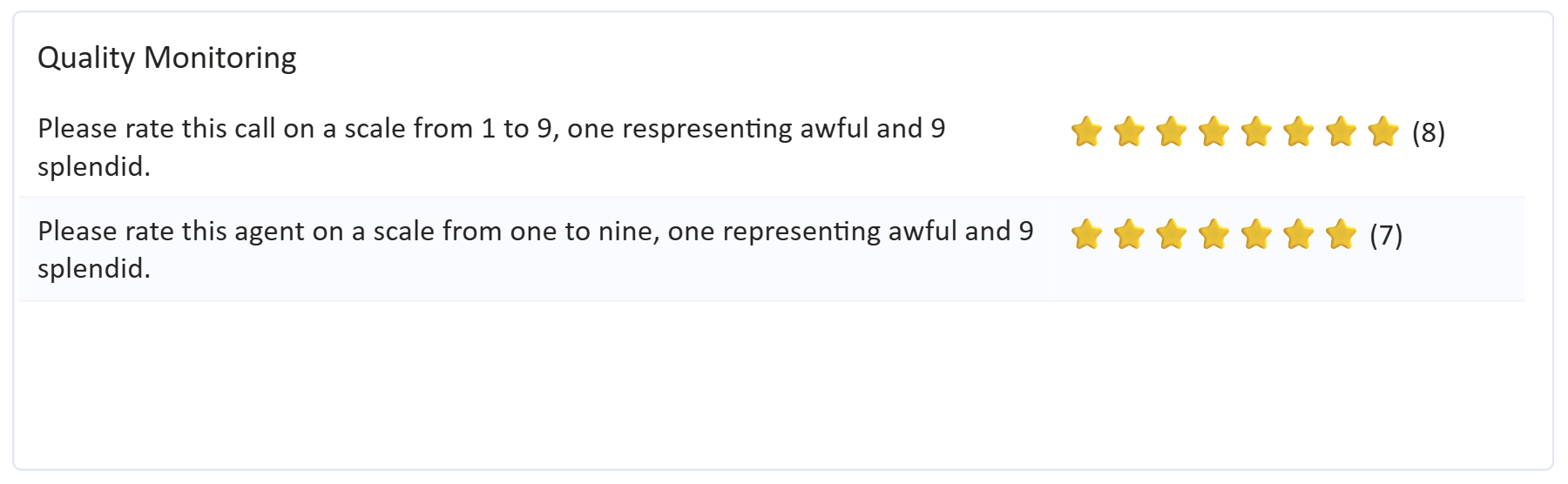
If a customer left feedback using the Quality Monitoring feature, the questions and corresponding scores are shown in this section.
Scores are shown for the questions answered by the customer.
## Classifications
If the agent classified the dialogue, the details are shown in this section.
Up to five classification levels are displayed.
---
# Agent Instructions
This documentation is published with GitBook. GitBook is the documentation platform designed so that both humans and AI agents can read, navigate, and reason over technical content effectively. Learn more at gitbook.com.
## Querying This Documentation
If you need additional information that is not directly available in this page, you can query the documentation by asking a question.
Perform an HTTP GET request on the following URL with the `ask` and `goal` query parameters:
```
GET https://atlas.anywhere.now/use/monitor-and-report/dialogue-insights/historic-dialogue-details.md?ask=&goal=
```
`ask` is the immediate question: it should be specific, self-contained, and written in natural language.
`goal` is what the user is ultimately trying to achieve, the reason they need the answer. Sharing it helps GitBook give you a better, more relevant answer. A goal is most helpful when it describes the outcome the user wants rather than restating the question. For example, with `ask=how do I create an API token`, a goal like `automate deployments from our CI pipeline` lets GitBook tailor the answer to that use case.
The response will contain a direct answer to the question and relevant excerpts and sources from the documentation.
Use this mechanism when the answer is not explicitly present in the current page, you need clarification or additional context, or you want to retrieve related documentation sections.