> For the complete documentation index, see [llms.txt](https://atlas.anywhere.now/llms.txt). Markdown versions of documentation pages are available by appending `.md` to page URLs; this page is available as [Markdown](https://atlas.anywhere.now/use/handle-conversations/webagent/use-webagent-in-crm.md).
# Use WebAgent in a CRM system
Use WebAgent when it is loaded inside a CRM system.
Some customer relationship management (CRM) integrations load WebAgent inside the CRM system. CRM Service is separate: it provides CRM information that can be displayed through WebAgent.
## Prerequisites
Before you use WebAgent inside a CRM system:
* Your CRM integration must be enabled for your environment.
* You must be able to sign in to WebAgent.
* Your WebAgent permissions must allow the actions you need, such as handling dialogues or starting outbound calls.
## Work inside the CRM system
1. Open the CRM system you use for customer interactions.
2. Open the WebAgent panel or area provided by your CRM integration.
3. Sign in to WebAgent if your session is not already active.
4. Handle calls or dialogues using the WebAgent controls shown inside the CRM system.
5. If WebAgent opens or updates a CRM record, continue the customer interaction from the record shown in your CRM system.
6. If the CRM system shows more than one possible customer record, select the record that matches the customer before you continue.
The CRM system controls where WebAgent appears. The WebAgent actions available to you depend on your WebAgent permissions and the CRM integration configured for your environment.
## Start an outbound call
If outbound calling is enabled, you can start an outbound call from WebAgent while you are working in the CRM system.
1. In WebAgent, open the dialpad.
2. Select the endpoint or phone number you want to call from.
3. Enter or select the customer's phone number.
4. Start the call.
From DC2025.01, WebAgent supports sending DTMF tones during a call when DTMF controls are available in your environment.
If an endpoint is unavailable, you may not be signed in to that service. If the dialpad is not available, outbound calling may not be enabled for your environment.
In Dynamics 365 environments that use Channel Integration Framework 2.0, WebAgent can show the dialpad menu so you can choose an active UCC endpoint before starting the outbound call. If the endpoint is greyed out, sign in to that UCC first or use an endpoint that is available to your WebAgent session.
## Understand CRM record behavior
Depending on the CRM integration, WebAgent can send conversation information to the CRM system while you handle the dialogue. The CRM system may use this information to search for a customer record, open a matching record, or create or update a call activity.
The exact behavior depends on your provider and configuration:
* Some integrations search when a conversation is offered or accepted.
* Some integrations open a matching contact, case, or activity after you accept the dialogue.
* Some integrations create or update a call activity after the conversation ends.
* Some integrations pass events to the CRM system or to an intermediate provider layer, which then decides what to show or update.
If no matching record is found, the CRM system may show an unknown caller, open a blank activity form, or leave the record selection to you. If multiple records match, the CRM system may show a list of possible records.
## Provider-specific behavior
Use this section as a guide to behavior you may see. Your CRM owner or administrator can confirm which integration version is active in your environment.
| Provider | What you may see |
| ------------------------------------------------------------------------------ | ------------------------------------------------------------------------------------------------------------------------------------------------------------------------------------------------------------------------ |
| Bullhorn, DaVinci, Dynamics 365, Salesforce Lightning, SAP C4C, and ServiceNow | WebAgent can be loaded inside the CRM system when the provider integration is enabled for your environment. |
| DaVinci | WebAgent can send conversation events to DaVinci. DaVinci then interacts with the configured CRM system. |
| Dynamics 365 | Behavior can differ between Channel Integration Framework versions. Use CIF 1.0 behavior only when your organization confirms that CIF 1.0 is used. |
| Salesforce Lightning | This page covers Salesforce Lightning. Salesforce Classic is not covered. |
| SAP C4C | The CRM system may show one matching contact, no matching contact, or multiple possible callers. Depending on the match, it may open a contact, open a form, show possible callers, or update an activity after wrap-up. |
| ServiceNow | WebAgent-related call activity may be recorded in the CRM system when the integration is configured to do so. |
## Follow-up information after a conversation
Some CRM integrations can use a conversation identifier to connect the WebAgent interaction with later follow-up information. For example, your organization may extend a CRM activity with a recording link, transcript, or quality monitoring information after the conversation has ended.
This follow-up behavior is environment-specific. If expected follow-up information is missing from the CRM activity, continue your work with the information available and report the issue to your supervisor or administrator.
## Use CRM information in WebAgent
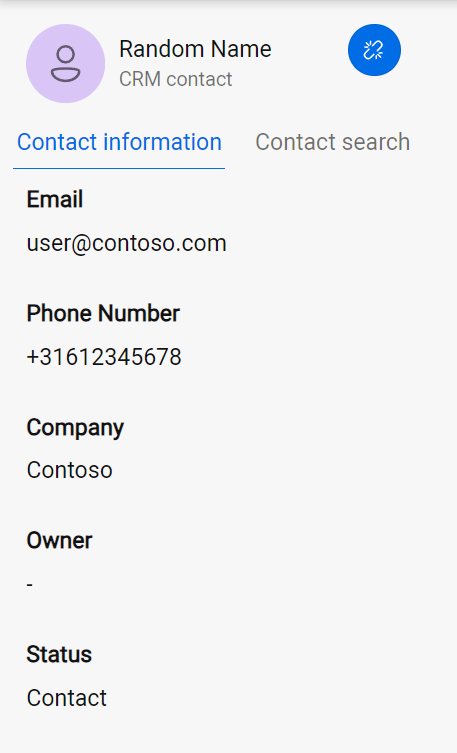
When CRM Service is connected, WebAgent can show CRM information for the customer or dialogue. The information shown depends on the CRM system, configuration, and your permissions.
When multiple CRM Service records are available, select the matching contact. If the selected contact is not correct, deselect it and continue with the information available.
If expected CRM information is missing, continue the interaction with the information available and report the issue to your supervisor or administrator.
## Related user tasks
* [Sign in and manage your profile](/use/handle-conversations/webagent/sign-in-and-profile.md)
---
# Agent Instructions
This documentation is published with GitBook. GitBook is the documentation platform designed so that both humans and AI agents can read, navigate, and reason over technical content effectively. Learn more at gitbook.com.
## Querying This Documentation
If you need additional information that is not directly available in this page, you can query the documentation by asking a question.
Perform an HTTP GET request on the following URL with the `ask` and `goal` query parameters:
```
GET https://atlas.anywhere.now/use/handle-conversations/webagent/use-webagent-in-crm.md?ask=&goal=
```
`ask` is the immediate question: it should be specific, self-contained, and written in natural language.
`goal` is what the user is ultimately trying to achieve, the reason they need the answer. Sharing it helps GitBook give you a better, more relevant answer. A goal is most helpful when it describes the outcome the user wants rather than restating the question. For example, with `ask=how do I create an API token`, a goal like `automate deployments from our CI pipeline` lets GitBook tailor the answer to that use case.
The response will contain a direct answer to the question and relevant excerpts and sources from the documentation.
Use this mechanism when the answer is not explicitly present in the current page, you need clarification or additional context, or you want to retrieve related documentation sections.