> For the complete documentation index, see [llms.txt](https://atlas.anywhere.now/llms.txt). Markdown versions of documentation pages are available by appending `.md` to page URLs; this page is available as [Markdown](https://atlas.anywhere.now/use/handle-conversations/dialogue-ai-assist/use-dialogue-ai-assist-for-webchat.md).
# Use Dialogue AI Assist for webchat
Find and insert Dialogue AI Assist reply suggestions, URLs, and pinned messages during WebAgent webchat conversations.
Use Dialogue AI Assist during webchat conversations to find and insert suggested replies without leaving WebAgent.
## Before you begin
Make sure that:
* you are signed in to WebAgent;
* you are handling a webchat conversation;
* Dialogue AI Assist is enabled for your organization and user account.
If suggestions are not shown, continue handling the conversation in WebAgent and contact your supervisor or administrator.
## Use reply suggestions
When Dialogue AI Assist has suggestions for the conversation, it can show them near the message input field.
Suggestions can include:
* general suggestions prepared for your team;
* personal suggestions that you created;
* suggestions found through search.
The suggestions can change as the conversation changes and as you type. Frequently used suggestions can be prioritized.
For example, if a customer asks about an order, service outage, promotion, or waiting time, Dialogue AI Assist can show a relevant reply that you can review and adapt before sending.
To use a reply suggestion:
1. Review the suggestion before sending it.
2. Select the suggestion with your mouse, or use the arrow keys to move between suggestions.
3. Edit the message if needed.
4. Send the message to the customer.
{% hint style="warning" %}
Always check that a suggestion is correct for the customer's situation before you send it.
{% endhint %}
## Use tab autocomplete
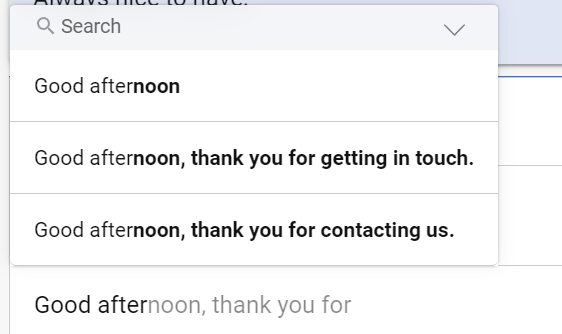
Dialogue AI Assist can suggest the next words in your message while you type. The suggested words appear in the message input field.
Autocomplete can help you finish a sentence while you are writing a reply, without selecting a full saved suggestion.
To accept the autocomplete suggestion, press `Tab`.
If you do not want to use the suggestion, continue typing, choose another reply suggestion, or search for a suggestion.
## Send a URL suggestion
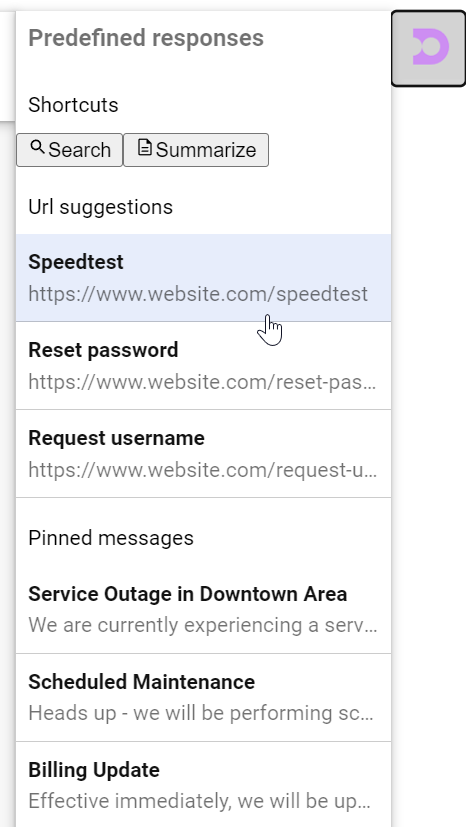
Dialogue AI Assist can suggest URLs that may help the customer, such as a sign-in page, troubleshooting page, or service-status page.
URL suggestions can be useful when the customer needs a specific page instead of a long explanation. For example, you can send a troubleshooting page for a known issue or a service-status page during an outage.
To use a URL suggestion:
1. Review the title and destination of the suggestion.
2. Select the URL suggestion to add it to your message.
3. Add any context the customer needs.
4. Send the message.
## Use a pinned message
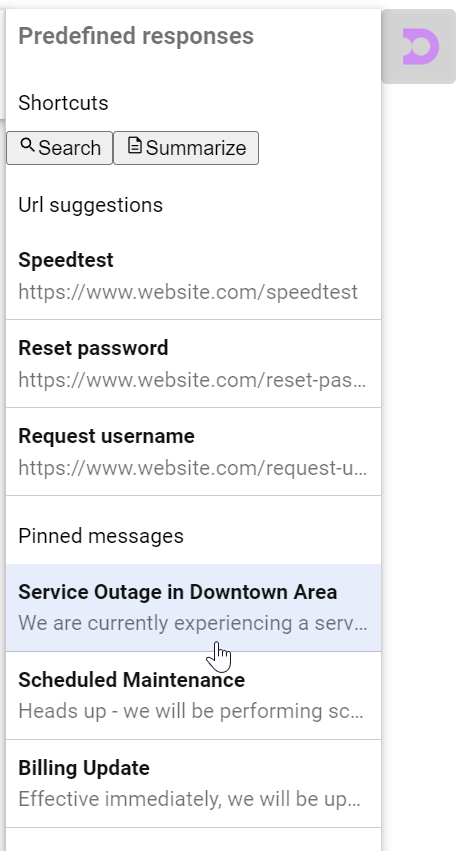
Pinned messages are team messages that are kept easy to access. Your team can use them for common replies, such as a service-status update or waiting-time message.
Your team might also use pinned messages for temporary service-outage updates or for a promotion that agents need to mention consistently.
To use a pinned message:
1. Open the pinned message area in the Dialogue AI Assist widget.
2. Select the message you want to use.
3. Review and edit the message if needed.
4. Send the message to the customer.
## Search for suggestions from the input field
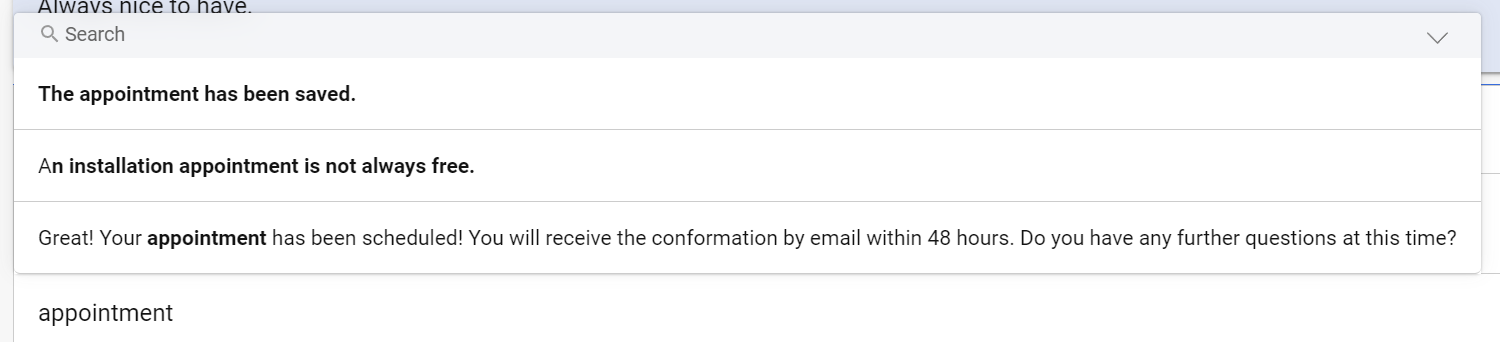
You can type keywords in the message input field to search for a relevant suggestion.
Use words that match the customer question, such as a product name, service name, outage keyword, promotion keyword, or troubleshooting topic.
You can also combine a small set of keywords to narrow the results.
Depending on your environment, quick search can return a limited set of matching suggestions. If you do not see the suggestion you need, try a different keyword, select another suggestion type if it is available, or write the response yourself.
## Use personal suggestions
Personal suggestions are reusable replies that you create for your own use.
To create or manage your personal suggestions, see [Manage personal suggestions](/use/handle-conversations/dialogue-ai-assist/manage-personal-suggestions.md).
## Practice if training options are available
Some environments provide training or practice options for Dialogue AI Assist. If these options are available to you, use them to become familiar with suggestions before using them in live customer conversations.
---
# Agent Instructions
This documentation is published with GitBook. GitBook is the documentation platform designed so that both humans and AI agents can read, navigate, and reason over technical content effectively. Learn more at gitbook.com.
## Querying This Documentation
If you need additional information that is not directly available in this page, you can query the documentation by asking a question.
Perform an HTTP GET request on the following URL with the `ask` and `goal` query parameters:
```
GET https://atlas.anywhere.now/use/handle-conversations/dialogue-ai-assist/use-dialogue-ai-assist-for-webchat.md?ask=&goal=
```
`ask` is the immediate question: it should be specific, self-contained, and written in natural language.
`goal` is what the user is ultimately trying to achieve, the reason they need the answer. Sharing it helps GitBook give you a better, more relevant answer. A goal is most helpful when it describes the outcome the user wants rather than restating the question. For example, with `ask=how do I create an API token`, a goal like `automate deployments from our CI pipeline` lets GitBook tailor the answer to that use case.
The response will contain a direct answer to the question and relevant excerpts and sources from the documentation.
Use this mechanism when the answer is not explicitly present in the current page, you need clarification or additional context, or you want to retrieve related documentation sections.