> For the complete documentation index, see [llms.txt](https://atlas.anywhere.now/llms.txt). Markdown versions of documentation pages are available by appending `.md` to page URLs; this page is available as [Markdown](https://atlas.anywhere.now/use/handle-conversations/dialogue-ai-assist/use-dialogue-ai-assist-for-voice.md).
# Use Dialogue AI Assist for voice
Open Dialogue AI Assist voice-call widgets in WebAgent and use the assistants enabled by your organization.
Use Dialogue AI Assist during voice calls to view assistant widgets that can help you during or after the conversation.
Your organization decides which assistants are available. The widgets and suggestions you see can therefore differ from another agent's environment.
## Before you begin
Make sure that:
* you are signed in to WebAgent;
* you can handle voice calls in WebAgent;
* Dialogue AI Assist is enabled for voice in your organization and for your user account.
If Dialogue AI Assist is not available during a voice call, continue handling the call in WebAgent and contact your supervisor or administrator.
## Open Dialogue AI Assist in WebAgent
Where Dialogue AI Assist appears depends on your organization's WebAgent version and layout:
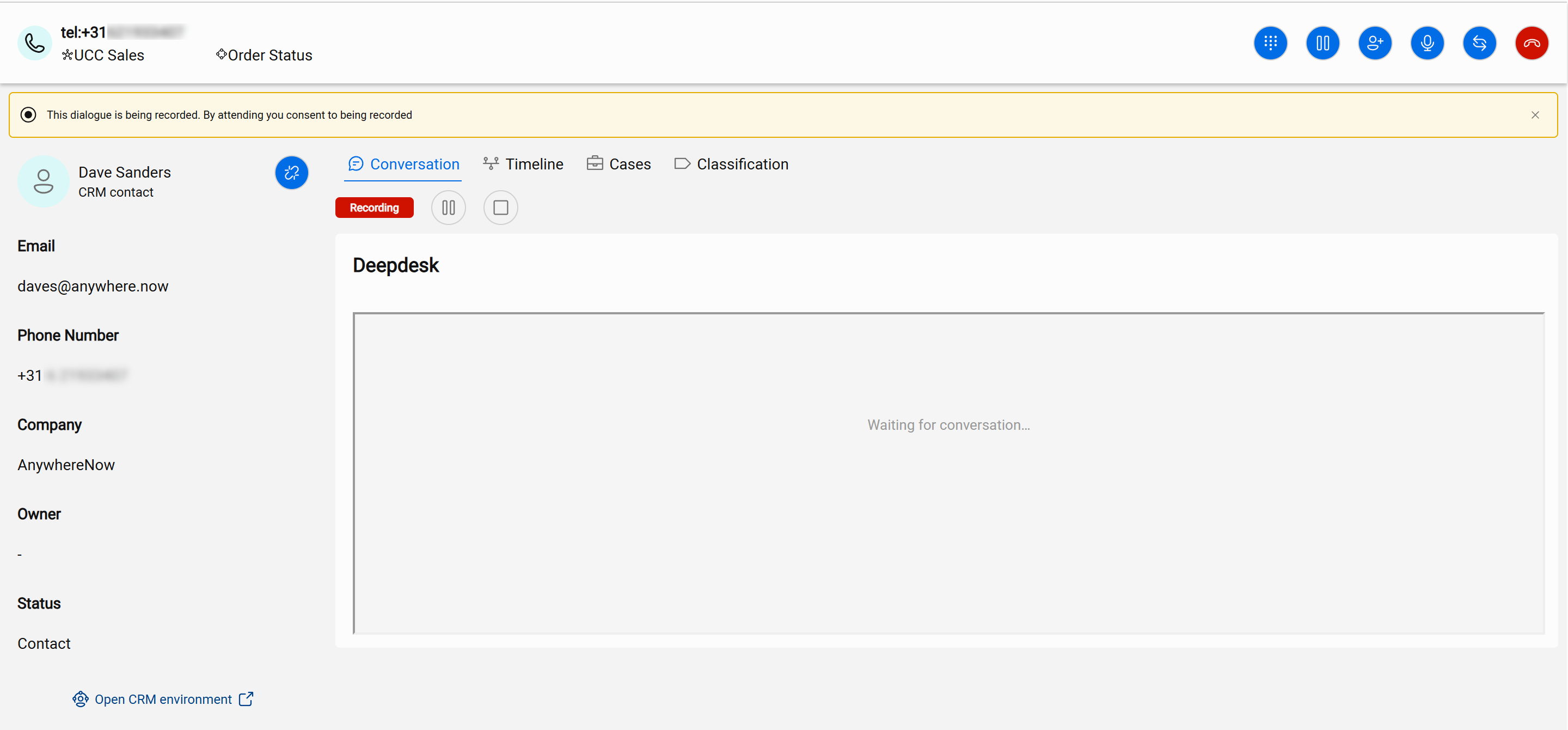
* In DC2024.02c, Dialogue AI Assist is available through a UI plugin on the right side of WebAgent.
* From DC2025.01 onwards, Dialogue AI Assist is available inside WebAgent and is no longer only available as a UI plugin.
To open it:
1. Start or accept a voice call in WebAgent.
2. Locate Dialogue AI Assist in the place that matches your WebAgent layout:
* In DC2024.02c, select the Deepdesk logo in the UI plugin on the right side of WebAgent.
* In the default WebAgent UI from DC2025.01 onwards, select **Conversations**.
* In the new layout UI from DC2025.01 onwards, select **Settings** and enable **Deepdesk** in either the **2-widget** or **4-widget** configuration.
3. If you are prompted to sign in, select the sign-in prompt and follow the instructions shown on screen.
{% hint style="info" %}
The widget name, icon, and sign-in method can differ by organization. Some environments can use organization-specific sign-in or single sign-on.
{% endhint %}
The following examples show common places where the widget can appear. Your WebAgent sidebar, tabs, and widget layout can differ from these examples.
## Use assistant widgets during a call
Dialogue AI Assist can show assistant widgets when:
* you accept a call;
* you or the customer say something during the call;
* you or the customer disconnect the call.
When an assistant has information to share, it appears in the Dialogue AI Assist area. Depending on your organization's setup, assistants can provide items such as:
* knowledge suggestions;
* verification reminders;
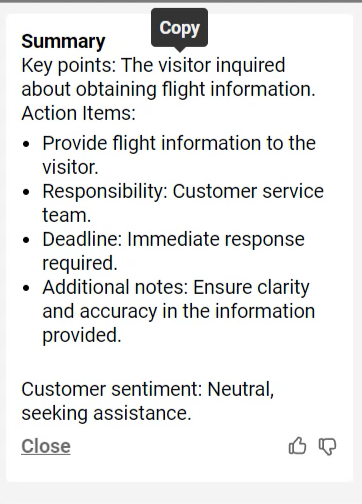
* call summaries.
Examples of assistant output include a knowledge result that may help answer the customer's question, a verification reminder that prompts you to check a required item, and a summary that can support after-call work.
To use an assistant widget:
1. Review the information shown in the widget.
2. Decide whether the information applies to the current call.
3. Use the information in your conversation or after-call work only when it is correct and appropriate.
{% hint style="warning" %}
Assistant output can support your work, but you remain responsible for checking the information before you use it with a customer or in a case note.
{% endhint %}
## If the widget does not appear
If you expect Dialogue AI Assist but do not see it:
1. Check whether you are using a WebAgent layout that includes the widget.
2. Check whether you are signed in if the widget asks you to sign in.
3. Continue the call without Dialogue AI Assist if needed.
4. Ask your supervisor or administrator to verify your access and the voice setup.
Voice availability can depend on transcription, WebAgent setup, and channel configuration.
## Practice if training options are available
Some environments provide training or practice options for Dialogue AI Assist. If these options are available to you, use them to learn how your organization's voice assistants behave.
---
# Agent Instructions
This documentation is published with GitBook. GitBook is the documentation platform designed so that both humans and AI agents can read, navigate, and reason over technical content effectively. Learn more at gitbook.com.
## Querying This Documentation
If you need additional information that is not directly available in this page, you can query the documentation by asking a question.
Perform an HTTP GET request on the following URL with the `ask` and `goal` query parameters:
```
GET https://atlas.anywhere.now/use/handle-conversations/dialogue-ai-assist/use-dialogue-ai-assist-for-voice.md?ask=&goal=
```
`ask` is the immediate question: it should be specific, self-contained, and written in natural language.
`goal` is what the user is ultimately trying to achieve, the reason they need the answer. Sharing it helps GitBook give you a better, more relevant answer. A goal is most helpful when it describes the outcome the user wants rather than restating the question. For example, with `ask=how do I create an API token`, a goal like `automate deployments from our CI pipeline` lets GitBook tailor the answer to that use case.
The response will contain a direct answer to the question and relevant excerpts and sources from the documentation.
Use this mechanism when the answer is not explicitly present in the current page, you need clarification or additional context, or you want to retrieve related documentation sections.