> For the complete documentation index, see [llms.txt](https://atlas.anywhere.now/llms.txt). Markdown versions of documentation pages are available by appending `.md` to page URLs; this page is available as [Markdown](https://atlas.anywhere.now/use/existing-dialogue-cloud-neo-connect-apps/wallboard/views-reference.md).
# Wallboard views reference
Understand Wallboard views and the values they show.
Wallboard views show real-time UCC, skill, agent, call-history, SLA, and reason-code information. The exact view you see depends on how Wallboard is configured for your organization.
Wallboard uses simplified statistics compared with SQL CDR database-based Power BI reports and [Dialogue Insights](/use/monitor-and-report/dialogue-insights.md) reporting, so values may not match one-to-one.
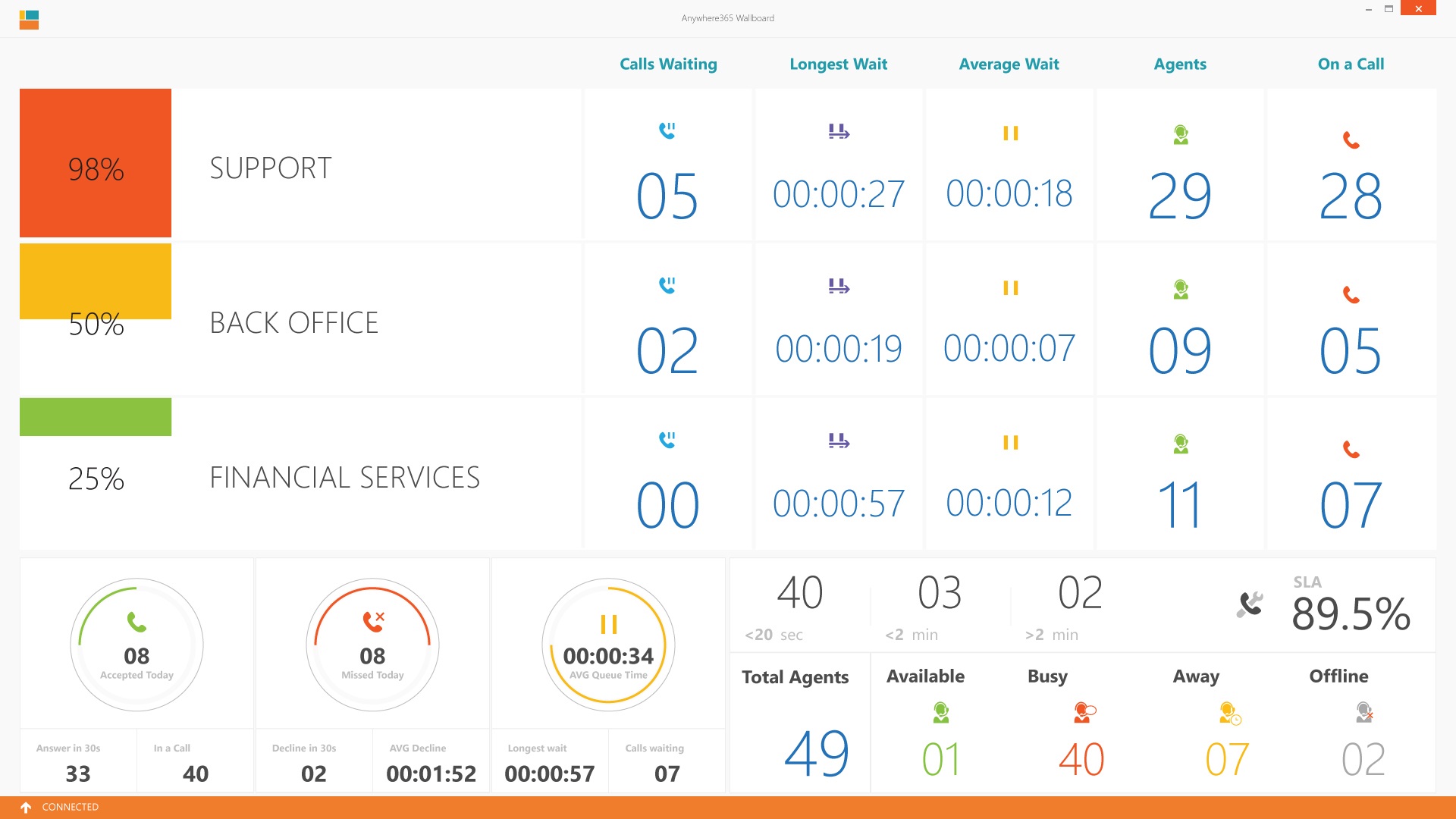
## View 1: Default
The default view adapts to the current conversation load:
* Low load shows up to 10 concurrent conversations.
* High load shows up to 30 concurrent conversations.
The top area shows skills that have `ShowOnWallboard` enabled. It can show queue percentage, available-agent icons per skill, or available-agent names per skill.
The center area shows calls connected to the UCC, including incoming calls, queued calls without agents, queued calls being hunted, calls connected to an agent, and calls in Quality Monitor.
### Agent overview
The agent overview shows real-time agent counts.
| Item | Meaning |
| ------------ | --------------------------------------------------------------------------------------------------------------- |
| Total Agents | Informal agents plus signed-in formal agents. |
| Available | Informal or signed-in formal agents with Available status, not in discharge duration, and with an audio device. |
| Busy | Informal or signed-in formal agents with Busy status and an audio device. |
| Away | Informal or signed-in formal agents with Away status and an audio device. |
| Offline | Informal agents, signed-in formal agents with Offline status, and agents in discharge duration. |
### Call history overview
The call history overview shows daily call statistics.
| Item | Meaning |
| -------------- | ----------------------------------------------------------------------- |
| Green circle | Accepted conversations today. |
| Answer in 30s | Accepted conversations today with a queue time shorter than 30 seconds. |
| In a Call | Active accepted conversations. |
| Red circle | Missed conversations today with a skill. |
| Decline in 30s | Missed conversations today with a queue time shorter than 30 seconds. |
| AVG Decline | Average number of seconds before conversations disconnected today. |
| Yellow circle | Average queue time of accepted conversations. |
| Longest wait | Longest queue time of accepted conversations today. |
| Calls waiting | Active conversations in the queue. |
These numbers include inbound, outbound, and direct conversations.
### SLA
The SLA area shows UCC SLA information for today.
| Item | Meaning |
| --------- | ------------------------------------------------------------------------------------- |
| `<20 sec` | Accepted conversations today with a queue time shorter than 20 seconds. |
| `<2 min` | Accepted conversations today with a queue time shorter than 2 minutes. |
| `>2 min` | Accepted conversations today with a queue time longer than 2 minutes. |
| SLA | Accepted within the configured threshold divided by accepted today plus missed today. |
## View 2: Skills / Grid
The Skills / Grid view focuses on individual skills.
| Item | Meaning |
| ------------- | ------------------------------------------------------------------------------ |
| SLA | Percentage of incoming calls for the skill compared to the overflow threshold. |
| Skill name | Name of the skill. |
| Calls Waiting | Calls waiting to be answered for the skill. |
| Longest Wait | Active longest waiting time for a call for the skill. |
| Average Wait | Active average waiting time for a call for the skill. |
| Agents | Total agents available for the skill. |
| On a Call | Agents in a call for the skill. |
This view also uses the call history, agent overview, and SLA areas described for View 1.
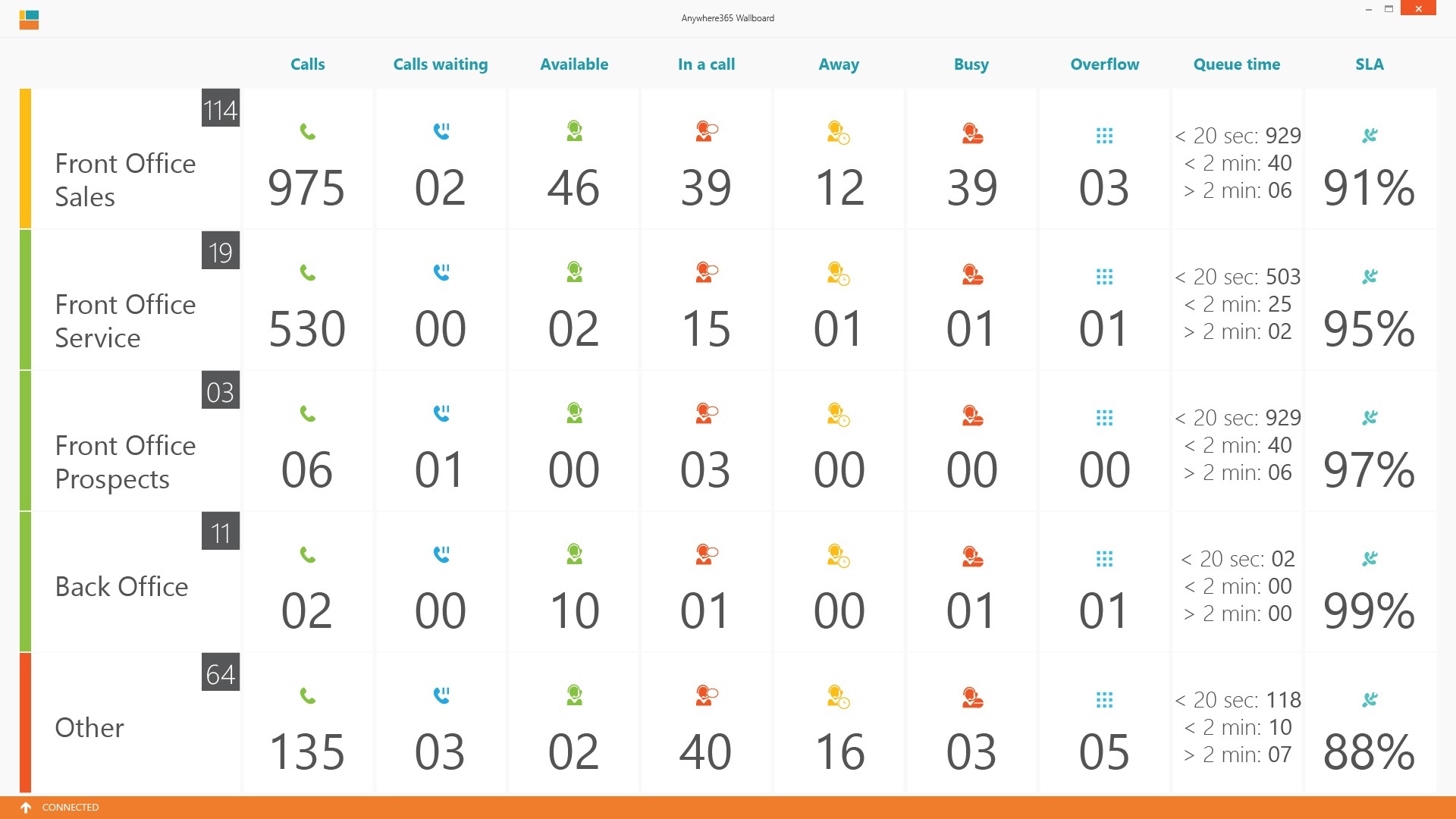
## View 3: Multi UCC
The Multi UCC view tracks multiple UCCs. UCCs can be shown as one UCC per line or as grouped UCCs.
| Item | Meaning |
| ------------- | ---------------------------------------------------------------------------------------------------- |
| UCC Name | Name of the UCC or group. |
| Calls | Active accepted calls by the UCC or group. |
| Calls Waiting | Calls waiting to be hunted. |
| Available | Available agents within the UCC or group. |
| In a Call | Agents in a call within the UCC or group. |
| Away | Agents with Away status within the UCC or group. |
| Busy | Busy agents within the UCC or group. |
| Overflow | Agents with skill scores between configured values. |
| Queue time | Calls with waiting times shorter than 20 seconds, shorter than 2 minutes, and longer than 2 minutes. |
| SLA | Current service level, using the configured default or alternative calculation. |
View 3 numbers include inbound, outbound, direct conversations, and forwarded calls.
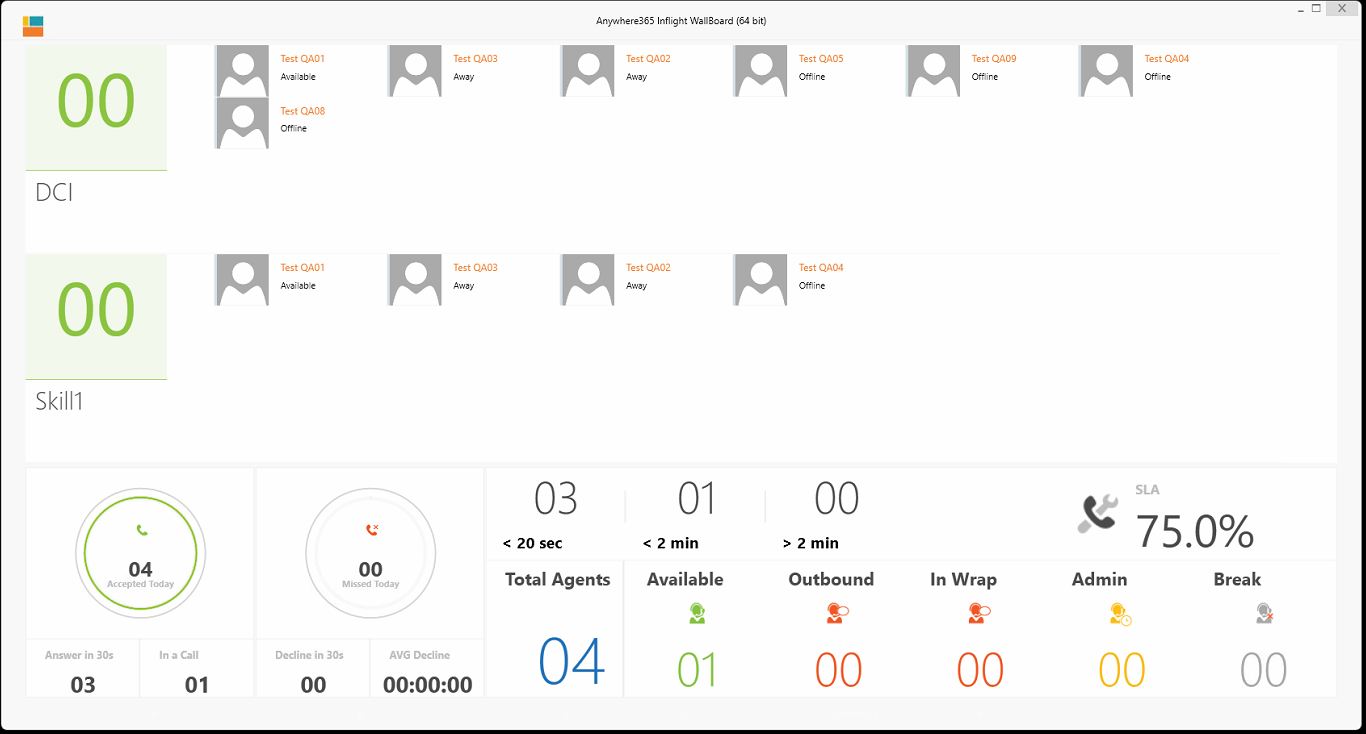
## View 4: Agents
The Agents view shows queued calls on the left and agents per skill on the right. Each row is a UCC and skill combination. There can be up to two rows.
This view includes daily call statistics and an agent overview similar to View 1.
For SLA, only inbound calls are counted, not forwards.
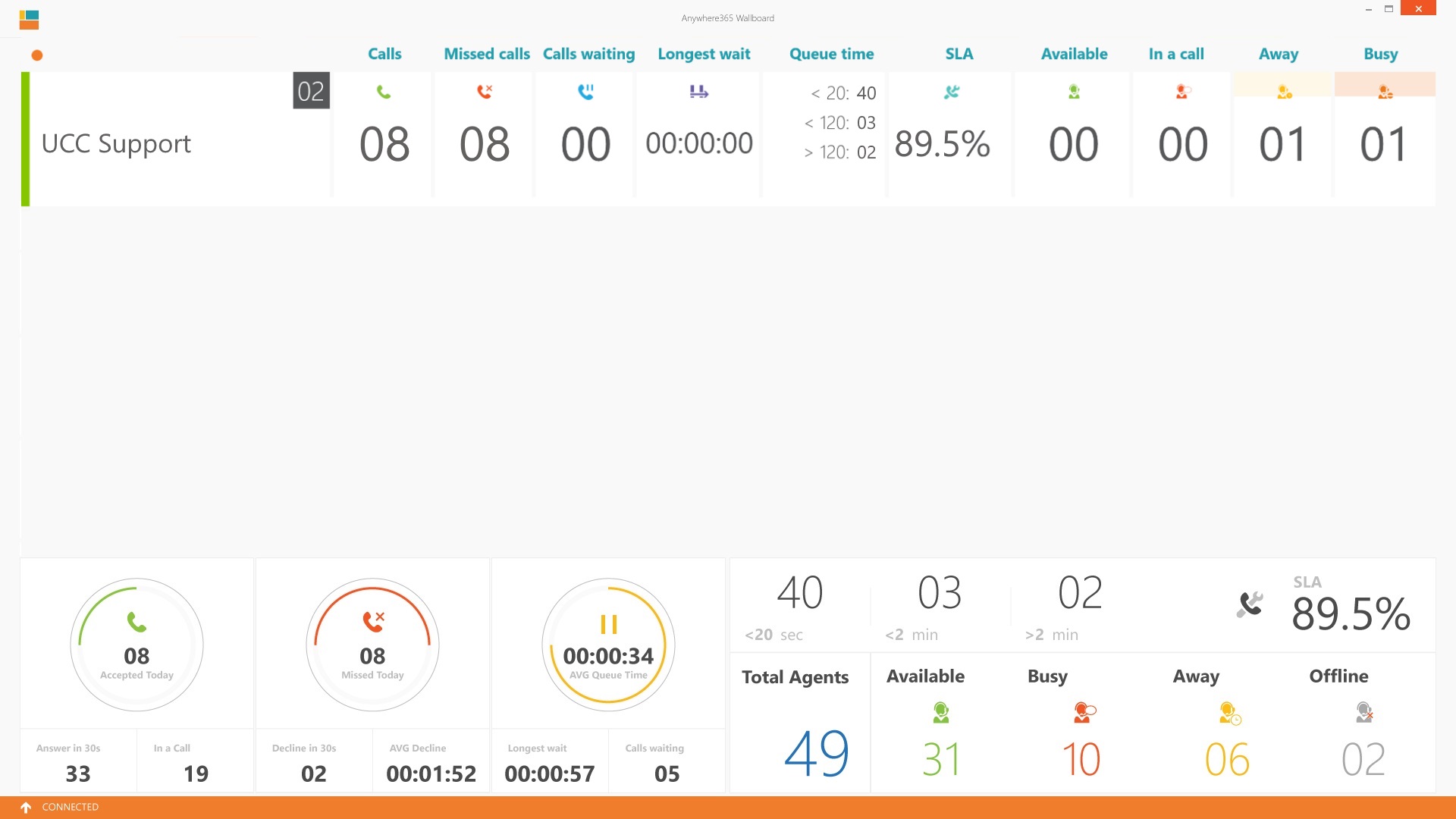
## View 5: Statistic
The Statistic view gives supervisors statistical information for a UCC.
| Item | Meaning |
| ----------------- | ------------------------------------------------------------------------------------- |
| Servicelevel | Accepted within the configured threshold divided by accepted today plus missed today. |
| Waiting | Active conversations in the queue. |
| Longest Wait | Longest active waiting conversation. |
| Agents in call | Active accepted conversations. |
| Agents with break | Agents with the configured break reason code. |
| Abandoned | Percentage of abandoned calls for the UCC. |
| Total | Total conversations. |
## View 6: Reason Code Rows
The Reason Code Rows view shows which reason codes agents are currently in. Each row is a reason code.
This view can show:
* The first row as `InCall`.
* The second row as `Discharge`.
* How long each agent has had the status, in `hh:mm:ss`.
* Either average handling time or total calls today as an additional value.
This view also uses the agent overview, call history, and SLA areas described for View 1.
## View 8: Multi UCC Group
The Multi UCC Group view tracks multiple UCCs in a single group.
| Item | Meaning |
| ---------------- | ------------------------------------- |
| UCC Display name | UCC name from the configuration file. |
| Calls | Accepted calls. |
| Missed Calls | Missed calls. |
| Calls Waiting | Current waiting calls. |
| Longest Wait | Current longest waiting call. |
| Queue Time | Queue times of accepted calls. |
| SLA | SLA percentage of accepted calls. |
| Available | Available agents. |
| In a call | Agents in a call for this UCC. |
| Away | Away agents. |
| Busy | Busy agents. |
## View 9: Reason Code Columns
The Reason Code Columns view shows which reason codes agents are currently in. Each column is a reason code.
This view can show:
* The first column as `InCall`.
* The second column as `Discharge`.
* The last column as `Other`.
* How long each agent has had the status, in `hh:mm:ss`.
* Either average handling time or total calls today as an additional value.
## Why Wallboard values can differ from reports
Wallboard is designed for a real-time operational view. It simplifies some statistics compared with SQL CDR database-based Power BI reports and [Dialogue Insights](/use/monitor-and-report/dialogue-insights.md) reporting.
For example:
* Dialogue Insights distinguishes between missed and quick-drop conversations. Wallboard combines them as missed.
* Dialogue Insights distinguishes between inbound, direct, and outbound conversations. Wallboard combines them.
* Dialogue Insights distinguishes between hunts and forwards. Wallboard combines them.
---
# Agent Instructions
This documentation is published with GitBook. GitBook is the documentation platform designed so that both humans and AI agents can read, navigate, and reason over technical content effectively. Learn more at gitbook.com.
## Querying This Documentation
If you need additional information that is not directly available in this page, you can query the documentation by asking a question.
Perform an HTTP GET request on the following URL with the `ask` and `goal` query parameters:
```
GET https://atlas.anywhere.now/use/existing-dialogue-cloud-neo-connect-apps/wallboard/views-reference.md?ask=&goal=
```
`ask` is the immediate question: it should be specific, self-contained, and written in natural language.
`goal` is what the user is ultimately trying to achieve, the reason they need the answer. Sharing it helps GitBook give you a better, more relevant answer. A goal is most helpful when it describes the outcome the user wants rather than restating the question. For example, with `ask=how do I create an API token`, a goal like `automate deployments from our CI pipeline` lets GitBook tailor the answer to that use case.
The response will contain a direct answer to the question and relevant excerpts and sources from the documentation.
Use this mechanism when the answer is not explicitly present in the current page, you need clarification or additional context, or you want to retrieve related documentation sections.