> For the complete documentation index, see [llms.txt](https://atlas.anywhere.now/llms.txt). Markdown versions of documentation pages are available by appending `.md` to page URLs; this page is available as [Markdown](https://atlas.anywhere.now/use/existing-dialogue-cloud-neo-connect-apps/snapper/use-snapper.md).
# Use Snapper
Start Snapper, sign in, switch UCCs, and use daily agent controls.
Use Snapper during the day to work with the selected UCC (Unified Contact Center), change your agent state, place outbound calls when Direct Call Interceptor is available, and review your recent contact moments.
## Before you start
* Snapper is installed and configured by your organization.
* You have access to the UCCs you need.
* You are signed in to Microsoft Teams with the correct Microsoft account.
## Start Snapper and sign in
1. Start Snapper from the application shortcut.
2. If Snapper asks you to sign in, sign in with the Microsoft account you use for Microsoft Teams.
3. Wait until Snapper loads the UCCs available to you.
{% hint style="info" %}
If you need to switch Microsoft accounts, ask your administrator whether the local Teams authentication cache should be cleared before you start Snapper again.
{% endhint %}
## Switch UCCs
Use the UCC selector when you are an agent or supervisor in more than one UCC.
The selector can show:
* UCCs found by auto-discovery.
* UCCs added manually by your organization.
* Your role for each UCC:
* No role shown, for a manually added UCC.
* **Agent**.
* **Supervisor**.
* **Supervisor / Agent**.
Some controls are available only when you have the supervisor role for the selected UCC.
## Change your formal agent state
The formal state icon shows your current UCC state.
| Icon state | Meaning |
| ---------------------- | ---------------------------------------------------------------------- |
| Green with a lock icon | You are an informal agent and cannot sign out of the UCC from Snapper. |
| Green | You are a formal agent and are active. Select the icon to sign out. |
| Red | You are a formal agent and are not active. Select the icon to sign in. |
| Empty | You are not an agent for the selected UCC. |
## Use Direct Call Interceptor and Call on Behalf
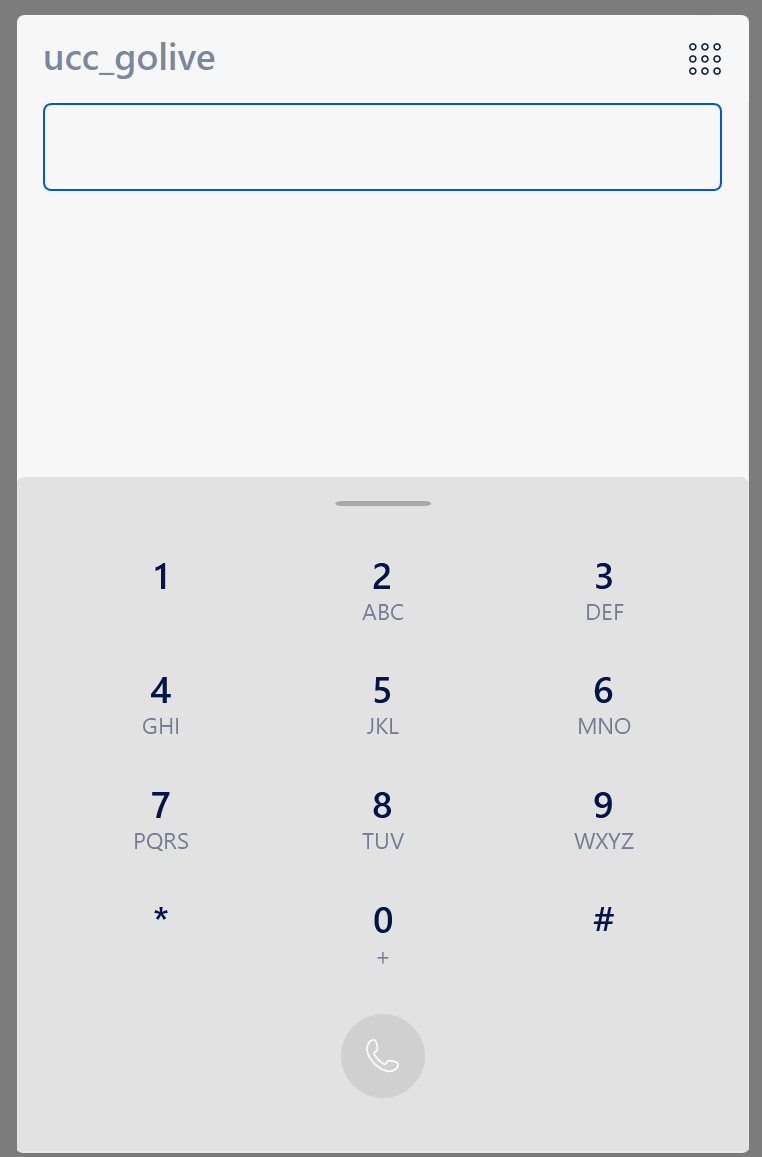
Direct Call Interceptor (DCI) lets Snapper handle outbound dialogue through the Snapper dial pad when your organization has enabled it for you.
To place a call with DCI:
1. Select the UCC you want to call from.
2. Type or select the number you want to call.
3. Press **Enter** or select the call button.
4. Accept the call when the UCC calls you. After you accept, the UCC calls the number you entered.
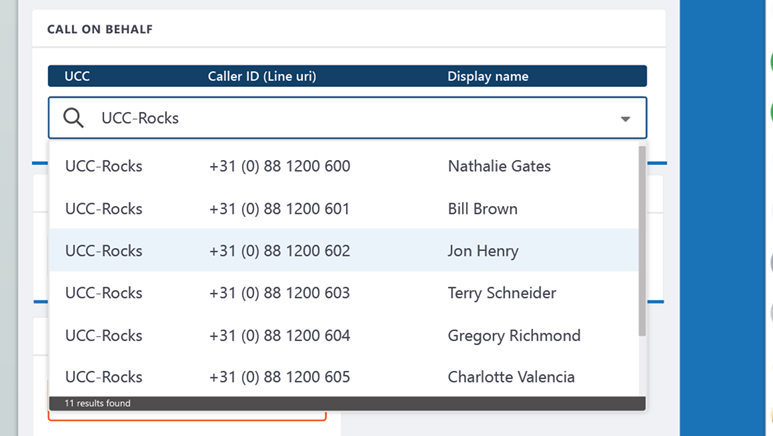
If Call on Behalf is available, use the Call on Behalf item to view your active endpoint and switch endpoints from the dropdown. This lets configured agents make outbound calls on behalf of a specific UCC number.
## Manage wrap-up time
When wrap-up is available, Snapper shows wrap-up controls during discharge duration.
To extend wrap-up:
1. Open Snapper.
2. Open the **Dashboard** tab.
3. During wrap-up, select **+** to extend wrap-up by the configured interval.
To stop wrap-up:
1. Open Snapper.
2. Open the **Dashboard** tab.
3. During wrap-up, select the cancel button.
## Control recording
When your organization allows agents to control recording, Snapper shows recording controls during a call.
* Select the pause icon to pause recording.
* Select the play icon to resume a paused recording.
* Select the stop icon to stop recording.
A stopped recording cannot be resumed.
{% hint style="info" %}
If screen recording is enabled, the same controls can also affect screen recording.
{% endhint %}
## Use the agent overview
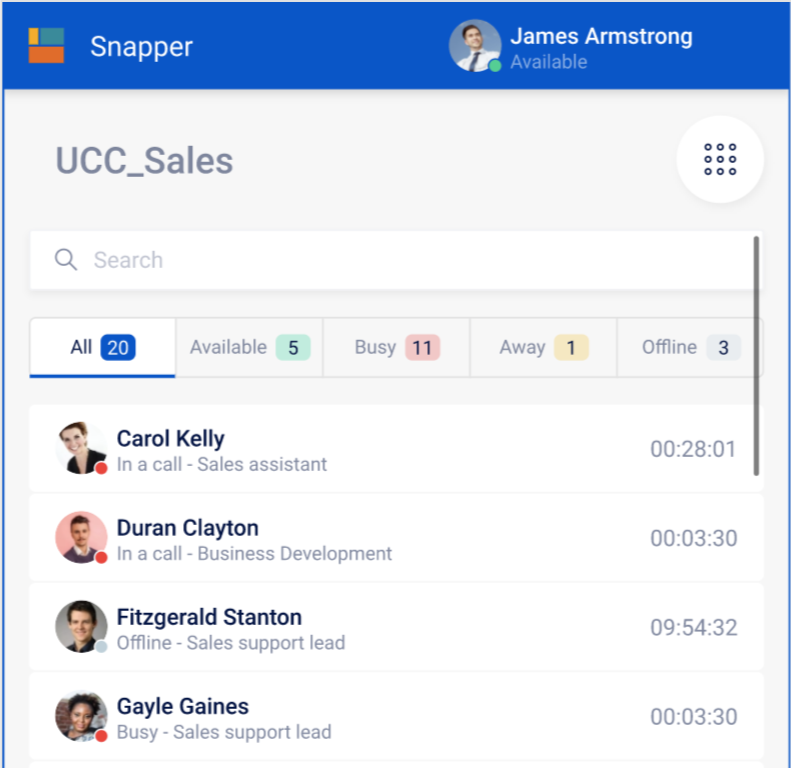
The agent overview shows agents for the selected UCC.
For each agent, Snapper can show:
* Presence.
* Picture.
* Display name.
* Reason code, when applicable.
Use the reason-code item to view or change your reason code from the dropdown. Reason codes must be configured for the UCC before they are available.
## View call history
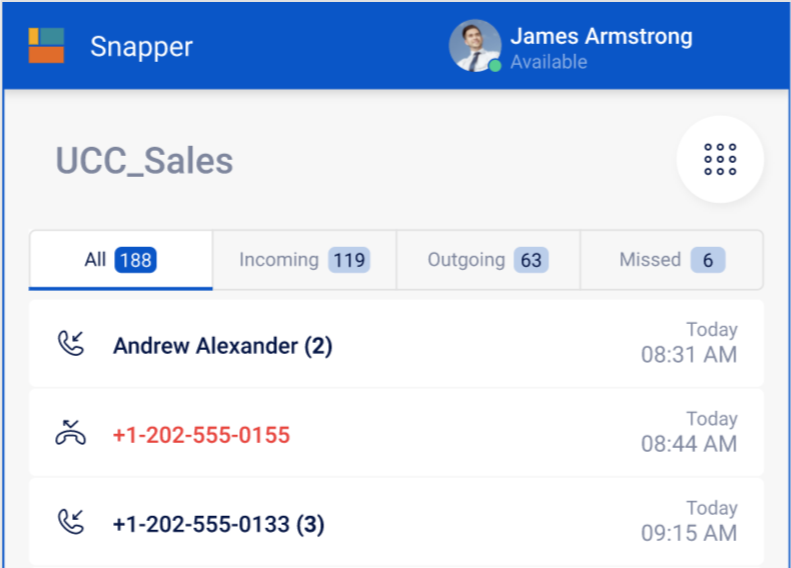
Call history shows previous contact moments you had with the UCC.
| History type | Meaning |
| ------------ | ----------------------------------------------------------------------------- |
| **Incoming** | Conversations you received from the UCC or inbound intercepted conversations. |
| **Outgoing** | Conversations you made with DCI or outbound intercepted conversations. |
| **Missed** | Conversations you missed from the UCC or inbound intercepted conversations. |
---
# Agent Instructions
This documentation is published with GitBook. GitBook is the documentation platform designed so that both humans and AI agents can read, navigate, and reason over technical content effectively. Learn more at gitbook.com.
## Querying This Documentation
If you need additional information that is not directly available in this page, you can query the documentation by asking a question.
Perform an HTTP GET request on the following URL with the `ask` and `goal` query parameters:
```
GET https://atlas.anywhere.now/use/existing-dialogue-cloud-neo-connect-apps/snapper/use-snapper.md?ask=&goal=
```
`ask` is the immediate question: it should be specific, self-contained, and written in natural language.
`goal` is what the user is ultimately trying to achieve, the reason they need the answer. Sharing it helps GitBook give you a better, more relevant answer. A goal is most helpful when it describes the outcome the user wants rather than restating the question. For example, with `ask=how do I create an API token`, a goal like `automate deployments from our CI pipeline` lets GitBook tailor the answer to that use case.
The response will contain a direct answer to the question and relevant excerpts and sources from the documentation.
Use this mechanism when the answer is not explicitly present in the current page, you need clarification or additional context, or you want to retrieve related documentation sections.