> For the complete documentation index, see [llms.txt](https://atlas.anywhere.now/llms.txt). Markdown versions of documentation pages are available by appending `.md` to page URLs; this page is available as [Markdown](https://atlas.anywhere.now/set-up-dialogue-cloud-neo/prerequisites/configure-microsoft-graph-presence.md).
# Configure Microsoft Graph Presence
Configure Microsoft Graph permissions for Dialogue Cloud to read and set agent presence in Microsoft Teams.
Dialogue Cloud reads and sets agent presence in Microsoft Teams. Configure both integrations before enabling call distribution.
{% hint style="warning" %}
Register the Source (Get) and Publisher (Set) as **two separate app registrations in Microsoft Entra ID**. Do not combine them into one. Separation limits blast radius if one app experiences throttling, and allows you to control whether presence-writing is permitted in your organisation's jurisdiction.
{% endhint %}
{% hint style="success" %}
**Before you begin:** You need Global Administrator or Application Administrator access to the customer's Microsoft Entra ID. OnePortal access is needed later when you apply the resulting IDs and secrets to a service. Allow approximately 20–30 minutes to create both app registrations.
{% endhint %}
***
## Prerequisites
* **Global Administrator** or **Application Administrator** role in Microsoft Entra ID
* Access to OnePortal later to enter the resulting IDs and secrets on the service
***
## Create the app registrations
You need **two** app registrations:
* **Graph Presence Source (Get)** — reads agent presence
* **Graph Presence Publisher (Set)** — writes agent presence
Create both apps first. Then create a client secret for each. After that, assign the correct permissions to each app.
{% stepper %}
{% step %}
### Create the Graph Presence Source app
1. Navigate to .
2. Under **Applications** → **App registrations**, select **New registration**.
3. Enter a name, for example `AnywhereNow Graph Presence Source`.
4. Select **Accounts in this organizational directory only**.
5. Select **Register**.
{% endstep %}
{% step %}
### Create the Graph Presence Publisher app
1. Navigate to .
2. Under **Applications** → **App registrations**, select **New registration**.
3. Enter a name, for example `AnywhereNow Graph Presence Publisher`.
4. Select **Accounts in this organizational directory only**.
5. Select **Register**.
{% endstep %}
{% step %}
### Create a client secret for each app
Repeat these steps for both app registrations:
1. Open the app registration.
2. Go to **Certificates & secrets**.
3. Select **New client secret**.
4. Enter a description and set an expiry.
5. Copy the **Value** immediately. It is shown only once.
{% hint style="warning" %}
A renewed client secret can be entered in OnePortal in advance. Activating the renewal requires a Unified Contact Center (UCC) service restart. Plan this during a maintenance window.
{% endhint %}
{% endstep %}
{% endstepper %}
***
## Assign Microsoft Graph permissions
Assign the permissions below to the correct app registration. Grant admin consent after adding the permissions for each app.
{% hint style="warning" %}
Application permissions require admin consent. Only a tenant administrator can grant admin consent.
{% endhint %}
### Graph Presence Source (Get)
The Graph Presence Source reads agent presence states (available, busy, away, and others) so Dialogue Cloud can route calls based on agent availability.
Add the following **Application** Microsoft Graph permissions to the **Graph Presence Source** app:
Presence.Read.All — Read presence information of all users in your organisation
**Description**: Allows the app to read presence information of all users in the directory without a signed-in user. Presence information includes activity, availability, status note, calendar out-of-office message, timezone, and location.
**Why required**: Allows the Graph Presence Source to retrieve current presence from users.
**Permission name**: Microsoft Graph / Presence.Read.All
Domain.Read.All — Read domains
**Description**: Allows the app to read all domain properties without a signed-in user.
**Why required**: Allows the Graph Presence Source to retrieve domains from the tenant.
**Permission name**: Microsoft Graph / Domain.Read.All
User.Read.All — Read all users' full profiles
**Description**: Allows the app to read user profiles without a signed-in user.
**Why required**: Allows the Graph Presence Source to translate User Principal Name (UPN) to ID. ID is required to retrieve presence.
**Permission name**: Microsoft Graph / User.Read.All
TeamsTelephoneNumber.Read.All - Read Tenant-Acquired Telephone Number Details
**Description**: Allows the app to read telephone numbers assigned to users and other entities in Microsoft Teams without a signed‑in user.
**Why is this required**: To allow the Graph Presence Source (or calling/signaling components) to resolve Teams telephone numbers to the corresponding Teams user objects. This enables correct correlation between phone numbers and user identities when processing call events, presence updates, or telephony‑related data.
**Permission name**: Microsoft Graph / TeamsTelephoneNumber.Read.All
{% hint style="warning" %}
**If admin consent fails or is accidentally revoked**: the Graph Presence Source will stop receiving presence data. Dialogue Cloud will continue routing calls but will not be able to determine live agent availability from Teams. Re-grant admin consent at any time using the same steps above — no data is lost and no restart is required. The integration recovers automatically once consent is active.
{% endhint %}
***
### Graph Presence Publisher (Set)
The Graph Presence Publisher writes agent presence states on demand — for example, when an agent selects a Reason Code or enters Wrap-Up time.
{% hint style="info" %}
Introduced in DC2023.04. Extended in DC2024.01 for Wrap-Up. Additional `PresenceBusyOnWrapUp` configuration added in DC2025.01a.
{% endhint %}
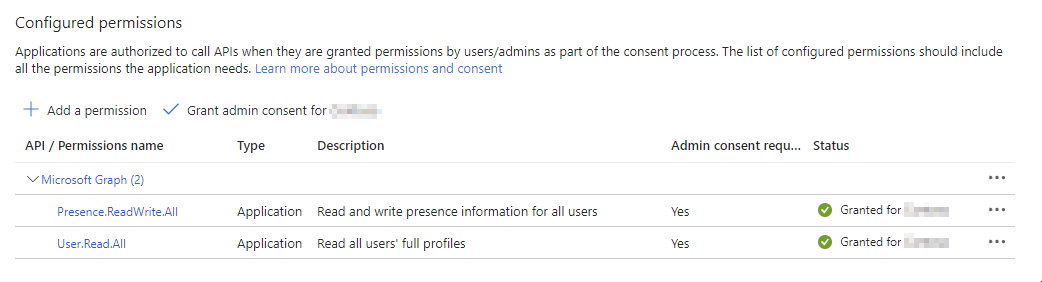
Add the following **Application** Microsoft Graph permissions to the **Graph Presence Publisher** app:
Presence.ReadWrite.All — Read and write presence information of all users in your organisation
**Description**: Allows the app to read all presence information and write activity and availability of all users in the directory without a signed-in user.
**Why required**: Allows the Graph Presence Publisher to set an agent's presence — for example, when selecting a Reason Code.
**Permission name**: Microsoft Graph / Presence.ReadWrite.All
User.Read.All — Read all users' full profiles
**Description**: Allows the app to read user profiles without a signed-in user.
**Why required**: Allows the Graph Presence Publisher to translate UPN to ID.
**Permission name**: Microsoft Graph / User.Read.All
***
## Collect the values for later service configuration
Have the following values ready for later entry in OnePortal:
* **Directory (tenant) ID**
* **Graph Presence Source — Application (client) ID**
* **Graph Presence Source — Client Secret Value**
* **Graph Presence Publisher — Application (client) ID**
* **Graph Presence Publisher — Client Secret Value**
{% hint style="info" %}
This page verifies the Microsoft Entra ID setup only. Before you continue, confirm that both app registrations show the required Microsoft Graph permissions with **Grant admin consent** completed, and record the tenant ID, client IDs, and client secret values. Then apply those values to the Dialogue Cloud service later, after the service exists, and complete the end-to-end presence verification there.
{% endhint %}
## Apply Graph Presence values in OnePortal
In Dialogue Cloud Neo, Microsoft Graph Presence Source values are configured in OnePortal at Service level. The route depends on whether you are creating a new Service or updating an existing Service.
### Configure the Presence Publisher
In OnePortal, enable Graph Presence Publisher by entering the tenant ID, client ID, and client secret, and then switching the enable/disable toggle.
{% hint style="info" %}
When enabling Graph Presence Publisher from a previously disabled state, the feature may become active immediately if the file watcher service processes the configuration change successfully.
If the change is not fully applied, restart the associated UCC service to ensure Graph Presence Publisher is activated and operating as expected.
For predictable activation during deployment, a service restart is recommended after enabling Graph Presence Publisher.
{% endhint %}
### First-time Service configuration
For a new Service, enter the approved Graph Presence values during Service creation in the **Presence Configuration** section.
For the full Service setup flow, see [Set up a Service](/platform-administration/provisioning/provisioning/setting-up-a-service.md).
### Update an existing Service
For an existing Service, use the Service actions in OnePortal:
1. Open OnePortal and select the customer.
2. Open **Services** and select the relevant Service.
3. Use **Replace** to update the Graph client ID when the Microsoft Entra application changes.
4. Use **Change** to update the Graph connection type or Graph secret when the authentication method or secret changes.
5. Apply the change with a Service restart so the updated Graph connection settings are reloaded.
{% hint style="warning" %}
If an existing environment still uses delegated username/password authentication for Graph Presence, the service account must have MFA disabled. Enabled MFA causes authentication failures. Use application permissions with client ID and secret where possible.
{% endhint %}
After the restart, verify that presence collection resumes for agents whose UPN values are populated correctly.
For Service action details, see [Manage Services](/platform-administration/provisioning/provisioning/manage-services.md).
***
## Presence Behavior Reference
The Presence Publisher affects how agent presence changes with Reason Codes and Wrap-Up. The tables below document behavior across Dialogue Cloud bundle versions.
{% hint style="info" %}
Teams presence is stored in the customer's tenant and is also influenced by external factors: Outlook calendar, machine lock state (idle = away), Teams on mobile, and third-party apps such as Busylight. This is referred to as **Native Teams Presence**.
{% endhint %}
From DC2025.01a, `PresenceBusyOnWrapUp` controls wrap-up presence behavior. Default `True`: Teams presence remains Busy during wrap-up and resets to native presence after wrap-up ends. When set to `False`, agents can keep a manual or previous reason-code status during wrap-up, depending on the active configuration.
### With Presence Publisher enabled
Native Teams Presence = Available
| Feature action | Before DC2023.04 | DC2023.04 | DC2024.01 | DC2025.01a |
| --------------------------------------- | ------------------------------------------------------------------------------------------------ | ------------------------------------------------------------------------------------------------ | ----------------------------------------------------------------------------------------------- | ------------------------------------------------------------ |
| Select Reason Code — status **busy** | Teams Presence **not** changed; Agent Presence **ready** for hunt | Teams Presence → **busy**; Agent Presence **not ready** | Teams Presence → **busy**; Agent Presence **not ready** | Teams Presence → **busy**; Agent Presence **not ready** |
| Select Reason Code — status **away** | Teams Presence **not** changed; Agent Presence **ready** | Teams Presence → **away**; Agent Presence **not ready** | Teams Presence → **away**; Agent Presence **not ready** | Teams Presence → **away**; Agent Presence **not ready** |
| Select Reason Code — **No reason code** | Teams Presence **not** changed; Agent Presence **ready** | Teams Presence **reset** to native; Agent Presence **ready** | Teams Presence **reset** to native; Agent Presence **ready** | Teams Presence **reset** to native; Agent Presence **ready** |
| Wrap-Up — **in progress** | Teams Presence **not** changed; Agent **blocked** same UCC service; **ready** other UCC services | Teams Presence **not** changed; Agent **blocked** same UCC service; **ready** other UCC services | Teams Presence → **busy**; Agent **blocked** same UCC service; **not ready** other UCC services | Controlled by `PresenceBusyOnWrapUp` setting |
| Wrap-Up — **ends** | Teams Presence **not** changed; Agent **ready** same and other UCC services | Teams Presence **not** changed; Agent **ready** same and other UCC services | Teams Presence **reset** to native; Agent **ready** same and other UCC services | Controlled by `PresenceBusyOnWrapUp` setting |
*Assumes LowestHuntPresence = available and Native Teams Presence = available.*
> **LowestHuntPresence**: the minimum Teams presence state at which an agent is considered available for call distribution. Set per UCC in Dialogue Studio. When an agent's Teams presence is at or above this threshold, they are eligible to receive calls.
Native Teams Presence = Busy
| Feature action | Before DC2023.04 | DC2023.04 | DC2024.01 | DC2025.01a |
| --------------------------------------- | --------------------------------------------------------------------------------------- | --------------------------------------------------------------------------- | ---------------------------------------------------------------------- | ------------------------------------------------------- |
| Select Reason Code — status **busy** | Teams Presence **not** changed; Agent Presence **not ready** | Teams Presence → **busy**; Agent **not ready** | Teams Presence → **busy**; Agent **not ready** | Teams Presence → **busy**; Agent **not ready** |
| Select Reason Code — status **away** | Teams Presence **not** changed; Agent **not ready** | Teams Presence → **away**; Agent **not ready** | Teams Presence → **away**; Agent **not ready** | Teams Presence → **away**; Agent **not ready** |
| Select Reason Code — **No reason code** | Teams Presence **not** changed; Agent **not ready** | Teams Presence **reset** to native; Agent **not ready** | Teams Presence **reset** to native; Agent **not ready** | Teams Presence **reset** to native; Agent **not ready** |
| Wrap-Up — **in progress** | Teams Presence **not** changed; Agent **blocked** same UCC service; **not ready** other | Teams Presence **not** changed; Agent **blocked** same; **not ready** other | Teams Presence → **busy**; Agent **blocked** same; **not ready** other | Controlled by `PresenceBusyOnWrapUp` setting |
| Wrap-Up — **ends** | Teams Presence **not** changed; Agent **ready** same; **not ready** other | Teams Presence **not** changed; Agent **ready** same; **not ready** other | Teams Presence **reset** to native; Agent **ready** same and other | Controlled by `PresenceBusyOnWrapUp` setting |
*Assumes LowestHuntPresence = available and Native Teams Presence = busy (for example, In a meeting).*
### With Presence Publisher disabled
When the Presence Publisher is disabled, Teams Presence is **never** changed by AnywhereNow — regardless of Reason Code selection or Wrap-Up state. Agent Presence (hunt availability) follows standard UCC routing rules for each bundle version without publisher influence.
***
## What's next?
After both app registrations are ready, keep the tenant ID, client IDs, and client secrets ready for later service configuration. Continue with the applicable customer path:
{% content-ref url="/pages/fJztpLTgdi7SFOb0W7eq" %}
[Onboard a new customer](/onboard-or-upgrade/onboard-new-customer.md)
{% endcontent-ref %}
{% content-ref url="/pages/NeLfkWRhWeN55oXwCnDX" %}
[Upgrade an existing customer](/onboard-or-upgrade/neo-update-existing-customers.md)
{% endcontent-ref %}
Use the [setup overview](/set-up-dialogue-cloud-neo/initial-setup.md) to coordinate this with any remaining preparation and model-specific telephony work.
---
# Agent Instructions
This documentation is published with GitBook. GitBook is the documentation platform designed so that both humans and AI agents can read, navigate, and reason over technical content effectively. Learn more at gitbook.com.
## Querying This Documentation
If you need additional information that is not directly available in this page, you can query the documentation by asking a question.
Perform an HTTP GET request on the following URL with the `ask` and `goal` query parameters:
```
GET https://atlas.anywhere.now/set-up-dialogue-cloud-neo/prerequisites/configure-microsoft-graph-presence.md?ask=&goal=
```
`ask` is the immediate question: it should be specific, self-contained, and written in natural language.
`goal` is what the user is ultimately trying to achieve, the reason they need the answer. Sharing it helps GitBook give you a better, more relevant answer. A goal is most helpful when it describes the outcome the user wants rather than restating the question. For example, with `ask=how do I create an API token`, a goal like `automate deployments from our CI pipeline` lets GitBook tailor the answer to that use case.
The response will contain a direct answer to the question and relevant excerpts and sources from the documentation.
Use this mechanism when the answer is not explicitly present in the current page, you need clarification or additional context, or you want to retrieve related documentation sections.