> For the complete documentation index, see [llms.txt](https://atlas.anywhere.now/llms.txt). Markdown versions of documentation pages are available by appending `.md` to page URLs; this page is available as [Markdown](https://atlas.anywhere.now/platform-administration/maintenance-mode-applications/snapper/create-snapper-teams-app.md).
# Create the Snapper Teams app
Create or consent a Microsoft Entra app for Snapper Microsoft Graph access.
Snapper uses Microsoft Graph to collect agent details from Microsoft Entra ID, including display names, Microsoft Teams presence states, and Microsoft Teams activities.
Use one of these consent models:
1. Use the built-in global Microsoft Entra enterprise application.
2. Create a customer-owned app registration and use its Application (client) ID in Snapper.
## Option 1: Use the built-in app
The built-in app is:
```
AnywhereNow Snapper Teams - PROD
```
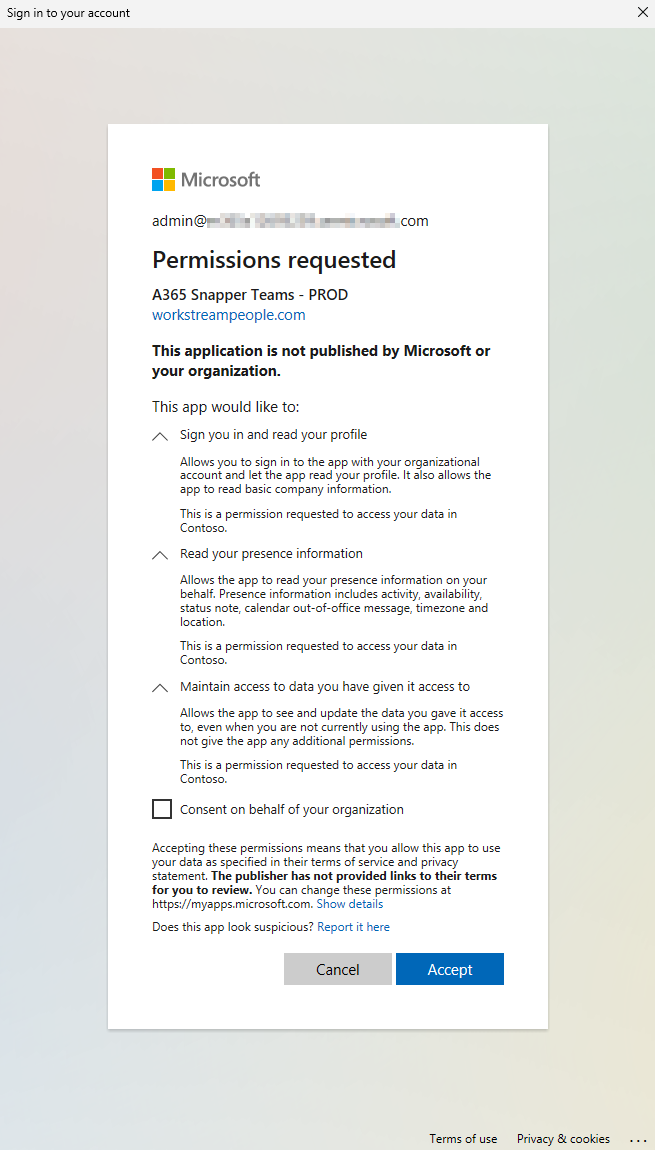
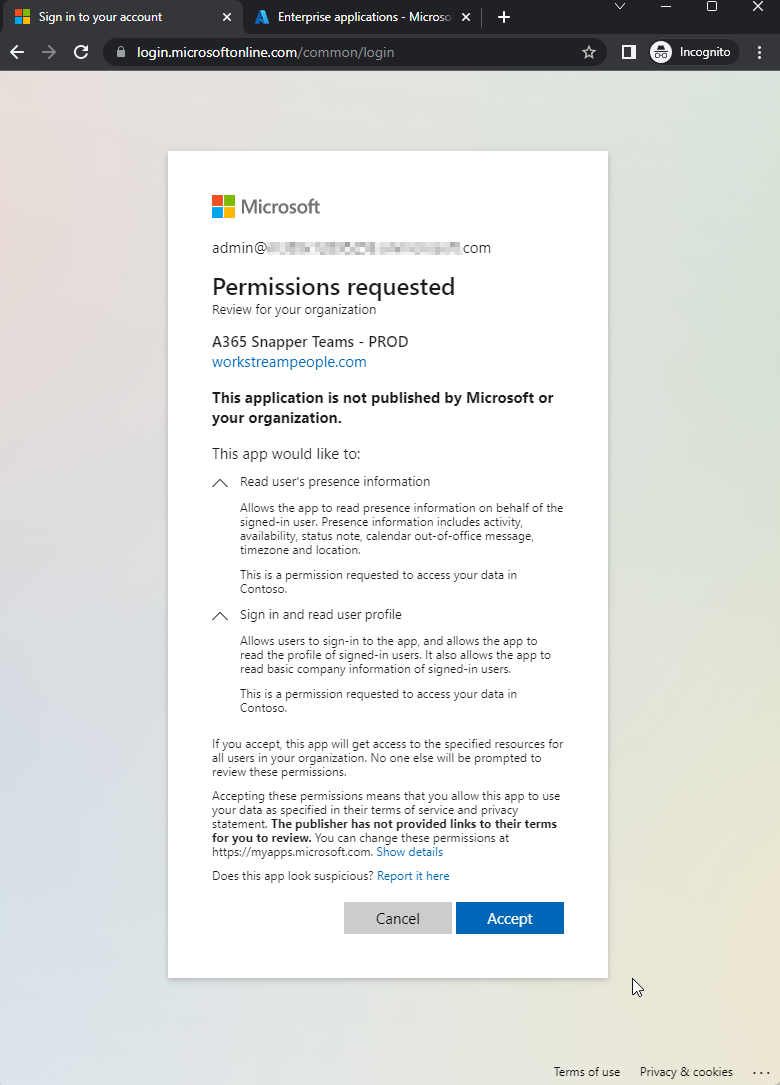
A Microsoft 365 tenant administrator can grant consent by signing in to Snapper first and granting consent for the organization, or by opening this admin-consent URL:
```
https://login.microsoftonline.com/common/adminconsent?client_id=0b7e5e1b-89d2-4c7d-94d3-a985d31b3a25
```
## Option 2: Create a customer-owned app registration
### Before you begin
You need:
* Access to the Microsoft Entra tenant.
* Rights to create app registrations.
* A global administrator or other authorized administrator who can grant tenant-wide consent.
### Register the app
1. Open the Azure portal.
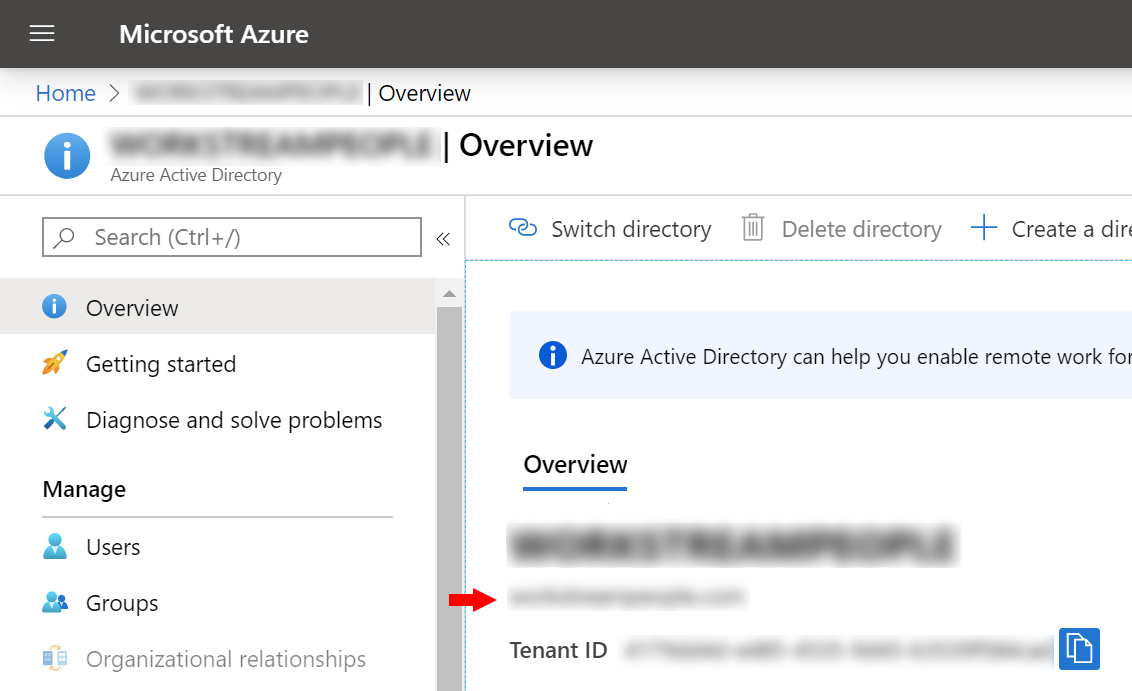
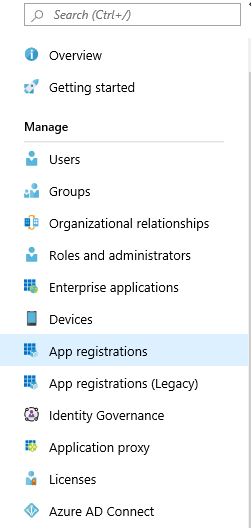
2. Go to **Microsoft Entra ID**.
3. Note the tenant domain for later use.
4. Select **App registrations**.
5. Select **New registration**.
6. Enter an application name.
7. Under **Supported account types**, select **Accounts in any organizational directory**.
8. Add a redirect URI:
* **Type**: **Public client/native (mobile & desktop)**.
* **Redirect URI**: `urn:ietf:wg:oauth:2.0:oob`.
9. Select **Register**.
### Configure authentication
1. In the app registration, select **Authentication**.
2. Add **Web** as a platform.
3. Under **Web** > **Redirect URIs**, enter a Web redirect URI such as:
```
http://localhost
```
4. Under **Implicit grant**, select:
* **Access tokens**
* **ID tokens**
5. Under **Mobile and desktop applications** > **Redirect URIs**, check:
* `msal://auth`
* `https://login.microsoftonline.com/common/oauth2/nativeclient`
* `https://login.live.com/oauth20_desktop.srf`
6. Confirm that **Supported account types** remains **Accounts in any organizational directory**.
7. Select **Save**.
### Configure API permissions
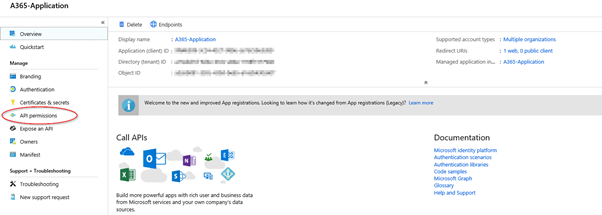
1. In the app registration, select **API permissions**.
2. Add delegated Microsoft Graph permission `User.Read`.
3. Add delegated Microsoft Graph permission `Presence.Read`.
4. Grant admin consent for the tenant.
### Use the app in Snapper
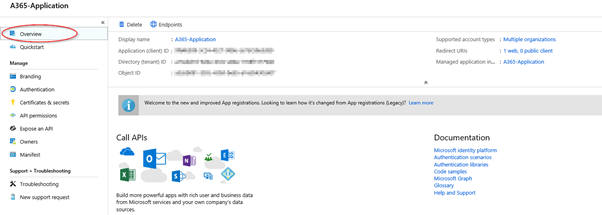
1. In the app registration, select **Overview**.
2. Copy the **Application (client) ID**.
3. Use that ID in the Snapper installer or Snapper settings as the Microsoft Teams client ID.
4. If tenant-wide consent must be granted through a URL, use:
```
https://login.microsoftonline.com/common/adminconsent?client_id=
```
## Verify consent
1. Start Snapper as a test user.
2. Complete sign-in.
3. Confirm that no user-consent prompt appears when tenant-wide admin consent has been granted.
4. Confirm that agent details and presence can be retrieved.
---
# Agent Instructions
This documentation is published with GitBook. GitBook is the documentation platform designed so that both humans and AI agents can read, navigate, and reason over technical content effectively. Learn more at gitbook.com.
## Querying This Documentation
If you need additional information that is not directly available in this page, you can query the documentation by asking a question.
Perform an HTTP GET request on the following URL with the `ask` and `goal` query parameters:
```
GET https://atlas.anywhere.now/platform-administration/maintenance-mode-applications/snapper/create-snapper-teams-app.md?ask=&goal=
```
`ask` is the immediate question: it should be specific, self-contained, and written in natural language.
`goal` is what the user is ultimately trying to achieve, the reason they need the answer. Sharing it helps GitBook give you a better, more relevant answer. A goal is most helpful when it describes the outcome the user wants rather than restating the question. For example, with `ask=how do I create an API token`, a goal like `automate deployments from our CI pipeline` lets GitBook tailor the answer to that use case.
The response will contain a direct answer to the question and relevant excerpts and sources from the documentation.
Use this mechanism when the answer is not explicitly present in the current page, you need clarification or additional context, or you want to retrieve related documentation sections.