> For the complete documentation index, see [llms.txt](https://atlas.anywhere.now/llms.txt). Markdown versions of documentation pages are available by appending `.md` to page URLs; this page is available as [Markdown](https://atlas.anywhere.now/connect-telephony/unify-model.md).
# Configure Unify telephony endpoints
Configure Unify model telephony by creating Unify endpoints in OnePortal. Covers automatic and manual deployment options, phone number assignment, and outbound calling.
A Unify endpoint connects a phone number to Dialogue Cloud Neo via a Teams Resource Account and Azure Communication Services (ACS). You create one endpoint per phone number, per contact center.
This page covers endpoint creation for both automatic deployment (recommended) and manual deployment.
Unify supports Microsoft Teams telephony through **Calling Plan**, **Operator Connect**, or **Direct Routing** via **Microsoft Phone System**.
{% hint style="info" %}
**Dialogue Cloud Neo (Unify) only.** This page covers Unify endpoint creation after the service and contact center are in place. If your Unify deployment uses **Direct Routing**, the SBC connection is between your telephony environment and **Microsoft Phone System**. Not sure which model applies? See [Deployment Model Guide for Dialogue Cloud Neo](/set-up-dialogue-cloud-neo/connect-vs-unify.md).
{% endhint %}
{% hint style="success" %}
**Before you begin:** Complete admin consent and Microsoft Graph Presence preparation, then create the Unify service and contact center. Follow [Onboard a new customer](/onboard-or-upgrade/onboard-new-customer.md) for these dependencies. Configure the Teams admin secret in Secure Vault only if you choose automatic endpoint deployment; manual deployment does not require that secret. Allow 20–40 minutes per endpoint (automatic), longer for manual deployment.
{% endhint %}
***
## Prerequisites
| Requirement | Details |
| ---------------------------------------- | ----------------------------------------------------------------------------------------------------------- |
| **Dialogue Cloud Neo enabled** | Your organisation has been enabled for Dialogue Cloud Neo by your AnywhereNow representative |
| **Microsoft Teams PowerShell module** | Version 7.0 or later — install or update with `Install-Module MicrosoftTeams -Force` |
| **Admin roles** | Teams Administrator + User Access Administrator (or equivalent) in the customer Microsoft 365 tenant |
| **Phone number** | Available for the endpoint — Calling Plan service number, Operator Connect number, or Direct Routing number |
| **Teams Phone Resource Account license** | One per endpoint — must be available in the customer Microsoft 365 tenant |
| **Contact center deployed** | A Unify service and contact center must already exist in OnePortal before you can add an endpoint |
| **Secure Vault configured** | Neo Communication Teams Admin secret must be stored — required for automatic deployment |
***
## Option A: Automatic deployment *(recommended)*
Automatic deployment creates the Teams Resource Account and assigns required app access on your behalf using the credentials stored in Secure Vault.
{% hint style="warning" %}
**Admin credentials required in Secure Vault.** Automatic deployment uses the Teams Administrator account stored in Secure Vault to provision resources in the customer tenant. Confirm the stored credentials are current and that the account holds the required roles before proceeding. Use PIM to elevate just-in-time if your organisation uses it — elevate the account before deployment, then let the elevation expire afterward.
{% endhint %}
1. In OnePortal, open the deployed contact center and select **Add Unify Endpoint**.
2. Choose **Automatic** deployment.
3. In step 2 of 3, review the **Environment Configuration**. These values show the resources that will be created in the customer tenant — confirm they are correct before continuing.
4. Enter the endpoint details:
| Field | Value |
| --------------------------- | -------------------------------------------------------------------- |
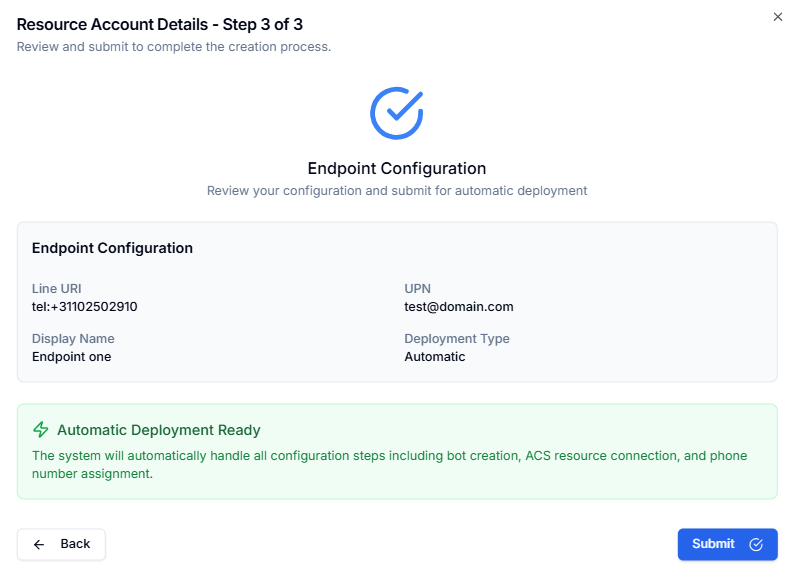
| **Line URI / phone number** | The phone number in E.164 format (for example: `+31102502910`) |
| **UPN** | The User Principal Name for the Teams Resource Account to be created |
| **Display name** | The display name for the Teams Resource Account |
5. Verify the configuration and select **Submit**.
6. The deployment engine provisions the Teams resources automatically. If you need to understand or troubleshoot the exact changes made, see [Option B: Manual deployment](#option-b-manual-deployment) for the full list of operations performed.
Automatic deployment stops when the Teams resources are created. The endpoint is not ready for use until you complete the post-provision licensing and verification steps below.
### Post-steps (automatic deployment)
After the endpoint is provisioned and the request is complete in OnePortal:
1. **Confirm the Resource Account exists** in the tenant before you continue.
2. **Assign the Teams Phone Resource Account license** to the created Resource Account:
* Go to the [Microsoft 365 admin center](https://admin.microsoft.com/)
* Assign the **Microsoft Teams Phone Resource Account** license to the endpoint Resource Account
3. **Return to OnePortal and confirm the endpoint no longer shows a licensing warning**.
4. **Enable outbound calling** if required — see [Outbound calling](#outbound-calling)
***
## Option B: Manual deployment
Manual deployment requires you to run PowerShell commands to create the Teams Resource Account, assign the phone number, and configure app access yourself. Use this option when automatic deployment is not possible (for example, when Secure Vault credentials cannot be stored, or when your organisation requires manual approval of resource account provisioning).
### Collect required values
Before starting, gather these values from OnePortal and your tenant:
| Value | Where to find it |
| ---------------------------------------- | ------------------------------------------------------------------- |
| **Resource Account UPN** | You define this — for example: `neo-ra@contoso.com` |
| **Resource Account display name** | You define this |
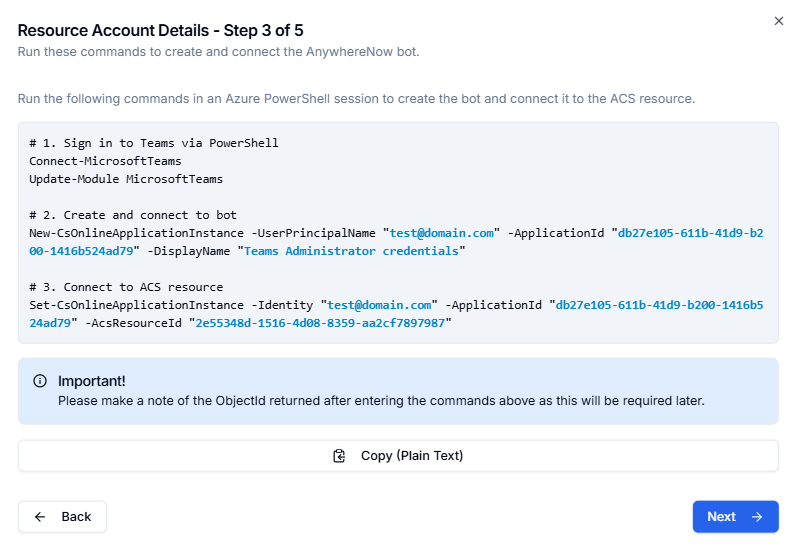
| **Neo Teams Phone Extensibility App ID** | Provided in OnePortal during the endpoint creation steps |
| **ACS Resource ID** | Provided in OnePortal during the endpoint creation steps |
| **Phone number** | The number to assign, in E.164 format (for example: `+31102502910`) |
| **Phone number type** | `CallingPlan`, `OperatorConnect`, or `DirectRouting` |
### Steps
1. In OnePortal, open the deployed contact center and select **Add Unify Endpoint**.
2. Choose **Manual** deployment.
3. Enter the endpoint details: **Line URI / phone number**, **UPN**, and **Display name** for the Teams Resource Account.
4. Run the PowerShell script shown in Step 3. Copy the script directly from OnePortal — it is pre-populated with the correct App IDs and ACS Resource ID for your deployment.
{% hint style="info" %}
**Tip:** If the Resource Account can't be assigned a number immediately after running the script, run `Sync-CsOnlineApplicationInstance -Identity $RaUpn` and retry after a short delay.
{% endhint %}
5. Assign the phone number to the Resource Account using PowerShell. Replace the phone number with your endpoint's number. The `-PhoneNumberType` value must match how the number was provisioned:
```powershell
# Assign a phone number (do not prefix with "tel:")
Set-CsPhoneNumberAssignment -Identity $RaUpn -PhoneNumber "+31102502910" -PhoneNumberType CallingPlan
# Supported values for -PhoneNumberType: CallingPlan | OperatorConnect | DirectRouting
# Verify the assignment
Get-CsPhoneNumberAssignment -TelephoneNumber "+31102502910"
```
If you're not sure which type applies, use `Get-CsPhoneNumberAssignment` to query the number first.
6. If the portal indicates the Resource Account isn't licensed, assign the license:
* Go to the [Microsoft 365 admin center](https://admin.microsoft.com/)
* Assign **Microsoft Teams Phone Resource Account** to the Resource Account
7. Verify the configuration in OnePortal and select **Submit**.
{% hint style="info" %}
**If endpoint creation fails** (automatic or manual): review the **Notifications** pane for the specific error before retrying. Common causes are missing Teams Administrator or User Access Administrator roles on the Secure Vault credentials, an unassigned Teams Phone Resource Account license, or a phone number that is not yet provisioned in the tenant.
Do not retry before reviewing the error. A partially created Resource Account may need to be removed before the same UPN can be used again. If the error cannot be resolved, contact AnywhereNow Support.
{% endhint %}
***
## Outbound calling
Outbound PSTN calling requires additional configuration depending on the phone number type.
### Calling Plans
The Resource Account needs a **Pay-As-You-Go Calling Plan** with funding through **Communications Credits** or **telco overage**, as applicable to your Microsoft agreement. A Domestic or International Calling Plan alone is not sufficient for this outbound scenario. The Teams Phone Resource Account license remains required, but clearing its licensing warning does not establish outbound readiness.
See Microsoft's [Teams Phone Extensibility outbound calling prerequisites](https://learn.microsoft.com/en-us/azure/communication-services/concepts/interop/tpe/teams-phone-extensibility-connectivity-cost#outbound-calling-prerequisites) for the current licensing and funding requirements.
### Direct Routing or Operator Connect
The existing **Teams Phone Resource Account license** is typically sufficient for outbound calling with Direct Routing or Operator Connect, as long as routing to the PSTN is configured.
If your organisation has restricted the Global Voice Routing Policy, or if the Resource Account requires a specific Voice Routing Policy, apply the policy using PowerShell. See [Manage call routing policies for Direct Routing](https://learn.microsoft.com/en-us/microsoftteams/manage-voice-routing-policies).
***
## What's next?
After endpoint licensing and any outbound configuration are complete, follow the [Incoming calls](/contact-center-configuration/building-your-callflow/via-dialogue-studio/incoming.md) validation steps for your Studio flow. Confirm the intended queue and exit behavior before starting real customer traffic. The partner/customer decides when to start production use; endpoint provisioning alone does not establish readiness.
Return to the [setup overview](/set-up-dialogue-cloud-neo/initial-setup.md) to complete any remaining work for the applicable new-deployment or existing-customer path. When setup is complete, use its Build & manage handoff to choose the next task.
---
# Agent Instructions
This documentation is published with GitBook. GitBook is the documentation platform designed so that both humans and AI agents can read, navigate, and reason over technical content effectively. Learn more at gitbook.com.
## Querying This Documentation
If you need additional information that is not directly available in this page, you can query the documentation by asking a question.
Perform an HTTP GET request on the following URL with the `ask` and `goal` query parameters:
```
GET https://atlas.anywhere.now/connect-telephony/unify-model.md?ask=&goal=
```
`ask` is the immediate question: it should be specific, self-contained, and written in natural language.
`goal` is what the user is ultimately trying to achieve, the reason they need the answer. Sharing it helps GitBook give you a better, more relevant answer. A goal is most helpful when it describes the outcome the user wants rather than restating the question. For example, with `ask=how do I create an API token`, a goal like `automate deployments from our CI pipeline` lets GitBook tailor the answer to that use case.
The response will contain a direct answer to the question and relevant excerpts and sources from the documentation.
Use this mechanism when the answer is not explicitly present in the current page, you need clarification or additional context, or you want to retrieve related documentation sections.