> For the complete documentation index, see [llms.txt](https://atlas.anywhere.now/llms.txt). Markdown versions of documentation pages are available by appending `.md` to page URLs; this page is available as [Markdown](https://atlas.anywhere.now/channels-integrations/dialogue-ai-assist/manage-dialogue-ai-assist-users.md).
# Manage Dialogue AI Assist users
Manage Dialogue AI Assist dashboard users, access requests, and permission changes.
Use the Dialogue AI Assist dashboard access model supplied for the customer environment to manage users and access requests. The dashboard URL, sign-in method, role model, and notification behavior can be customer-specific.
{% hint style="warning" %}
Do not grant access until you have the approved dashboard access model and role names for the customer environment. Some environments use a Deepdesk dashboard, magic-link access requests, Single Sign-On, and role changes by an AnywhereNow representative.
{% endhint %}
When Deepdesk access is managed through Microsoft Entra ID app roles, configure and assign those roles in the Deepdesk SSO app registration and Enterprise Application. For setup steps, see [Configure Microsoft Entra ID for Deepdesk SSO](/channels-integrations/dialogue-ai-assist/configure-microsoft-entra-id-for-deepdesk-sso.md).
## Access the dashboard
The dashboard URL can follow this organization-specific pattern:
```
https://[account].deepdesk.com
```
Use only the URL supplied for the customer environment. Do not derive the account name from the customer name or UCC name.
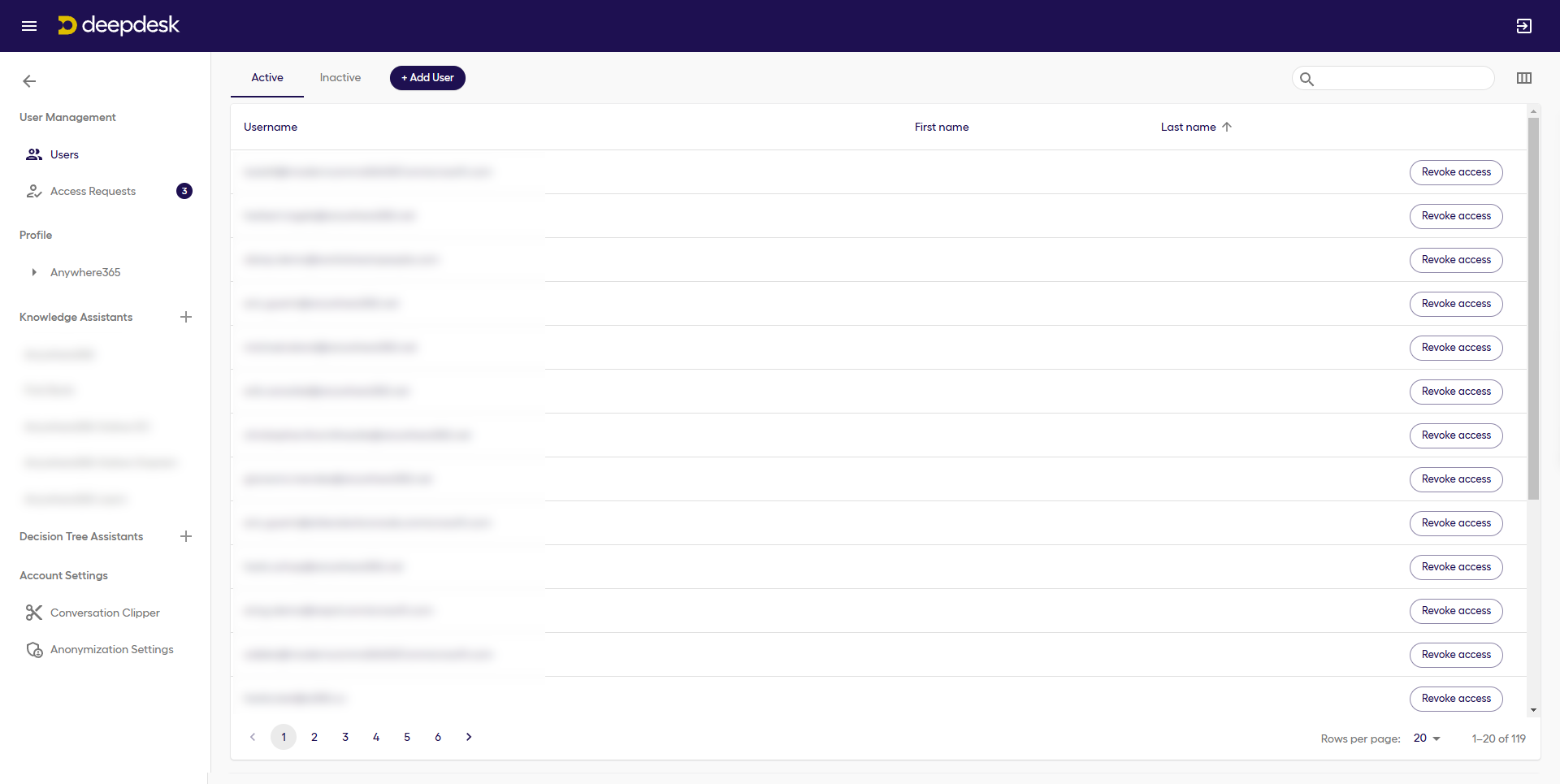
## Review active and inactive users
Use the dashboard user overview to identify users who currently have access and users whose access is inactive. Review the list when:
* a new administrator, editor, or agent requires access;
* a user changes responsibility;
* a user leaves the organization;
* access must be audited after a support or security event.
If the dashboard exposes active and inactive user states, apply the access policy and labels supplied for the customer environment before using a state as an access-control decision.
## Handle access requests
Some environments use this access-request pattern:
1. A user signs in with passwordless login, also called a magic link.
2. If the user is not known yet, the dashboard creates an access request.
3. Administrators receive an email notification.
4. An administrator accepts or denies the request.
Follow the access process supplied for the customer environment. If SSO is configured, use the Microsoft Entra ID assignment and identity governance process for the customer environment.
{% hint style="info" %}
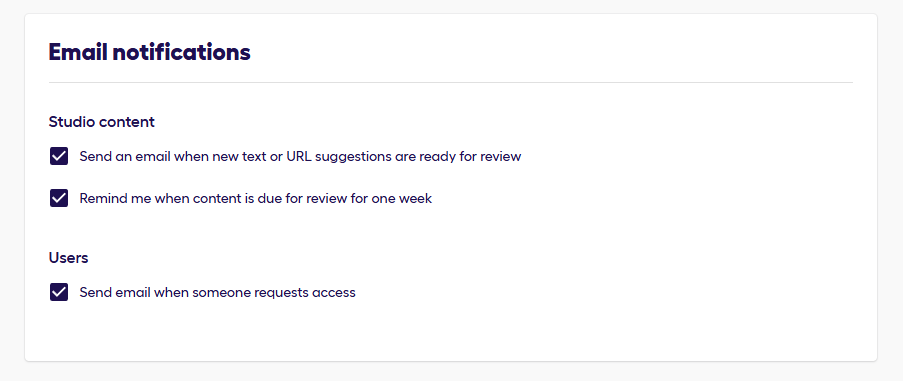
If access-request emails are configurable in the dashboard profile or notification settings, keep at least one accountable administrator subscribed to access-request notifications.
{% endhint %}
## Manage permissions and role changes
Some environments assign agent permissions to new users by default and require an AnywhereNow representative to change a user's access type.
Before you request or change access, verify:
* the role names shown in the dashboard or access process;
* which permissions each role grants;
* whether administrators can change roles directly or must request a change;
* whether access is assigned in Deepdesk or through Microsoft Entra ID app roles;
* which support or account-management process owns role changes;
* how role changes are audited.
## Validate access changes
After an access request or role change:
1. Ask the user to sign in through the approved sign-in method.
2. Confirm that the user sees only the dashboard areas required for the assigned role.
3. Confirm that inactive or denied users cannot access the dashboard.
4. Record any support-owned role change according to the customer's change-control process.
---
# Agent Instructions
This documentation is published with GitBook. GitBook is the documentation platform designed so that both humans and AI agents can read, navigate, and reason over technical content effectively. Learn more at gitbook.com.
## Querying This Documentation
If you need additional information that is not directly available in this page, you can query the documentation by asking a question.
Perform an HTTP GET request on the following URL with the `ask` and `goal` query parameters:
```
GET https://atlas.anywhere.now/channels-integrations/dialogue-ai-assist/manage-dialogue-ai-assist-users.md?ask=&goal=
```
`ask` is the immediate question: it should be specific, self-contained, and written in natural language.
`goal` is what the user is ultimately trying to achieve, the reason they need the answer. Sharing it helps GitBook give you a better, more relevant answer. A goal is most helpful when it describes the outcome the user wants rather than restating the question. For example, with `ask=how do I create an API token`, a goal like `automate deployments from our CI pipeline` lets GitBook tailor the answer to that use case.
The response will contain a direct answer to the question and relevant excerpts and sources from the documentation.
Use this mechanism when the answer is not explicitly present in the current page, you need clarification or additional context, or you want to retrieve related documentation sections.