> For the complete documentation index, see [llms.txt](https://atlas.anywhere.now/llms.txt). Markdown versions of documentation pages are available by appending `.md` to page URLs; this page is available as [Markdown](https://atlas.anywhere.now/channels-integrations/dialogue-ai-assist/manage-dialogue-ai-assist-recommendation-studio.md).
# Manage Dialogue AI Assist Recommendation Studio
Manage shared Dialogue AI Assist webchat suggestions, URL suggestions, pinned messages, style suggestions, and images in Recommendation Studio.
Use Recommendation Studio in the Dialogue AI Assist dashboard to manage shared webchat content that can be made available to agents. Recommendation Studio contains:
* text suggestions;
* URL suggestions;
* pinned messages;
* style suggestions;
* images.
Editors are responsible for keeping shared content accurate, current, reusable, and aligned with the organization's tone of voice. Review shared content regularly when products change, when service conditions change, during busy periods, and when seasonal or promotional messages need to be added or removed.
{% hint style="info" %}
Keep more than one accountable editor available when the customer environment depends on shared suggestions. Scheduled updates and unexpected service changes may need to be published quickly.
{% endhint %}
## Before you begin
Make sure that:
* Dialogue AI Assist is enabled for the customer environment;
* you have the approved dashboard URL for the customer environment;
* your account has access to the editor areas in the Dialogue AI Assist dashboard;
* the profiles, image library, and webchat scenario have been prepared for the content you want to manage.
The dashboard URL can follow this organization-specific pattern:
```
https://[account].deepdesk.com
```
Use only the URL supplied for the customer environment. Do not derive the account name from the customer name or UCC name.
## Review and manage text suggestions
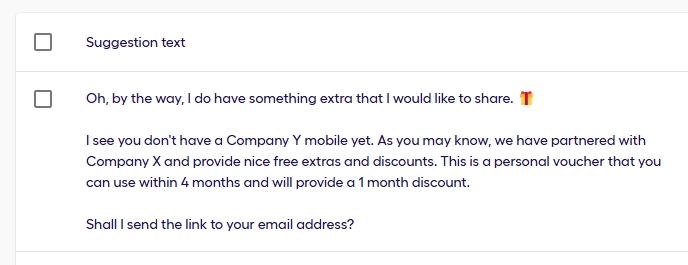
Text suggestions are shared reusable replies that can appear to agents while they handle webchat conversations. Agents can also search for available suggestions.
New shared suggestions can appear in the **In Review** area. Suggestions in review are not available to agents until an editor enables them.
For each suggestion in review:
1. Check whether there is a realistic webchat scenario where the suggestion would be useful.
2. Edit the text for accuracy, spelling, grammar, and tone of voice.
3. Add variables or placeholders where they make the suggestion reusable.
4. Check whether an agent could find the suggestion with likely keywords.
5. Enable the suggestion when it is relevant, accurate, reusable, and findable.
If the suggestion should not be used, disable it instead.
You can edit suggestion text inline when the dashboard supports inline editing, or open the suggestion with the edit action shown in your environment. After review, enable or disable suggestions one at a time, or select multiple suggestions and apply the enable or disable action in bulk.
Enabled suggestions are available to agents. Disabled suggestions are not available to agents, but can still be edited and re-enabled later.
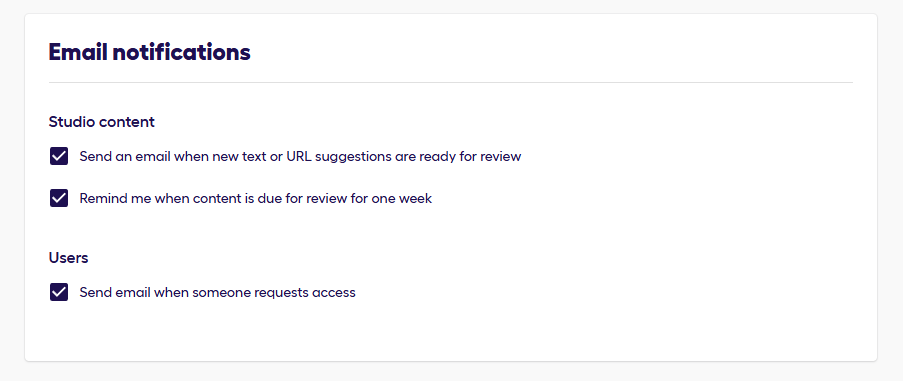
## Receive content notifications
Editors can receive email notifications when new content is added or when content is overdue for review, depending on the profile and notification settings configured in the dashboard.
Keep at least one accountable editor subscribed to content notifications when the environment uses Recommendation Studio content operationally.
## Use variables and placeholders in shared suggestions
Shared suggestions can use the same automatic variables that are available for personal suggestions, when those variables are supported by the customer environment:
| Variable | Replacement |
| ---------------- | ------------------------------- |
| `{visitor_name}` | The customer's name. |
| `{agent_name}` | The agent's name. |
| `{part_of_day}` | Morning, afternoon, or evening. |
| `{day_of_week}` | The day of the week. |
For more information about how agents use variables in personal suggestions, see [Manage personal suggestions](/use/handle-conversations/dialogue-ai-assist/manage-personal-suggestions.md).
{% hint style="warning" %}
For `{part_of_day}` and `{day_of_week}`, replacement behavior can depend on the message language. The `{part_of_day}` value can also depend on the client's timezone configuration.
{% endhint %}
Use placeholders to mark values that the agent must replace before sending the message, such as:
* `{email}`
* `{date}`
* `{amount}`
* `{order_number}`
Use placeholders when one message needs customer-specific values. If a suggestion requires many replacements, consider creating several more specific suggestions with fewer placeholders so agents can find and use them more quickly.
{% hint style="warning" %}
Do not enable shared suggestions that contain unresolved customer-specific values unless those values are clearly marked as placeholders for the agent to replace before sending.
{% endhint %}
## Maintain enabled and disabled suggestions
Review enabled and disabled suggestions as part of operational content maintenance:
* Search disabled suggestions before creating seasonal or temporary content. A previous message may only need minor updates before it is enabled again.
* Disable seasonal, promotional, outage, or incident-specific messages when they are no longer valid.
* Notify agents when important shared content has been enabled, updated, or removed.
* Encourage agents to create personal suggestions for personal wording preferences that should not become shared content.
Changes to enabled content can become available to agents immediately after saving, depending on the customer environment.
## Manage URL suggestions
URL suggestions help agents direct customers to relevant self-service pages, partner pages, sign-in pages, or other web resources.
Like text suggestions, new URL suggestions can be placed in review before they are enabled. Enabled URL suggestions can be suggested or made available to agents in the webchat experience.
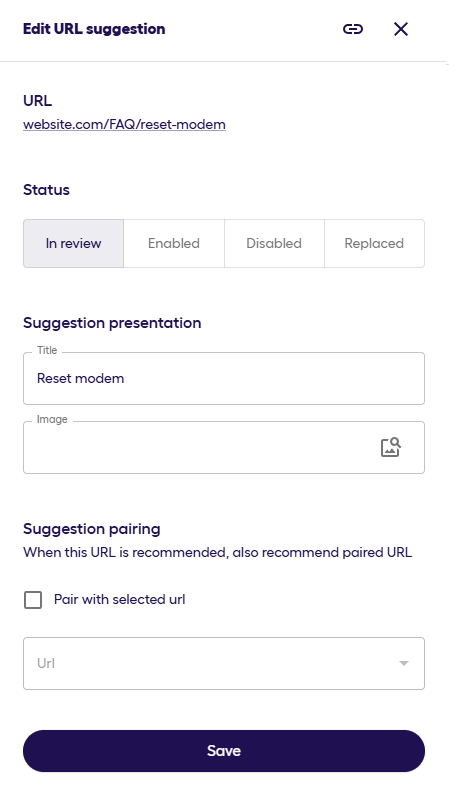
When you create or edit a URL suggestion:
1. Check the destination URL and confirm that it is appropriate for agents to send to customers.
2. Add a short, descriptive title.
3. Add a relevant image when the customer environment uses images with URL suggestions.
4. Save the URL suggestion.
5. Enable the URL suggestion when it is ready for agent use.
{% hint style="info" %}
The image must already exist in the Images area before you can attach it to a URL suggestion.
{% endhint %}
### Replace outdated URLs
When a URL is a direct replacement for an existing destination, edit the existing URL suggestion and use the dashboard's replacement option when available. This keeps the relationship between the old destination and the new destination explicit for editors and agents.
Use a new URL suggestion instead when the new destination represents different content or a different agent scenario.
### Pair related URLs
If the dashboard supports paired URLs, pair URL suggestions that should be presented together. For example, an editor can pair a troubleshooting article with a related sign-in page when both are useful in the same customer scenario.
## Manage pinned messages
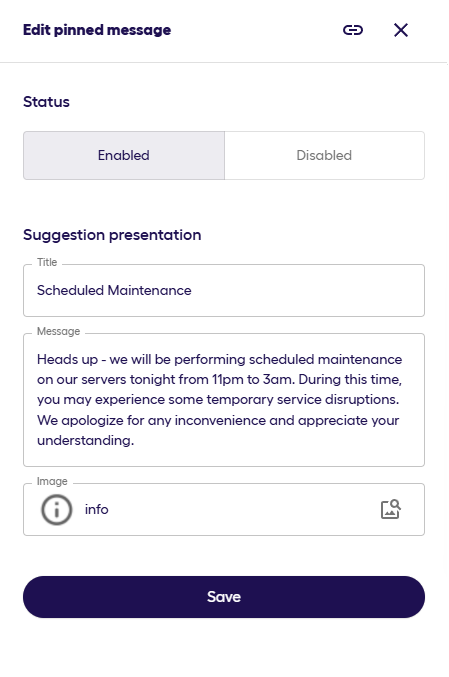
Pinned messages are shared messages that are highly visible in the agent interface. They are useful when agents repeatedly need the same message because of events such as:
* service outages;
* price changes;
* seasonal campaigns;
* temporary promotions;
* other one-topic traffic spikes.
Pinned messages can become available to agents immediately after they are created.
When you create or edit a pinned message:
1. Add a short, descriptive title.
2. Add the message text that should appear in the agent's input field when the agent selects the pinned message.
3. Add a relevant image when the customer environment uses images with pinned messages.
4. Save the pinned message.
{% hint style="info" %}
The image must already exist in the Images area before you can attach it to a pinned message.
{% endhint %}
## Manage style suggestions
Style suggestions provide real-time writing guidance when an agent types configured trigger words or phrases. Use them for tone-of-voice coaching, clarity reminders, and organization-specific wording guidance.
When you create or edit a style suggestion:
1. Add a title that describes the guidance.
2. Add the trigger words or trigger phrases. Press **Enter** after each trigger.
3. Add short improvement text that tells the agent what to change.
4. Select the profiles the style suggestion applies to, when profile scoping is relevant.
5. Save the style suggestion.
Examples:
| Title | Example triggers | Suggested improvement |
| ---------------- | ------------------------------------------ | ----------------------------------------------------------------------- |
| Apologies | `I apologize`; `We apologize`; `Sorry` | Thank the customer instead, for example: `Thank you for your patience`. |
| When exactly? | `Soon`; `A few days`; `A few hours` | Be concrete about the number of days or hours. |
| Unclear language | `I believe`; `I think`; `In theory` | Rephrase as a statement. |
| Jargon | Organization-specific jargon | Replace jargon with customer-friendly wording. |
| Keep it simple | `utilize`; `terminate`; `at the time that` | Use simpler wording, such as `use`, `end`, or `when`. |
Keep style suggestions short and actionable. They should help agents adjust the current message without interrupting the conversation.
## Manage images
Images in Recommendation Studio can be used as visual elements for URL suggestions and pinned messages. If the customer environment supports sending images from the agent experience, images may also be available for agent use in webchat conversations.
When you create or edit an image:
1. Add a short, descriptive name.
2. Add keywords if the image should be searchable. Press **Enter** after each keyword.
3. Select the profiles the image applies to, when profile scoping is relevant.
4. Upload the image.
5. Save the image.
Use only images that are approved for customer communication. Do not upload images that contain confidential information, credentials, personal data, or content that is only valid for one customer unless the image is controlled for that exact scenario.
## Validate Recommendation Studio changes
After you update Recommendation Studio content:
1. Confirm that enabled content appears in the expected enabled area.
2. Confirm that disabled content is not available to agents.
3. Check a controlled WebAgent webchat scenario when the change affects agent-facing suggestions.
4. Confirm that temporary, seasonal, or incident-specific content has an owner and a removal date.
5. Record operational content changes according to the customer's change-control process.
---
# Agent Instructions
This documentation is published with GitBook. GitBook is the documentation platform designed so that both humans and AI agents can read, navigate, and reason over technical content effectively. Learn more at gitbook.com.
## Querying This Documentation
If you need additional information that is not directly available in this page, you can query the documentation by asking a question.
Perform an HTTP GET request on the following URL with the `ask` and `goal` query parameters:
```
GET https://atlas.anywhere.now/channels-integrations/dialogue-ai-assist/manage-dialogue-ai-assist-recommendation-studio.md?ask=&goal=
```
`ask` is the immediate question: it should be specific, self-contained, and written in natural language.
`goal` is what the user is ultimately trying to achieve, the reason they need the answer. Sharing it helps GitBook give you a better, more relevant answer. A goal is most helpful when it describes the outcome the user wants rather than restating the question. For example, with `ask=how do I create an API token`, a goal like `automate deployments from our CI pipeline` lets GitBook tailor the answer to that use case.
The response will contain a direct answer to the question and relevant excerpts and sources from the documentation.
Use this mechanism when the answer is not explicitly present in the current page, you need clarification or additional context, or you want to retrieve related documentation sections.