> For the complete documentation index, see [llms.txt](https://atlas.anywhere.now/llms.txt). Markdown versions of documentation pages are available by appending `.md` to page URLs; this page is available as [Markdown](https://atlas.anywhere.now/attendant-console/use/get-started.md).
# Get started with Attendant Console for Dialogue Cloud
Sign in to Attendant Console for Dialogue Cloud, select queues, place outbound calls, and transfer calls to Teams users.
Use Attendant Console for Dialogue Cloud to work with configured Dialogue Cloud queues and conversations from the Attendant Console interface.
{% hint style="info" %}
Before you sign in, an administrator must complete Attendant Console for Dialogue Cloud setup, consent, and user access configuration.
{% endhint %}
## Sign in
1. Open Attendant Console for Dialogue Cloud:
```
https://dr-attendant.anywhere365.io/
```
2. Sign in with the same Microsoft credentials you use for WebAgent.
If sign-in fails or you do not have access, contact your administrator.
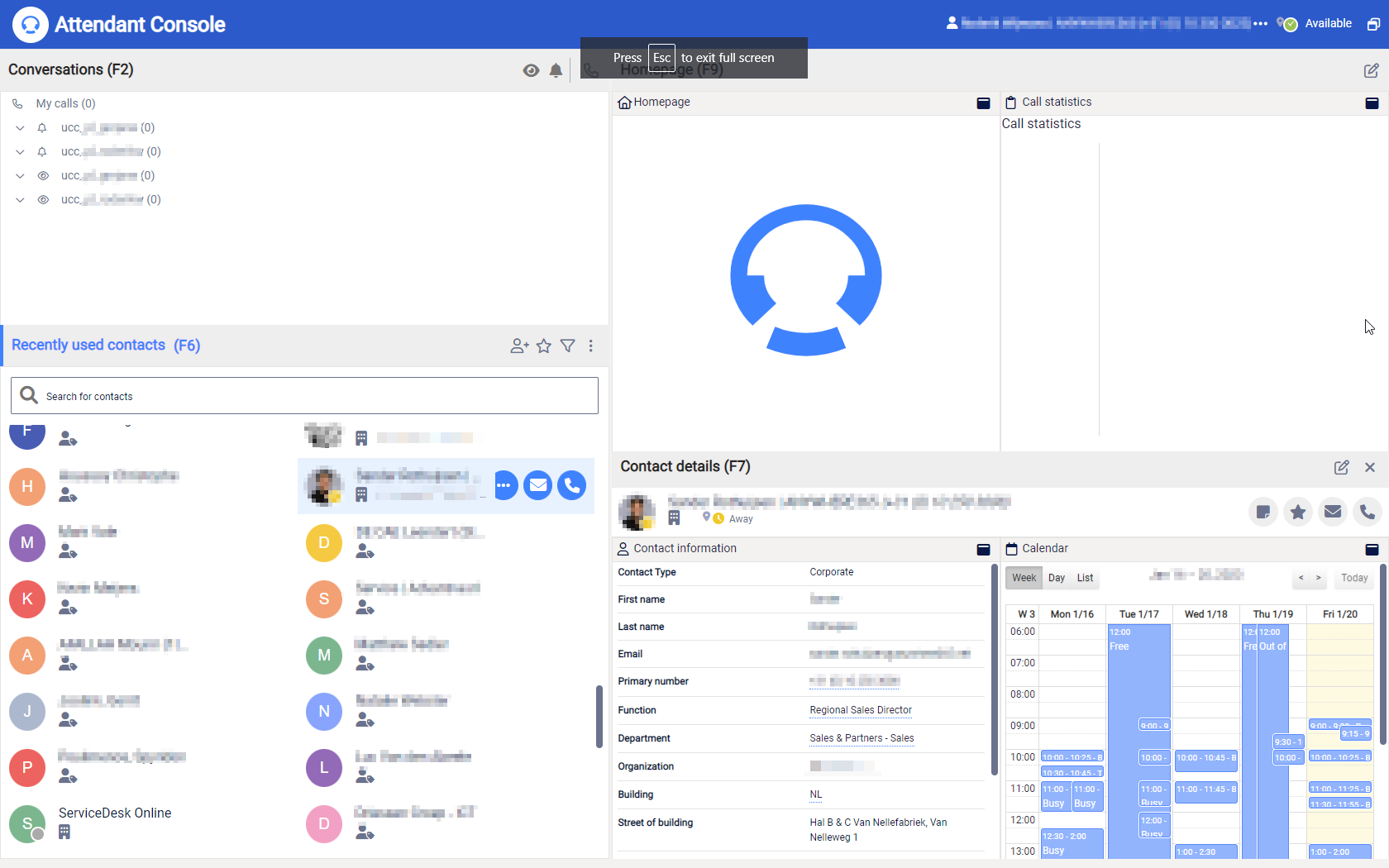
Attendant Console for Dialogue Cloud after successful sign-in.
For setup details, see [Attendant Console for Dialogue Cloud setup and consent](/attendant-console/set-up-and-administer/setup.md).
## Select queues
Configure the queues you want to join or monitor.
1. Select your user name in the top-right corner of Attendant Console.
2. Select **Preferences**.
3. Select the **Queues** tab.
4. Select the queues you need under **Joined Queues** and **Monitored Queues**.
5. Select **Close**.
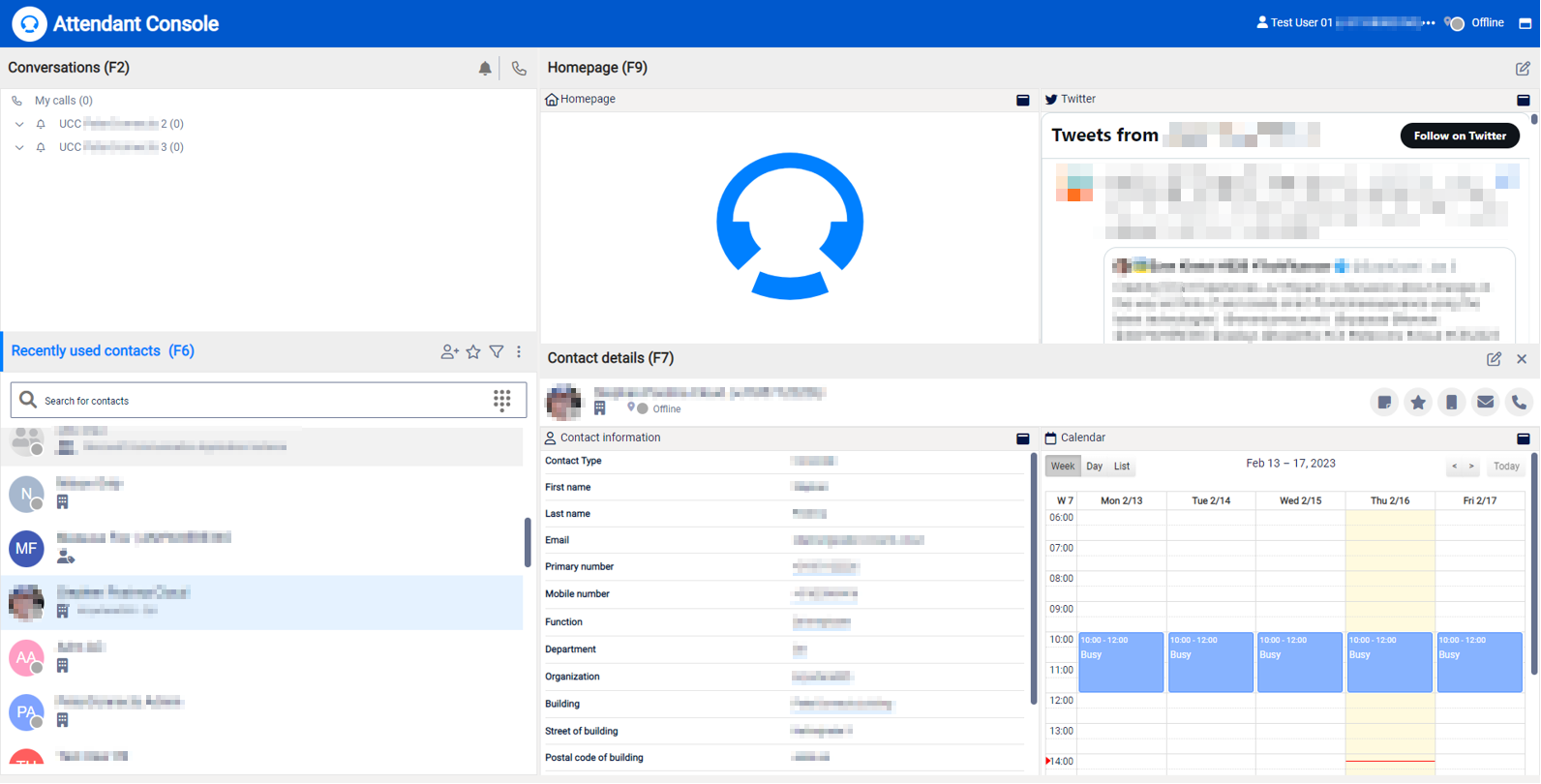
Standard theme layout for Attendant Console for Dialogue Cloud.
| Queue type | What it means |
| --------------- | ------------------------------------------------------------------------------------------------------------------------------- |
| Joined queue | You are part of call distribution for the queue. |
| Monitored queue | You can see call information and manually pick up calls, but you are not automatically included in distribution for that queue. |
### Formal and informal agents
Informal agents configured in the Contact Center, also called UCC, are automatically included in Attendant Console for Dialogue Cloud queues. Formal agents are not automatically included and must select the UCC in **Joined Queues**.
## Select the calling identity for conversations
1. Select your user name in the top-right corner of Attendant Console.
2. Select **Preferences**.
3. Select the **Conversation** tab.
4. Under **Calling Identity** or **Caller ID for outbound calls**, select the UCC or caller ID you want to use.
5. Select **Close**.
If the expected UCC or caller ID is missing, ask your administrator to verify the Dialogue Cloud Integration skill configuration for the UCC.
## Place outbound calls
Use E.164 formatted phone numbers for outbound PSTN calls, for example `+31201234567`.
If you cannot call a standard E.164 formatted phone number, check the selected calling identity in **Preferences** > **Conversation**. If the issue continues, contact your administrator.
## Transfer calls to Teams users
Attendant Console for Dialogue Cloud can transfer queue calls to an Enterprise Voice user or to an external E.164 formatted phone number.
If transferring a queued call to a Teams user fails, the Teams user may not have the required license. Contact your administrator.
## Understand contacts and notes
* Notes and group contacts are shared at tenant level.
* Personal contacts are available only to the operator who created them.
* Access to personal and group contacts can be managed as user privileges by an administrator.
## Stop receiving queue calls
Signing out of Attendant Console does not sign you out of Teams. Teams presence and joined queues can still recognize you as available for calls.
To stop receiving queue calls, un-join the queue:
1. Select your user name in the top-right corner of Attendant Console.
2. Select **Preferences**.
3. Select the **Queues** tab.
4. Clear the queue from **Joined Queues**.
5. Select **Close**.
---
# Agent Instructions
This documentation is published with GitBook. GitBook is the documentation platform designed so that both humans and AI agents can read, navigate, and reason over technical content effectively. Learn more at gitbook.com.
## Querying This Documentation
If you need additional information that is not directly available in this page, you can query the documentation by asking a question.
Perform an HTTP GET request on the following URL with the `ask` and `goal` query parameters:
```
GET https://atlas.anywhere.now/attendant-console/use/get-started.md?ask=&goal=
```
`ask` is the immediate question: it should be specific, self-contained, and written in natural language.
`goal` is what the user is ultimately trying to achieve, the reason they need the answer. Sharing it helps GitBook give you a better, more relevant answer. A goal is most helpful when it describes the outcome the user wants rather than restating the question. For example, with `ask=how do I create an API token`, a goal like `automate deployments from our CI pipeline` lets GitBook tailor the answer to that use case.
The response will contain a direct answer to the question and relevant excerpts and sources from the documentation.
Use this mechanism when the answer is not explicitly present in the current page, you need clarification or additional context, or you want to retrieve related documentation sections.