> For the complete documentation index, see [llms.txt](https://atlas.anywhere.now/llms.txt). Markdown versions of documentation pages are available by appending `.md` to page URLs; this page is available as [Markdown](https://atlas.anywhere.now/attendant-console/use-1/get-started.md).
# Get started with Attendant Console for Microsoft Teams
Open Attendant Console for Microsoft Teams, select queues, and handle calls in an existing customer deployment.
{% hint style="warning" %}
Attendant Console for Microsoft Teams is support documentation for existing customers. The product is in End of Sale. Existing customers can continue to use and receive support for the product; license renewal remains available until December 2026, with End of Renewal scheduled for December 31, 2026.
{% endhint %}
Use this page to open Attendant Console for Microsoft Teams, select the queues you want to work with, and choose the caller ID for outbound calls.
## Before you start
Make sure the following items are in place:
* Your administrator has deployed Attendant Console and assigned the required Microsoft Phone System licensing.
* You use the Microsoft Teams desktop app for Teams-based calling scenarios. Attendant Console for Microsoft Teams is not supported in the Microsoft Teams web client.
* In Microsoft Teams, transfer to voicemail is disabled under **Settings** > **Calls**.
* If you use consultative transfer, Busy on Busy is disabled on the calling policy assigned to your operator account.
If you cannot complete one of these prerequisites yourself, contact your administrator.
For setup details, see [Attendant Console for Microsoft Teams setup and consent](/attendant-console/set-up-and-administer-1/setup-and-consent.md) and [Create Attendant Console for Microsoft Teams queues](/attendant-console/set-up-and-administer-1/create-queues.md).
## Open Attendant Console in Microsoft Teams
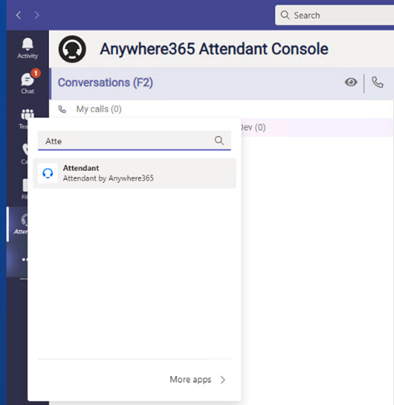
1. In Microsoft Teams, search for the **Attendant** app by AnywhereNow.
2. Open the app.
3. If you do not see the app, contact your Teams administrator.
4. To keep Attendant Console easy to access, right-click the app icon in the Teams left bar and select **Pin**.
5. If notifications are missed because the Attendant Console tab is not active, select **Pop out app** to open Attendant Console in a separate window.
Attendant app in Microsoft Teams.
## Open Attendant Console in a browser
Your environment may also provide Attendant Console through a regional web endpoint.
| Region | URL |
| ------ | ------------------------------------ |
| EMEA | `https://attendant1.anywhere365.io/` |
| AMER | `https://attendant2.anywhere365.io/` |
| APAC | `https://attendant3.anywhere365.io/` |
Configure the same queue and conversation preferences as you use in the Teams app.
## Select the queues to monitor
1. In Attendant Console, open **Preferences**.
2. Select **Queue**.
3. Select the queues you want to monitor.
4. Close **Preferences**.
Queue selection in Attendant Console preferences.
An operator can manage up to 10 queues in each Attendant Console by default. Environments can support up to 20 queues on demand. Calls appear in the section for the queue where they arrive.
## Select the caller ID for outbound calls
1. In Attendant Console, open **Preferences**.
2. Select **Conversation**.
3. Under **Caller ID for Outbound Calls**, select the queue that Attendant Console should use when you place outbound calls.
4. Close **Preferences**.
Caller ID selection for outbound calls.
If outbound PSTN calls fail after you select a caller ID, see [External PSTN dialing does not work](/attendant-console/troubleshooting-and-support-1/limitations-and-troubleshooting.md#external-pstn-dialing-does-not-work).
## Handle queue calls
When a queue call arrives, Attendant Console shows the call in the relevant queue section. Depending on the calling integration in your environment, you may also need to answer or activate audio in Microsoft Teams.
Attendant Console supports blind transfer and consultative transfer. In a consultative transfer, only the caller and the operator are connected before the operator completes or cancels the transfer.
{% hint style="info" %}
Desktop Integrator can improve the Teams call-handling experience in existing environments, but Azure Communication Services is the current and future call-handling path. If call handling behaves differently from these steps, ask your administrator which integration is enabled.
{% endhint %}
## End an orphaned call
If a call remains in **Conversations** after the call has ended:
1. Select the call.
2. Press **Delete**.
3. If the call cannot be ended normally, press **Ctrl**+**Delete**.
4. Confirm the action when prompted.
## Get support
For existing Attendant Console for Microsoft Teams support, contact your certified partner, existing AnywhereNow partner or professional services contact, or use the AnywhereNow support portal. If your source guidance directs you to the Attendant Console for Teams support mailbox, use `teams.attendant.support@anywhere.now`.
---
# Agent Instructions
This documentation is published with GitBook. GitBook is the documentation platform designed so that both humans and AI agents can read, navigate, and reason over technical content effectively. Learn more at gitbook.com.
## Querying This Documentation
If you need additional information that is not directly available in this page, you can query the documentation by asking a question.
Perform an HTTP GET request on the following URL with the `ask` and `goal` query parameters:
```
GET https://atlas.anywhere.now/attendant-console/use-1/get-started.md?ask=&goal=
```
`ask` is the immediate question: it should be specific, self-contained, and written in natural language.
`goal` is what the user is ultimately trying to achieve, the reason they need the answer. Sharing it helps GitBook give you a better, more relevant answer. A goal is most helpful when it describes the outcome the user wants rather than restating the question. For example, with `ask=how do I create an API token`, a goal like `automate deployments from our CI pipeline` lets GitBook tailor the answer to that use case.
The response will contain a direct answer to the question and relevant excerpts and sources from the documentation.
Use this mechanism when the answer is not explicitly present in the current page, you need clarification or additional context, or you want to retrieve related documentation sections.