> For the complete documentation index, see [llms.txt](https://atlas.anywhere.now/llms.txt). Markdown versions of documentation pages are available by appending `.md` to page URLs; this page is available as [Markdown](https://atlas.anywhere.now/attendant-console/set-up-and-administer-1/create-queues.md).
# Create Attendant Console for Microsoft Teams queues
Create and validate queues for existing Attendant Console for Microsoft Teams deployments.
{% hint style="warning" %}
Attendant Console for Microsoft Teams is existing-customer support documentation. Confirm the customer is an existing Attendant Console for Microsoft Teams customer before changing queue configuration.
{% endhint %}
Attendant Console queues are backed by Microsoft Teams resource accounts and the regional Attendant calling bot. Use the scripted setup path where possible, or the manual path when needed.
## Required permissions
Use Microsoft Entra ID and Microsoft Teams administrator accounts with the roles required to create resource accounts, assign licenses, assign phone numbers, and grant Microsoft Graph or Microsoft Teams PowerShell consent when requested.
## Prerequisites
* Tenant consent has been granted for the Attendant Console application and the correct regional calling bot.
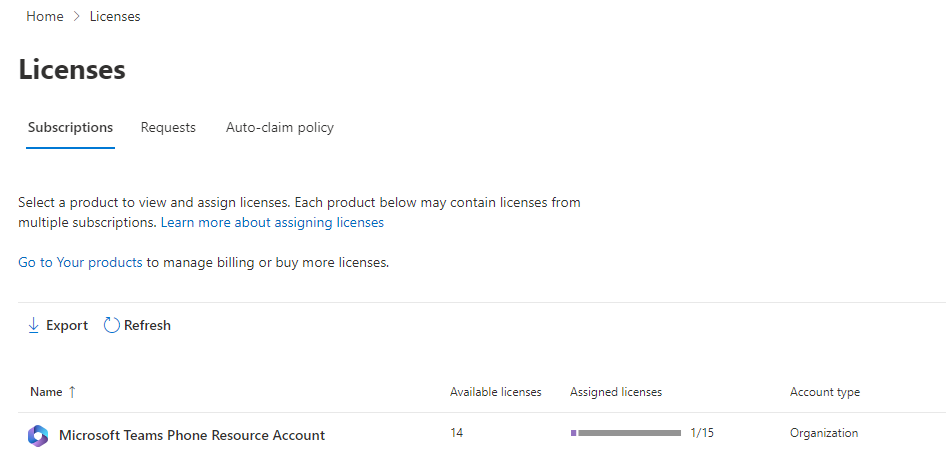
* One Microsoft Teams Phone Resource Account license is available per queue.
* For Microsoft Calling Plan or Operator Connect, one Microsoft call queue phone number is available per queue.
* The customer has selected the Attendant service region: EMEA, AMER, or APAC.
{% hint style="info" %}
The license region and queue region must match.
{% endhint %}
## Method 1: Scripted queue creation
Scripted queue creation is the preferred setup path. Allow approximately five minutes per queue.
1. Install the current Microsoft Graph PowerShell SDK.
2. Install the current Microsoft Teams PowerShell module.
3. Download the supplied Attendant Console calling bot script package for the customer deployment.
4. Run the script from an administrative PowerShell session.
5. When prompted, sign in to Microsoft Teams PowerShell with a role such as Global Administrator, Microsoft Teams Administrator, or Microsoft Teams Communications Administrator.
6. If Microsoft Graph consent is requested, sign in with a role such as Global Administrator or Privileged Role Administrator.
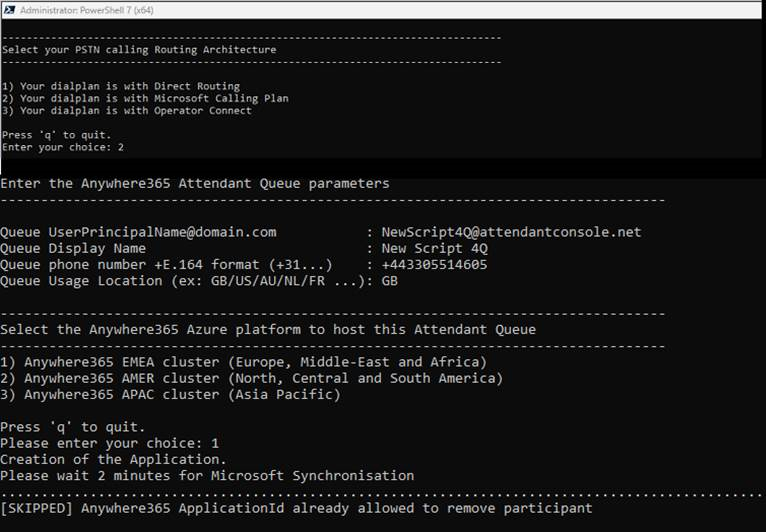
7. Select the calling architecture.
8. Enter the queue parameters.
9. Select the Attendant service region.
10. Review the script output and confirm that the queue resource account has been created and associated with the correct regional application.
Scripted calling bot setup flow.
## Queue parameters
| Parameter | Description |
| ------------------- | ---------------------------------------------------------------------------------------------------------------------------------------------------------------- |
| User principal name | User principal name for the queue resource account, for example `queue@contoso.com`. |
| Display name | Display name shown when the queue calls users in the tenant. |
| Queue phone number | Queue DID in E.164 format. For Direct Routing, use the assigned dial-plan number. For Microsoft Calling Plan or Operator Connect, use a call queue phone number. |
| Usage location | Two-letter country code for the resource account usage location. The usage location must match the phone number country. |
## Method 2: Manual queue creation
Use the manual path only when the scripted path is not available. Manual setup includes Microsoft Teams admin center steps and Microsoft Teams PowerShell operations that must be validated against the current Microsoft Teams PowerShell module before use.
### One-time tenant action
Add the regional Attendant application ID to the Microsoft Teams meeting application configuration so the application can add or remove participants from meetings.
| Region | Application ID |
| ------ | -------------------------------------- |
| EMEA | `01b9161a-881b-4ab0-8ee2-15e9141e95c6` |
| AMER | `23ab1d0b-1447-4f30-b374-5520bc715f98` |
| APAC | `9bbab3e5-d1ea-40de-be7d-0bf5697f4b5d` |
{% hint style="warning" %}
Validate the Microsoft Teams PowerShell commands against the installed module version before applying this configuration.
{% endhint %}
### Per-queue actions
Repeat these actions for each queue:
1. In the Microsoft Teams admin center, go to **Voice** > **Resource accounts**.
2. Create a resource account for the queue.
3. Assign a Microsoft Teams Phone Resource Account license to the resource account.
4. Assign the queue phone number to the resource account.
5. Set the resource account business phone value to the E.164 phone number in Microsoft Entra ID.
6. Move the resource account to the regional Attendant application ID.
7. Synchronize the application instance.
8. Verify the application instance and queue phone number.
Resource account license used for an Attendant Console queue.
## PSTN dial-out checks
### Operator Connect
Confirm with the operator that the routing profile has been assigned to the queue phone number.
### Microsoft Calling Plan
Assign the **Microsoft 365 Domestic and International Calling Plan** license to the resource account if outbound calling is required.
### Direct Routing
Confirm that the correct online voice routing policy is assigned to each user or resource account that must route outbound calls through Direct Routing.
{% content-ref url="/spaces/8itFXJdndqu1dclywEFc/pages/6N0t02WhfSKJdY6dwFcd" %}
[Prerequisites and Microsoft Teams calling](/connect-telephony/direct-routing/direct-routing-prerequisites-and-teams-calling.md)
{% endcontent-ref %}
## Auto attendant routing concept
When a Microsoft Teams Auto Attendant must route callers to an Attendant Console queue:
* Assign the public number to the Auto Attendant resource account when the Auto Attendant owns the published entry point.
* Route to the Attendant Console queue resource account. If third-party resources are not listed in the Microsoft Teams admin center UI, use validated Microsoft Teams PowerShell to route by the application endpoint or queue resource account object ID.
* Collect the Auto Attendant identity and the queue resource account object ID before making routing changes.
Validate any Microsoft Teams PowerShell commands against the installed module version before changing Auto Attendant routing.
---
# Agent Instructions
This documentation is published with GitBook. GitBook is the documentation platform designed so that both humans and AI agents can read, navigate, and reason over technical content effectively. Learn more at gitbook.com.
## Querying This Documentation
If you need additional information that is not directly available in this page, you can query the documentation by asking a question.
Perform an HTTP GET request on the following URL with the `ask` and `goal` query parameters:
```
GET https://atlas.anywhere.now/attendant-console/set-up-and-administer-1/create-queues.md?ask=&goal=
```
`ask` is the immediate question: it should be specific, self-contained, and written in natural language.
`goal` is what the user is ultimately trying to achieve, the reason they need the answer. Sharing it helps GitBook give you a better, more relevant answer. A goal is most helpful when it describes the outcome the user wants rather than restating the question. For example, with `ask=how do I create an API token`, a goal like `automate deployments from our CI pipeline` lets GitBook tailor the answer to that use case.
The response will contain a direct answer to the question and relevant excerpts and sources from the documentation.
Use this mechanism when the answer is not explicitly present in the current page, you need clarification or additional context, or you want to retrieve related documentation sections.