> For the complete documentation index, see [llms.txt](https://atlas.anywhere.now/llms.txt). Markdown versions of documentation pages are available by appending `.md` to page URLs; this page is available as [Markdown](https://atlas.anywhere.now/attendant-console/attendant-console-for-microsoft-teams/microsoft-teams.md).
# Attendant Console for Microsoft Teams technical reference
Product and technical reference for existing Attendant Console for Microsoft Teams customers.
{% hint style="warning" %}
**End-of-Sale and End-of-Renewal**: Attendant Console for Microsoft Teams is existing-customer support documentation. New-customer onboarding is no longer the forward-looking product path. Existing customers can continue to use the product and receive support. License renewal remains available until December 2026, and End-of-Renewal is scheduled for December 31, 2026.
{% endhint %}
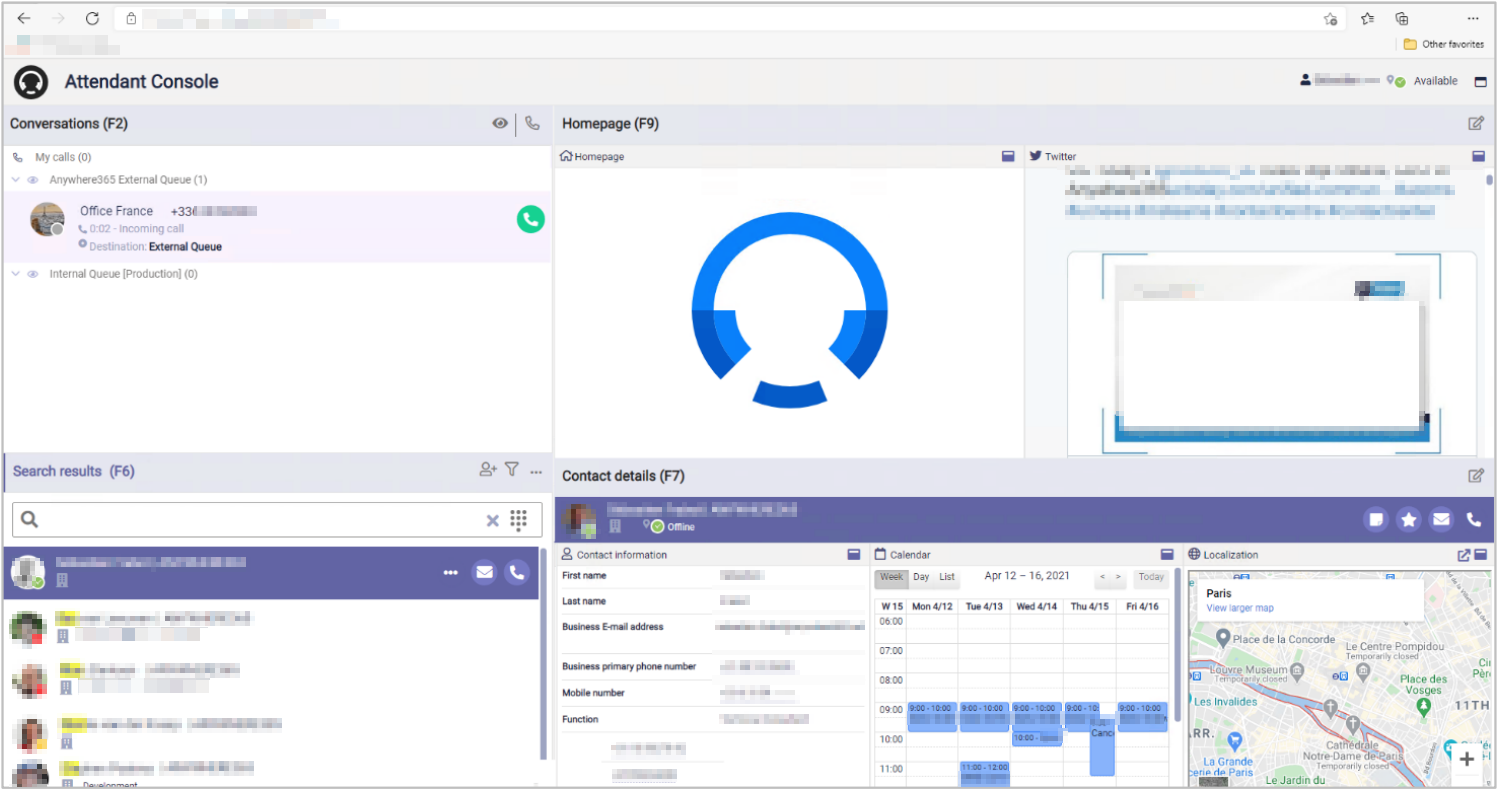
Attendant Console for Microsoft Teams is a web-based, cloud-hosted operator console that works with Microsoft Teams calling, Microsoft 365 presence, call routing, and calendar features.
Attendant Console for Microsoft Teams operator interface.
## Existing-customer support
Use the support route that matches the customer's commercial relationship:
* Certified partner customers: contact the certified partner for licensing, configuration, post-deployment, and technical support.
* Direct customers: contact the existing AnywhereNow partner, AnywhereNow Professional Services, or the support portal.
* Self-service existing deployments: use the support portal or email `teams.attendant.support@anywhere.now`.
Do not treat older demo, purchase, or AppSource wording as a new-customer acquisition path.
## Microsoft Phone System license enforcement
Microsoft announced Phone System license enforcement for bot-initiated transfers to Microsoft Teams users. After enforcement, users who receive transferred calls from Attendant Console for Microsoft Teams must have a Microsoft Teams Phone license and Enterprise Voice enabled.
Reference: [Enforcement of license checks for PSTN bot calls](https://devblogs.microsoft.com/microsoft365dev/enforcement-of-license-checks-for-pstn-bot-calls/).
## Administration tasks
{% content-ref url="/pages/ml4kfyoznFVbliQwCumB" %}
[Set up Attendant Console for Microsoft Teams](/attendant-console/set-up-and-administer-1/setup-and-consent.md)
{% endcontent-ref %}
{% content-ref url="/pages/RiQNBvWxOlHELx9EabR2" %}
[Create Attendant Console for Microsoft Teams queues](/attendant-console/set-up-and-administer-1/create-queues.md)
{% endcontent-ref %}
{% content-ref url="/pages/SrwJOja4mtQW3ZGj051H" %}
[Deploy as a Microsoft Teams app](/attendant-console/shared-components/deploy-teams-app-manifest.md)
{% endcontent-ref %}
## Use, troubleshoot, and operate
* [Use Attendant Console for Microsoft Teams](/attendant-console/use-1/get-started.md)
* [Troubleshoot Attendant Console for Microsoft Teams](/attendant-console/troubleshooting-and-support-1/limitations-and-troubleshooting.md)
* [Review compliance and support guidance](/attendant-console/compliance-and-reference/compliance-and-technical-reference.md)
## Technical reference
The technical operating boundaries below are the canonical product reference for this existing-customer track.
## Technical operating boundaries
### Supported PSTN architectures
Attendant Console for Microsoft Teams supports Microsoft Phone System with:
* Operator Connect
* Direct Routing using Microsoft-validated SBCs
* Microsoft Calling Plan in eligible countries
Hybrid configurations with on-premises Skype federation are not officially supported.
### Microsoft Teams desktop app requirement
Attendant Console for Microsoft Teams is supported in combination with the Microsoft Teams desktop client. The web version of Microsoft Teams has calling limitations and is not supported for this use.
The Attendant user must disable transfer to an alternate destination if unanswered in the Microsoft Teams client call settings.
Busy on Busy must be disabled in the calling policy assigned to the operator account to support consultative transfer.
### Microsoft Phone System, calling bot, and call flow
An Attendant Console queue is not a Microsoft Teams Call Queue. Microsoft Teams Call Queues are not exposed through the API and cannot be monitored or retrieved in the console.
Microsoft Graph API is used to interact with Microsoft Phone System. The bot enterprise application is connected with an Application ID that requires application consent with a global admin role. A resource account with a phone number is bound to the Attendant Console application ID, and the resulting Attendant Console queues are displayed in Attendant Console.
A queue call uses the same flow as a standard external call to a Microsoft Teams user. Audio does not stream through the SaaS platform because it performs call-control actions only.
### Connectivity
The connection between the SaaS platform and a customer tenant uses IP/port 443. Signalling for API calling and events uses a single WebSocket TCP connection. Media uses other HTTPS TCP 443 connections.
When a proxy is used, the URL is `attendant1.anywhere365.io`, `attendant2.anywhere365.io`, or `attendant3.anywhere365.io`, depending on the Azure region used for the Attendant service. Microsoft Entra ID sign-in does not allow being embedded in an iframe.
### Search and cache
The contact list displays contacts from Microsoft Entra ID together with personal contacts. Attendant Console caches Microsoft Entra ID contacts to support more advanced search.
Depending on the size of Microsoft Entra ID, populating the cache can take time. While the cache is being populated, search commands are forwarded directly to Microsoft Entra ID. The first search command might be slower and might return fewer results than later search commands.
The following Microsoft Entra ID fields are displayed in Contact Information:
* `FirstName`
* `LastName`
* `CompanyEmail`
* `CompPrimaryPhone`
* `CompAltPhone`
* `MobilePhone`
* `Organization`
* `Department`
* `Function`
* `Street of building`
* `Postal Code`
* `City of building`
* `State or Province`
* `Country`
* `Manager`
The Microsoft Entra ID field `CompleteName` is used only for search.
### Calendar and mail
Calendar access is based on delegated rights on behalf of the operator's own rights. Calendar access is permitted by the admin consent completed during initial configuration.
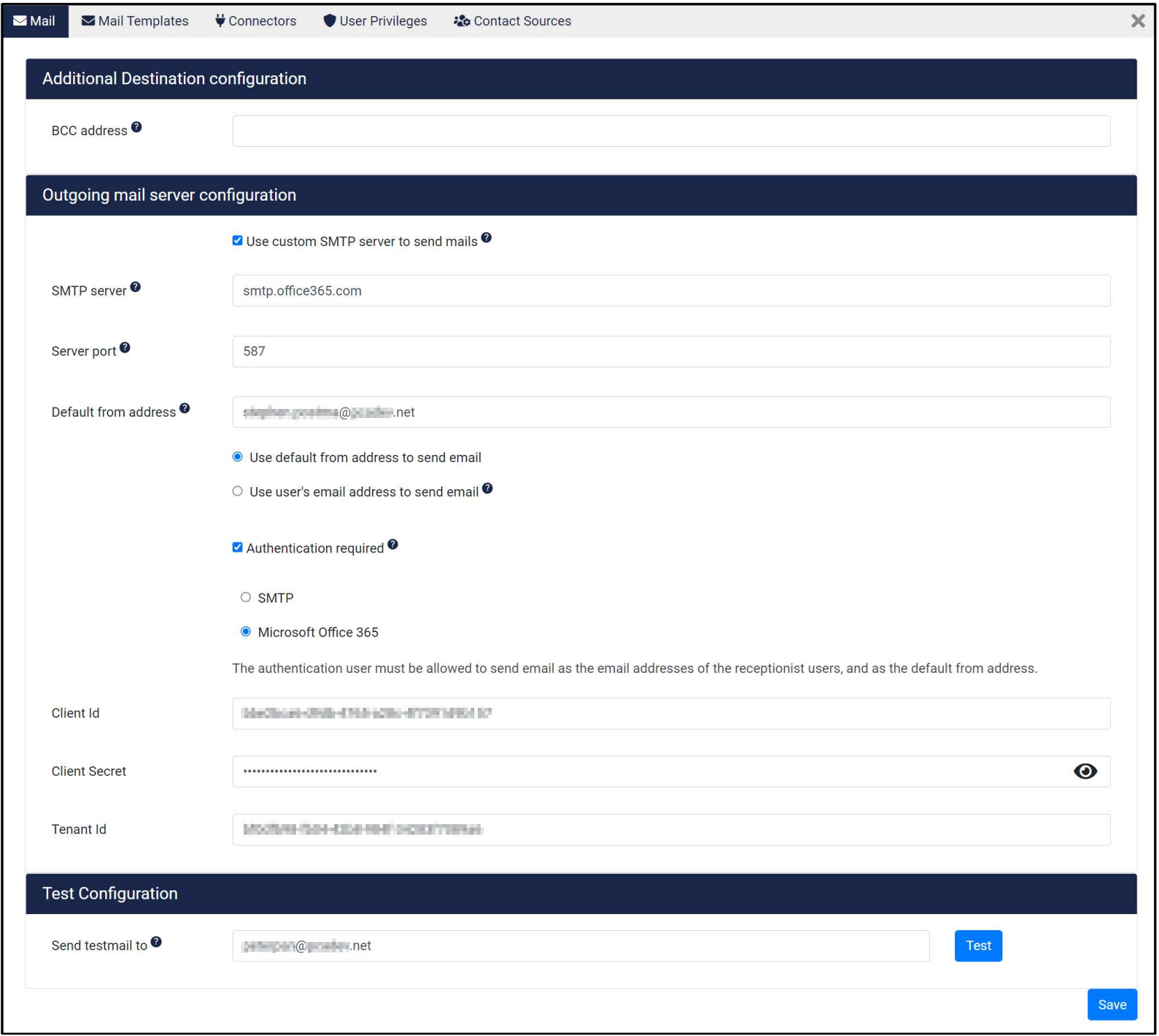
To send email from Attendant Console, configure the mail server parameters for SMTP or Microsoft 365 authentication.
Microsoft 365 mail authentication settings in the admin portal.
{% hint style="warning" %}
Microsoft has disabled SMTP AUTH as part of the deprecation of Basic Authentication for Exchange Online. This does not apply to Exchange Server.
{% endhint %}
To use the operator's own email address to send emails, **send as** permissions must be configured in Exchange.
## Release policy
The platform that hosts Attendant Console is operated and managed by AnywhereNow. Updates are deployed whenever new or improved functionality becomes available, using a continuous delivery model.
In most cases, updates are rolled out without disruption to the user. If an update can cause possible production disruption, the update is announced in advance.
When new functionality is added, the user manual is updated and a **What's New** pop-up appears at the next user sign-in.
---
# Agent Instructions
This documentation is published with GitBook. GitBook is the documentation platform designed so that both humans and AI agents can read, navigate, and reason over technical content effectively. Learn more at gitbook.com.
## Querying This Documentation
If you need additional information that is not directly available in this page, you can query the documentation by asking a question.
Perform an HTTP GET request on the following URL with the `ask` and `goal` query parameters:
```
GET https://atlas.anywhere.now/attendant-console/attendant-console-for-microsoft-teams/microsoft-teams.md?ask=&goal=
```
`ask` is the immediate question: it should be specific, self-contained, and written in natural language.
`goal` is what the user is ultimately trying to achieve, the reason they need the answer. Sharing it helps GitBook give you a better, more relevant answer. A goal is most helpful when it describes the outcome the user wants rather than restating the question. For example, with `ask=how do I create an API token`, a goal like `automate deployments from our CI pipeline` lets GitBook tailor the answer to that use case.
The response will contain a direct answer to the question and relevant excerpts and sources from the documentation.
Use this mechanism when the answer is not explicitly present in the current page, you need clarification or additional context, or you want to retrieve related documentation sections.